

Check your usage
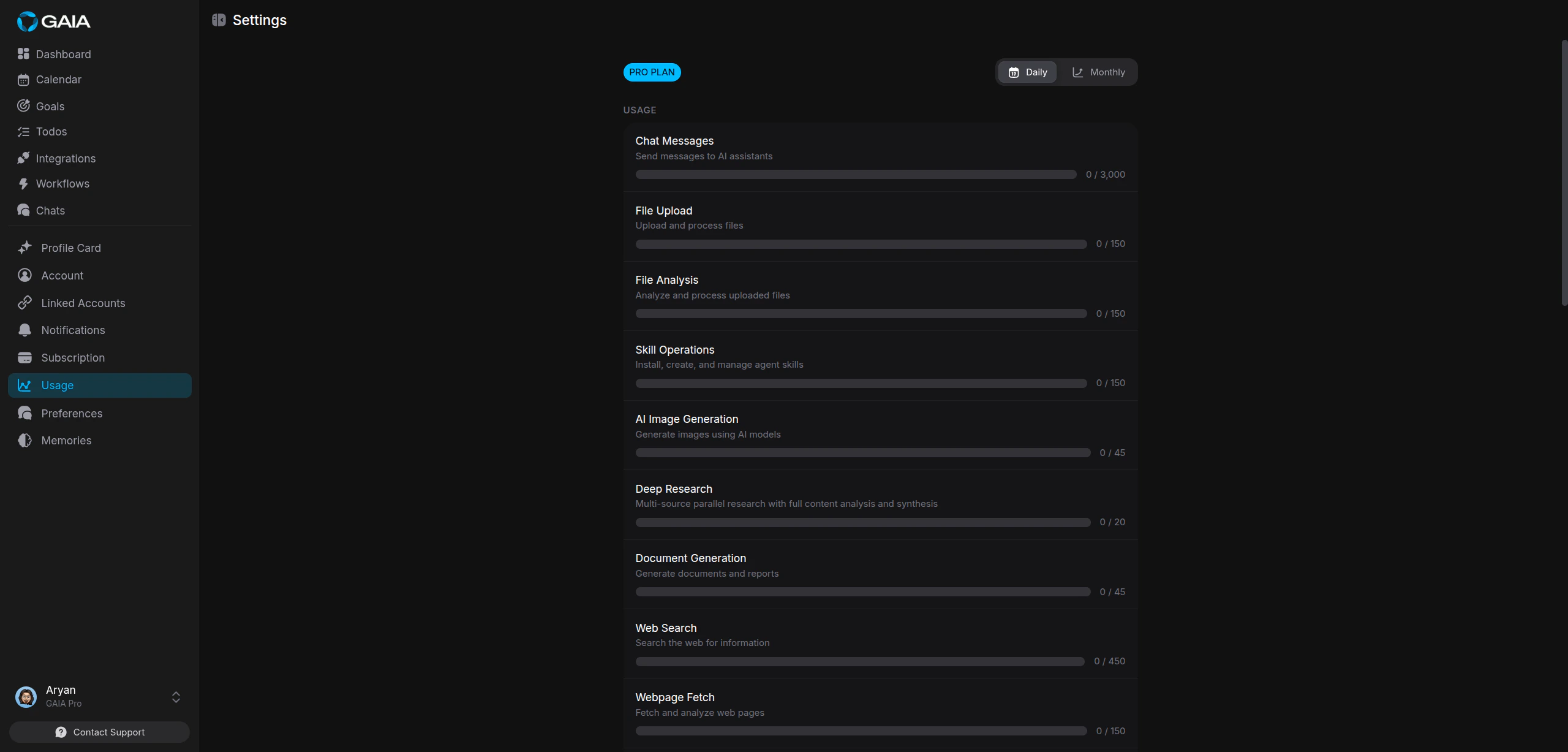
Every feature, chat messages, image generation, web search, workflows, and more, has daily and monthly limits tied to your plan. See them all in one place.1
Open Settings
Click your avatar in the bottom-left corner and select Settings, or go directly to Settings > Usage.
2
Pick a time period
Toggle between Daily and Monthly.
3
Read the progress bars
Each feature shows current usage against its limit. Green means plenty left, yellow means you’re getting close, red means you’re near or at the cap.
Plans and limits
Free
Costs nothing, never expires, and includes every feature:- 200 chat messages per day (5,000/month)
- 10 web searches per day (50/month)
- 5 workflow operations per day (20/month)
- 1 AI image generation per day (2/month)
- 2 deep research sessions per day (10/month)
- 50 todo operations per day (1,000/month)
Pro
Higher limits across every feature, plus priority support and access to private Discord channels:- 3,000 chat messages per day (60,000/month)
- 450 web searches per day (13,500/month)
- 45 workflow operations per day (1,350/month)
- 45 AI image generations per day (1,350/month)
- 20 deep research sessions per day (600/month)
- 1,500 todo operations per day (22,500/month)
GAIA tracks usage across 20+ operation types, chat, web search, workflows,
file analysis, code execution, calendar, reminders, notes, memory, and more.
Each counter resets on its own schedule, so hitting one limit doesn’t affect
anything else.
Upgrade to Pro
1
Open the pricing modal
Go to Settings > Subscription and click View plans, or Settings > Usage and click Upgrade Now.
2
Choose your billing cycle
Select Monthly or Yearly. The yearly option shows the per-month equivalent and total annual cost.
3
Complete payment
Click Get Started on the Pro card and enter your payment details on the secure checkout page. Discount codes apply at checkout.
4
Confirm your plan is active
Your plan updates right away. Check Settings > Subscription, the status should show Active. You’ll also get a welcome email.
Manage your subscription
Settings > Subscription shows your plan at a glance: plan name and status (Active, On Hold, Cancelled, or Expired), price and billing cycle, next billing date with a countdown, the date you subscribed, and what’s included.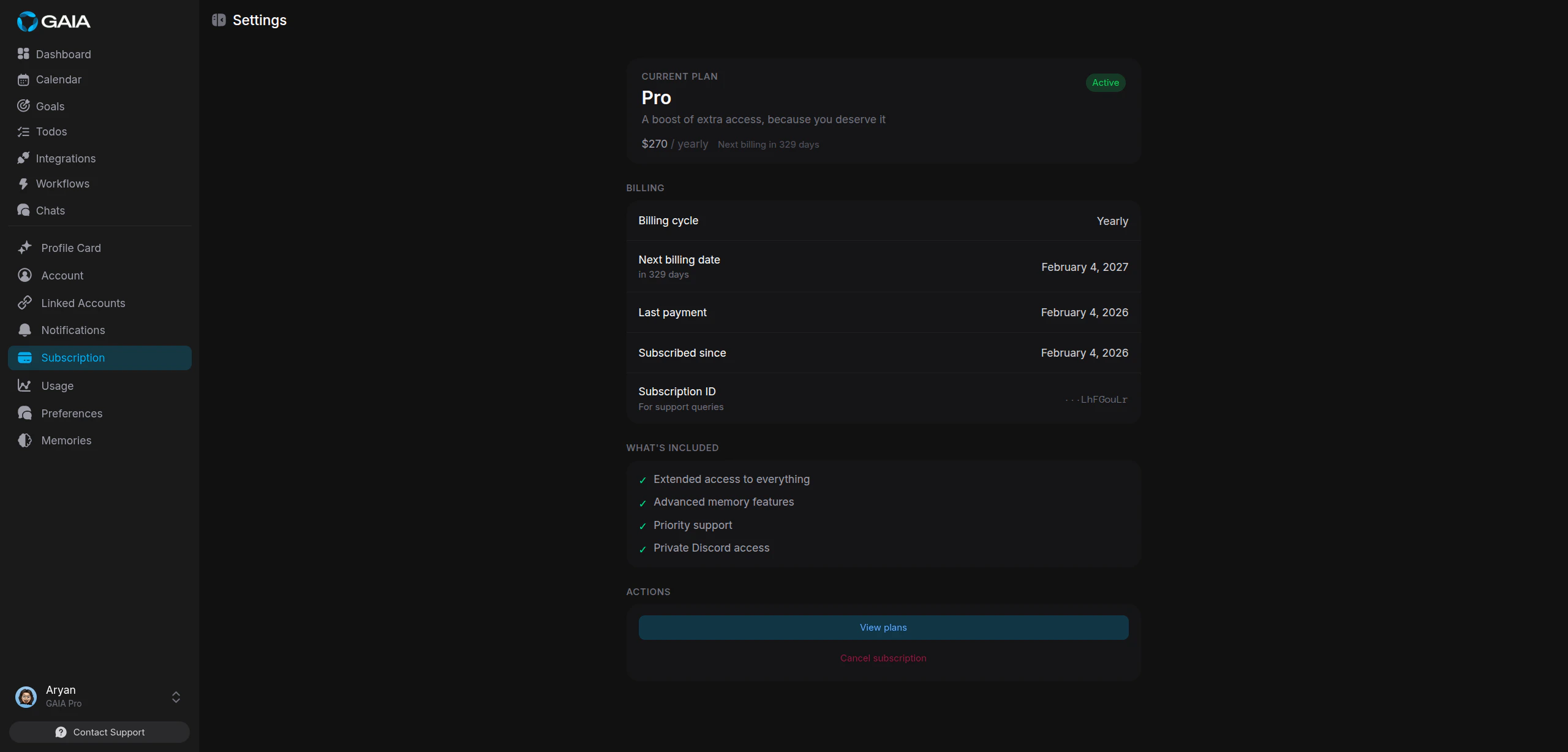
All payments go through Dodo Payments. GAIA never stores your credit card
details.
Cancel
To cancel, contact GAIA support, the cancellation option in Settings routes through the support team.When you hit a limit
GAIA tells you inline, right in the conversation, which limit you hit and when it resets. From there:- Wait for the reset. Daily limits clear at midnight UTC, monthly limits on the first of the month.
- Upgrade to Pro. Pro limits are high enough that most heavy users never run into them.