
Overview
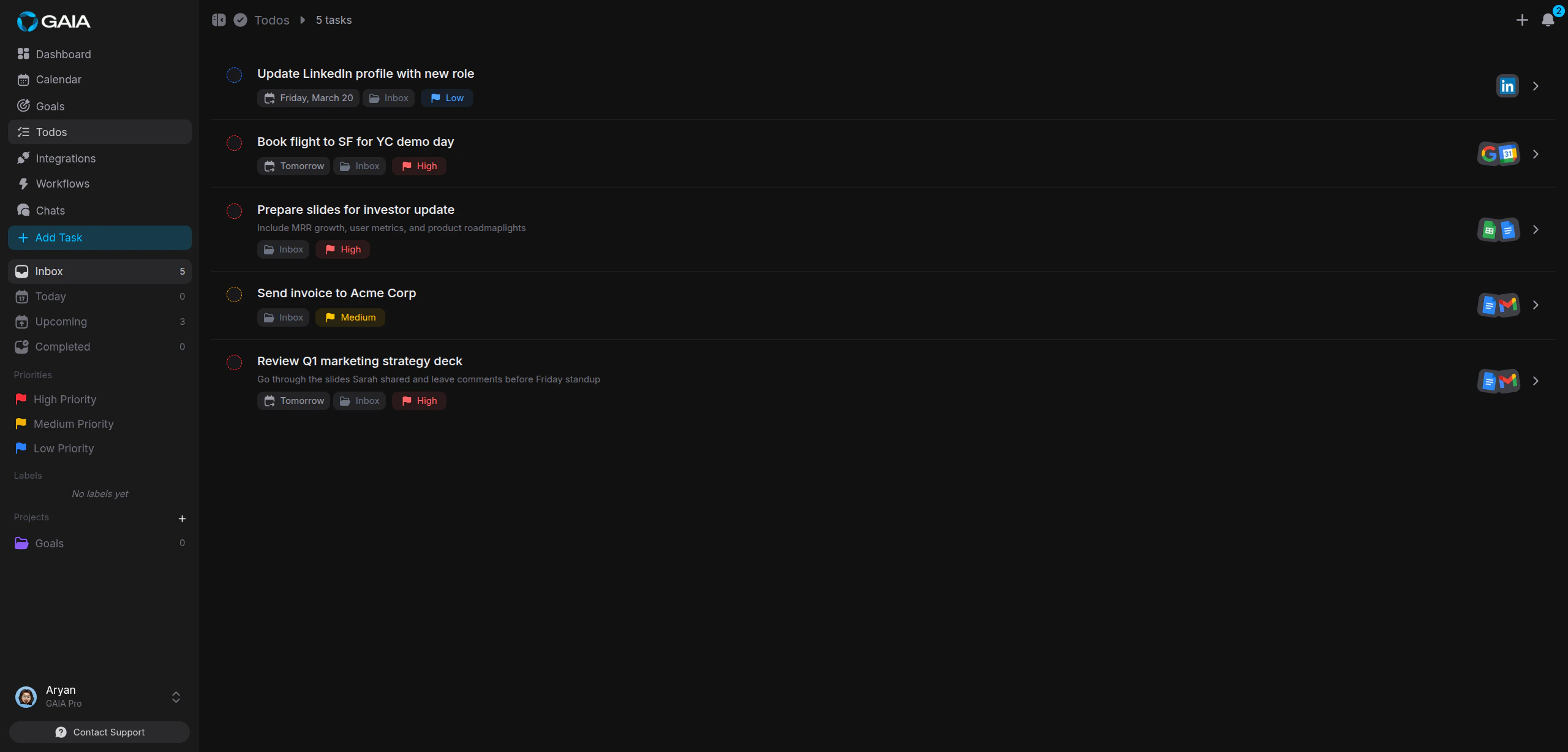
GAIA has a full task manager built in. You can create tasks by talking to GAIA in chat, or by filling out the task dialog yourself. Either way, tasks land on your Todos page where you can filter, sort, search, and track everything in one place.
Creating Tasks
You have two ways to create tasks: ask GAIA in chat, or use the Add Task dialog directly.Through Chat
Just tell GAIA what you need to do. It figures out the priority, due date, and labels from what you say. Example prompts:- “Add a task to review the Q3 report by Friday, high priority”
- “Create a todo to update the landing page copy, label it marketing”
- “I need to prepare slides for Monday’s presentation — add that to my Work project”
- “Remind me to cancel the free trial before it expires on March 20th”
Through the Add Task Dialog
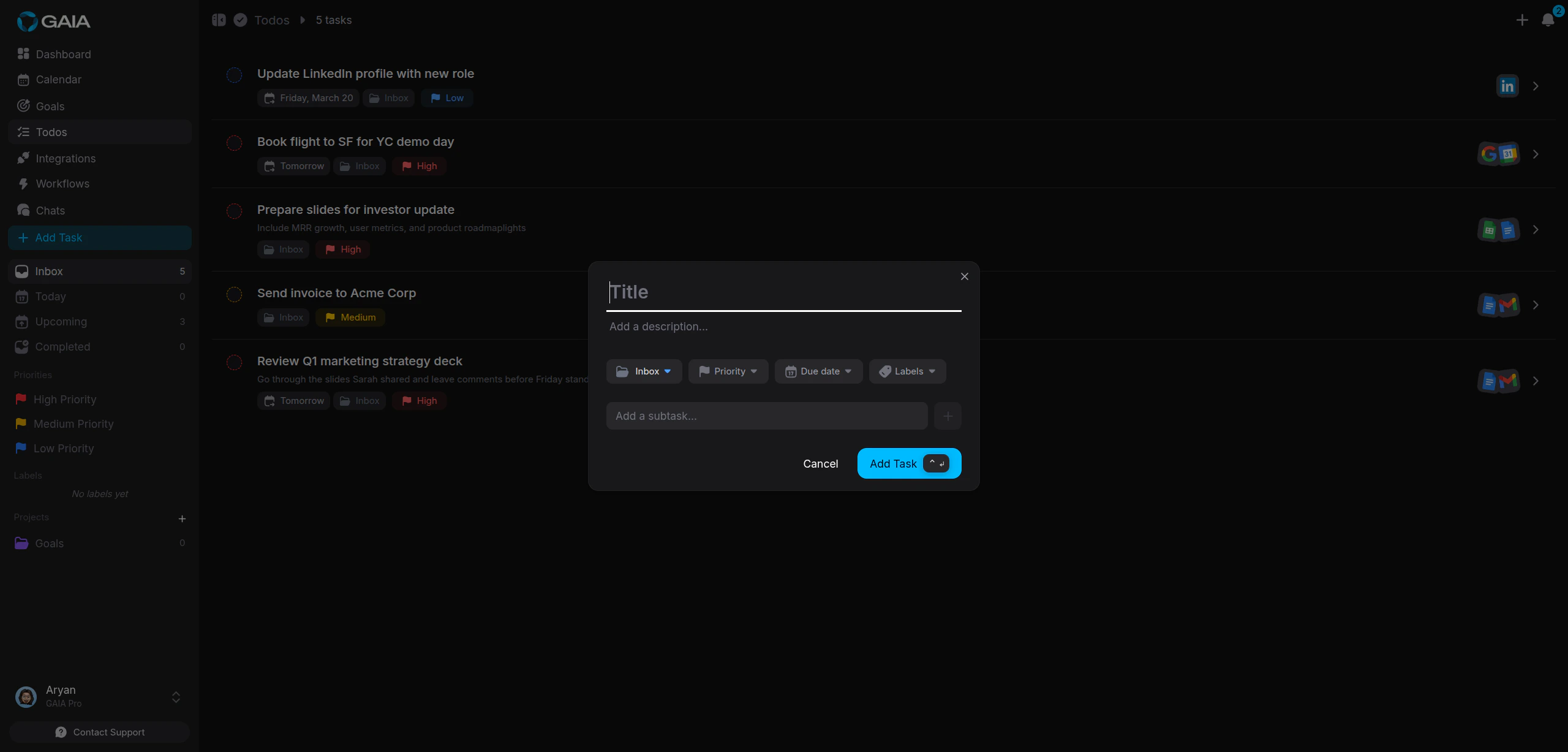
Click the Add Task button on the Todos page to open the task creation dialog. Here you can set every detail manually.
Enter a title
Write a clear, actionable title. Keep it specific — “Draft investor update
email” is better than “Email stuff.”
Set a priority
Choose High, Medium, or Low priority, or leave it unset.
Priority controls the sort order and the visual indicator on your task list.
Pick a due date
Set a deadline so GAIA knows what’s overdue, due today, or coming up this
week. Tasks without a due date go to your Inbox.
Assign to a project
Group related tasks under a project. Projects have custom colors and show
task counts so you can see progress at a glance.
Add labels
Tag tasks with labels like “marketing,” “bug,” or “personal” to filter and
find them quickly. You can add up to 20 labels per task.
Priority Levels
Every task has one of four priority levels:High
Urgent and important. These appear at the top of your list with a red
indicator. Use this for deadlines that cannot slip.
Medium
Important but not urgent. Shown with a yellow indicator. Good for tasks you
plan to tackle this week.
Low
Nice to do when you have time. Shown with a blue indicator. Queue these up
without pressure.
None
No priority set. These sort to the bottom and carry no visual indicator.
You can filter your task list by priority to focus on what matters most. GAIA
also uses priority when summarizing your workload or suggesting what to tackle
next.
Projects
Projects group related tasks together. Each project has a name, an optional color, and a running count of tasks inside it. To create a project, click the + icon in the project sidebar or ask GAIA: “Create a project called Product Launch with a purple color” Tasks not assigned to a project go to your Inbox — the default catch-all.Labels
Labels are flexible tags you attach to tasks. Unlike projects, labels work across boundaries. A task in your “Work” project can share a “design” label with a task in your “Side Project.” Use labels to:- Filter tasks by topic across all your projects
- Track categories like “bug,” “feature,” “research,” or “follow-up”
- Find related tasks quickly with search
Subtasks
Subtasks let you break a task into smaller, individually completable steps. Each subtask has its own title and completion status. When you add subtasks, your task list shows a progress indicator — for example, “2/5 subtasks” — so you can see how far along you are without opening the task.Suggested Workflows
This is where GAIA goes beyond a standard task manager. For any task, GAIA can generate a suggested workflow — a step-by-step action plan that it can help you execute. Each workflow step includes:- A numbered sequence
- A title and description
- A category (email, calendar, research, etc.) showing which tools GAIA will use
- Pull relevant emails from the past week
- Summarize key metrics from your project tracker
- Draft an agenda document
- Block 2 hours of focus time on your calendar
Suggested workflows are generated on demand. Open a task in the sidebar and
look for the Workflow section to generate one.
Managing and Completing Tasks
Filtering and Sorting
The Todos page gives you several ways to find what you need:- Filter by status — show active tasks, completed tasks, or both
- Filter by priority — focus on high-priority items only
- Filter by project — narrow down to a single project
- Filter by label — surface all tasks with a specific tag
- Filter by date — show tasks due today, this week, or overdue
- Search — find tasks by keyword or use semantic search to find related tasks by meaning
Completing Tasks
Click the checkbox next to any task to mark it complete. Completed tasks show a strikethrough and move to the bottom of your list. You can also complete tasks through chat: “Mark the Q3 report task as done”Bulk Operations
Select multiple tasks to act on them all at once:- Bulk complete — check off several tasks at once
- Bulk move — reassign tasks to a different project
- Bulk delete — remove tasks you no longer need
Chat Prompts to Try
- “What are my high priority tasks this week?”
- “Show me all overdue tasks”
- “Add ‘Review contract draft’ to my Work project with high priority, due Thursday”
- “How many tasks do I have left in the Product Launch project?”
- “Complete all tasks labeled ‘done-review’”
- “Move my marketing tasks to the Q2 Campaign project”