

Overview

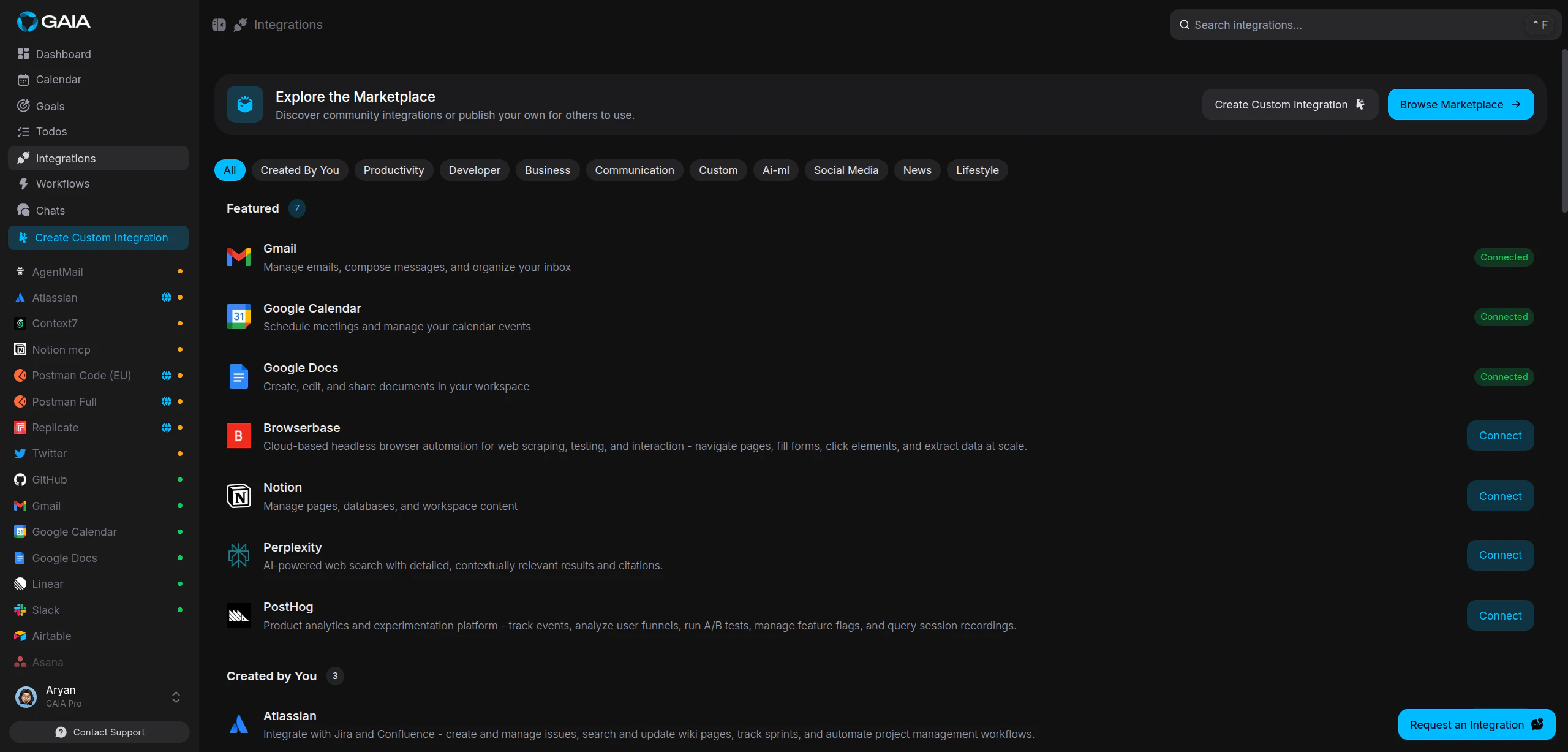
The Model Context Protocol (MCP) is an open standard that lets AI assistants talk to external tools and data sources. GAIA supports it natively — connect any compatible MCP server and its tools become available in chat right away. When you connect a server, GAIA indexes all its tools. Then, when you ask GAIA to do something, it searches those tools and picks the right one automatically. You don’t have to think about which integration to use — just ask. Integrations page showing custom MCP integrations in the sidebar

Authentication Types

MCP servers use one of three authentication methods. GAIA detects the right one automatically when you connect.

No Auth

The server is publicly accessible. Provide the URL and you’re connected.

Bearer Token

The server requires an API key. Provide your key alongside the URL and GAIA sends it with every request.

OAuth 2.1

The server uses OAuth. GAIA handles the full flow — PKCE, token refresh, and dynamic client registration — so you don’t have to.

Connect an MCP Server

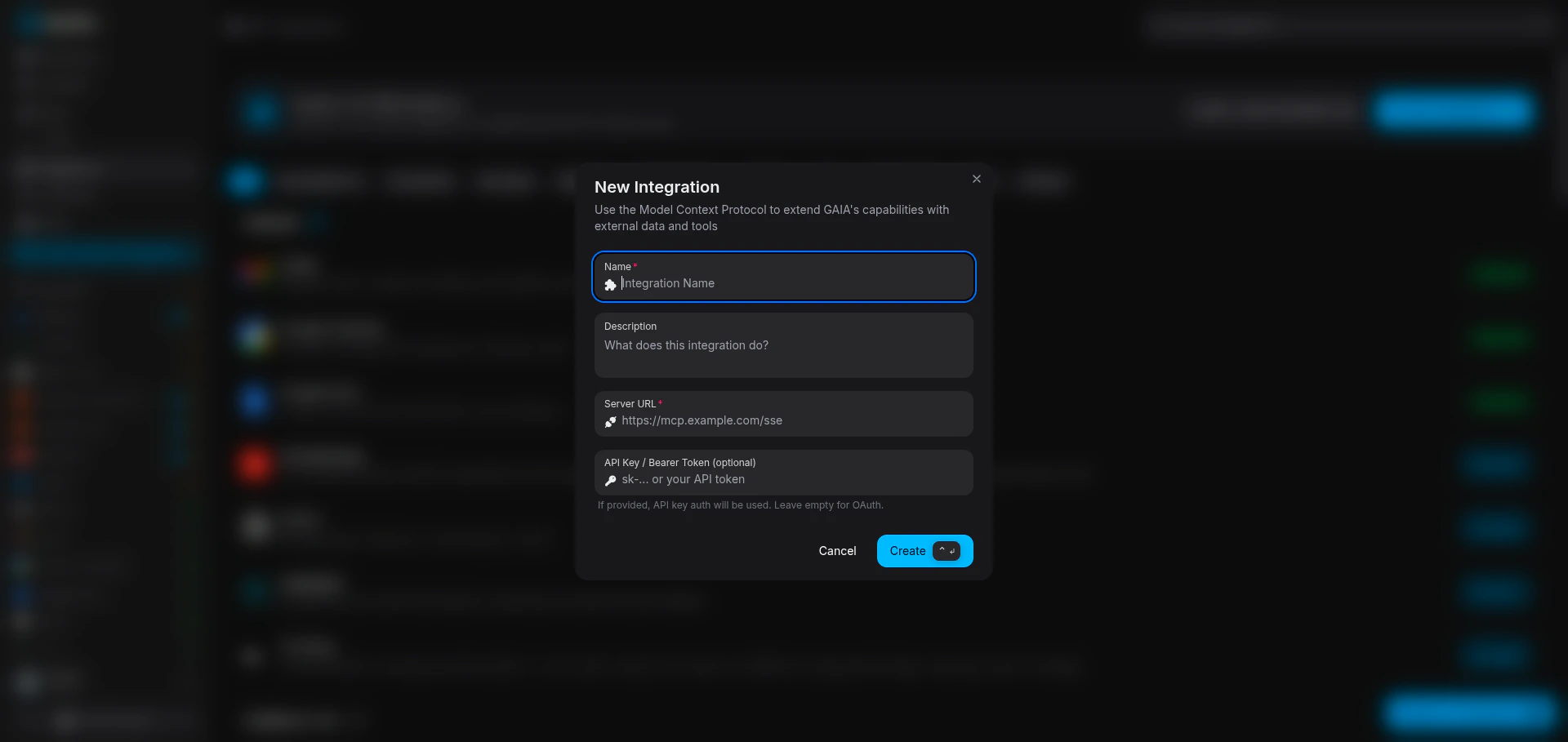
Go to the Integrations page and click New Integration in the Custom section of the sidebar. New Integration modal with form fields for name, description, server URL, and API key
1

Fill in the form

The modal has four fields:
FieldRequiredDescription
NameYesA display name for the integration (e.g. “Notion MCP”)
DescriptionNoA short description of what the integration does
Server URLYesThe MCP server endpoint. Must start with http:// or https://
API Key / Bearer TokenNoIf the server requires a static API key, enter it here. Leave empty for OAuth or no-auth servers
2

Click Create

GAIA probes the server to determine its authentication requirements and connects automatically.
3

Authorize (OAuth only)

If the server uses OAuth, you’ll be redirected to the provider’s authorization page. Grant access and you’ll land back in GAIA with the connection established.

No Auth

Provide the Name and Server URL, then click Create. GAIA connects immediately and imports all available tools.

Bearer Token

Provide the Name, Server URL, and your API Key / Bearer Token, then click Create. GAIA sends the token as a Bearer header on every request to the server.

OAuth 2.1

Provide the Name and Server URL, then click Create. Leave the API Key field empty. GAIA will:
  1. Probe the server and discover its OAuth configuration
  2. Redirect you to the authorization page
  3. Handle the token exchange, PKCE verification, and client registration
  4. Connect and import tools once authorization is complete
You don’t need to know which auth type a server uses before connecting. Just provide the URL and GAIA figures out the rest.

What Happens After Connecting

Once connected, GAIA indexes every tool the MCP server exposes into its vector store. When you send a message in chat, GAIA searches across all your integrations and calls the right tool as needed. You’ll see a confirmation with the number of tools imported — for example: “Connected to Notion MCP with 12 tools!”
If a connection fails, the integration is still saved. You can retry from the Integrations page at any time.

Publishing to the Marketplace

Built or configured an MCP server that others would find useful? You can publish it to the GAIA community marketplace. Published integrations appear in the public directory and any GAIA user can install them with a single click.
Test your integration thoroughly before publishing. Make sure all tools work reliably and the server is stable.
Here are some widely-used MCP servers worth connecting:

Notion

Read and write Notion pages, databases, and blocks directly from chat.

Postman

Run API collections and manage your Postman workspace.

Context7

Pull up-to-date documentation for any library directly into your conversation.

GitHub

Manage repositories, issues, pull requests, and code search.
Any server that implements the MCP specification works with GAIA. Browse the MCP server directory for the full list.