
Why Connect Integrations?

The more apps you connect, the less you have to explain. When you link an integration, two things happen:
  1. GAIA gets context. It can read your emails, calendar events, tasks, and messages — so it already knows what you’re working on.
  2. GAIA can take action. It can draft replies, create issues, schedule meetings, and update tasks directly in the apps you use.
No more switching tabs to copy information from one tool into another. Just tell GAIA what you need.

Connect an Integration

1

Open the Integrations page

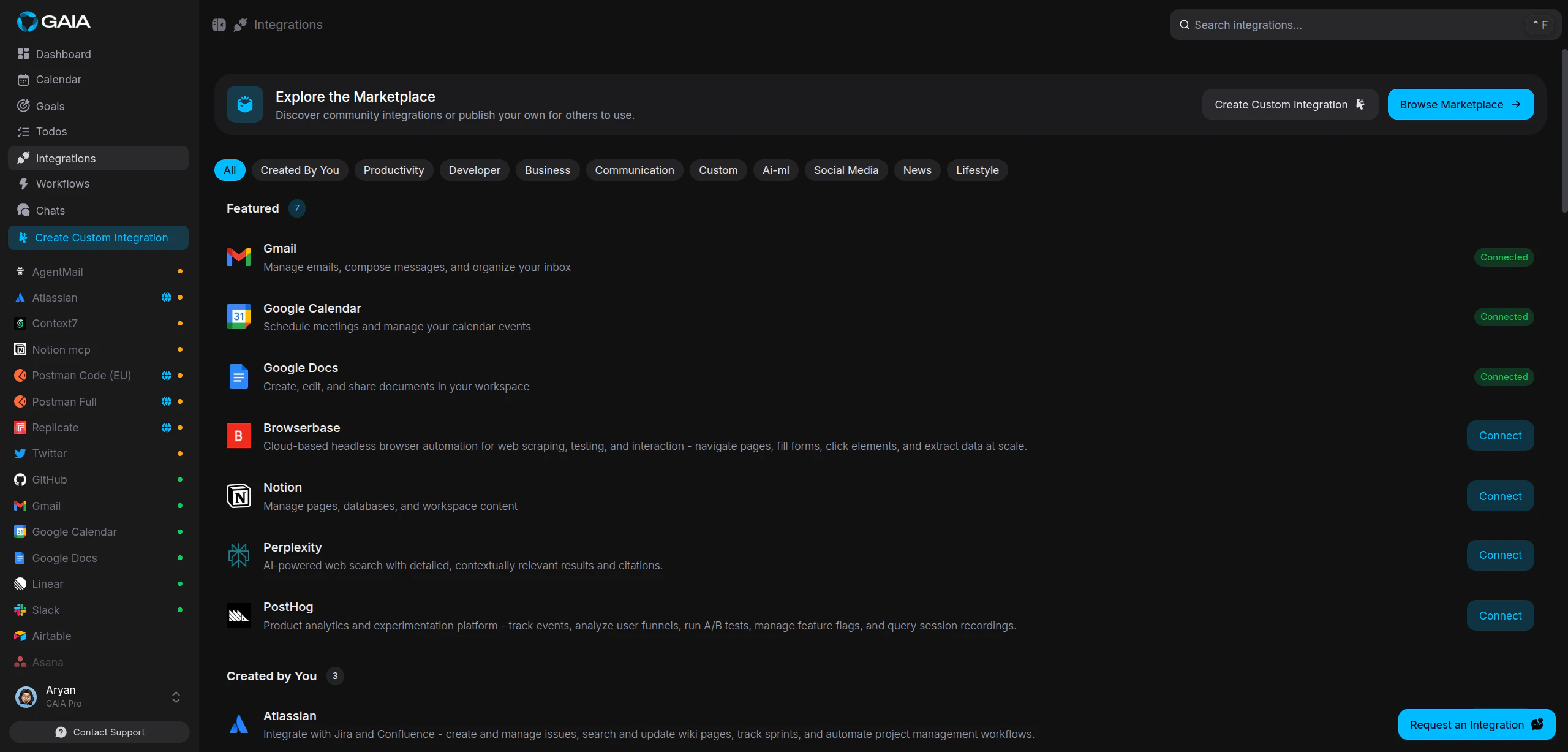
Go to Settings > Integrations in the sidebar. You’ll see all available integrations organized by category, with their connection status shown on each card.Integrations page showing available apps
2

Find the app you want

Browse by category or search for a specific app. Each card shows the app name, a short description, and whether it’s already connected.
3

Click Connect

Click Connect on the integration you want. Most integrations open the app’s authorization page in your browser.
4

Authorize access

Sign in to the app if needed, then review the permissions GAIA is requesting. Click Allow or Authorize. You’ll land back in GAIA automatically.
5

Confirm the connection

A green dot on the integration card means it’s connected. GAIA now has access to that app and will use it when it’s relevant to your request.
You can also connect integrations from the chat sidebar. Expand the Integrations section to see what’s connected and add new ones without leaving the conversation.

What Happens After Connecting

Connected integrations are available in chat immediately. No extra setup needed. After connecting Gmail, for example, you can say:
  • “Draft a reply to the last email from Sarah”
  • “Send a summary of today’s meetings to the team”
  • “Find all unread emails from this week about the Q3 report”
GAIA picks the right tool based on what you ask. The more integrations you connect, the more it can do without you ever leaving the conversation.

Available Integrations

GAIA supports 60+ integrations across four categories:

Communication

Gmail, Slack, Microsoft Teams, Google Meet — read and send messages, summarize threads, schedule meetings.

Productivity & Tasks

Google Calendar, Google Tasks, Notion, Todoist, Asana, Trello, ClickUp, Google Docs, Google Sheets — manage your schedule, tasks, and documents.

Developer Tools

GitHub, Linear — create issues, review pull requests, track project progress.

Social & Business

Twitter, LinkedIn, Reddit, Instagram, HubSpot, Airtable — post content, manage contacts, update records.
The full list is always visible under Settings > Integrations. New integrations are added regularly.

Managing Your Connections

Disconnect an integration

Open the integration’s detail view and click Disconnect. GAIA loses access to that app immediately. No data from the connection is kept.

Reconnect after token expiry

Some integrations use access tokens that expire after a set period. If a connection stops working, go to the Integrations page and click Connect again. You’ll go through the same authorization flow and the connection will be restored.
If an integration shows an error status, try disconnecting and reconnecting. This fixes most problems caused by expired or revoked tokens.

Community Marketplace

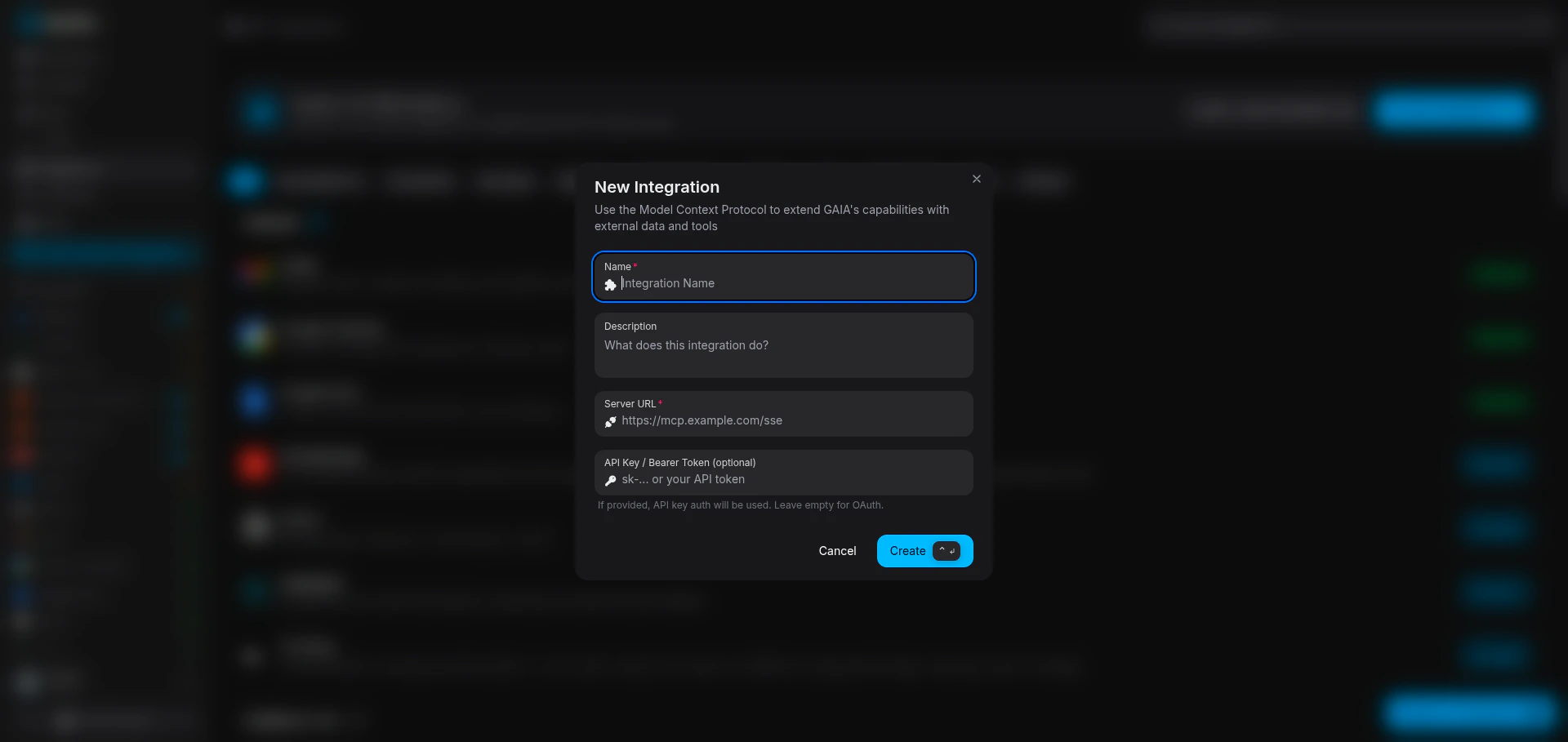
Don’t see the integration you need? Check the community marketplace — someone may have already built it. Custom integration modal for adding MCP integrations You can also build your own integrations using the MCP protocol and publish them to the marketplace for others to use.

Browse the Marketplace

Find community-built integrations for niche tools and workflows.

Build a Custom Integration

Connect any tool using the MCP protocol and the developer API.
Search the marketplace before building your own — someone may have already done the work.