
Overview
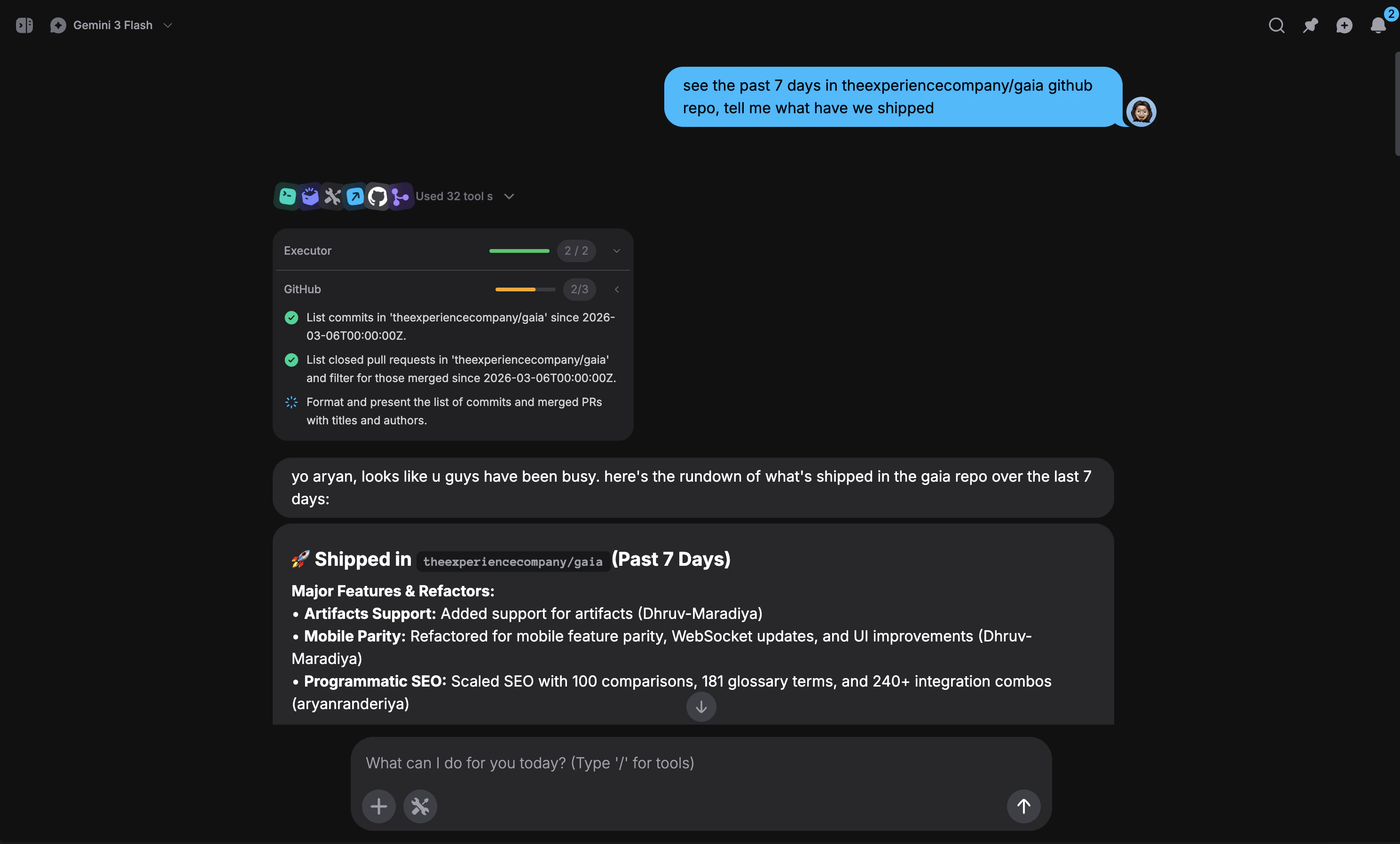
GAIA is not a chatbot. When you send a message, GAIA takes real action across your connected apps, checking your calendar, drafting emails, creating tasks, searching the web, and more. The better you ask, the better it delivers.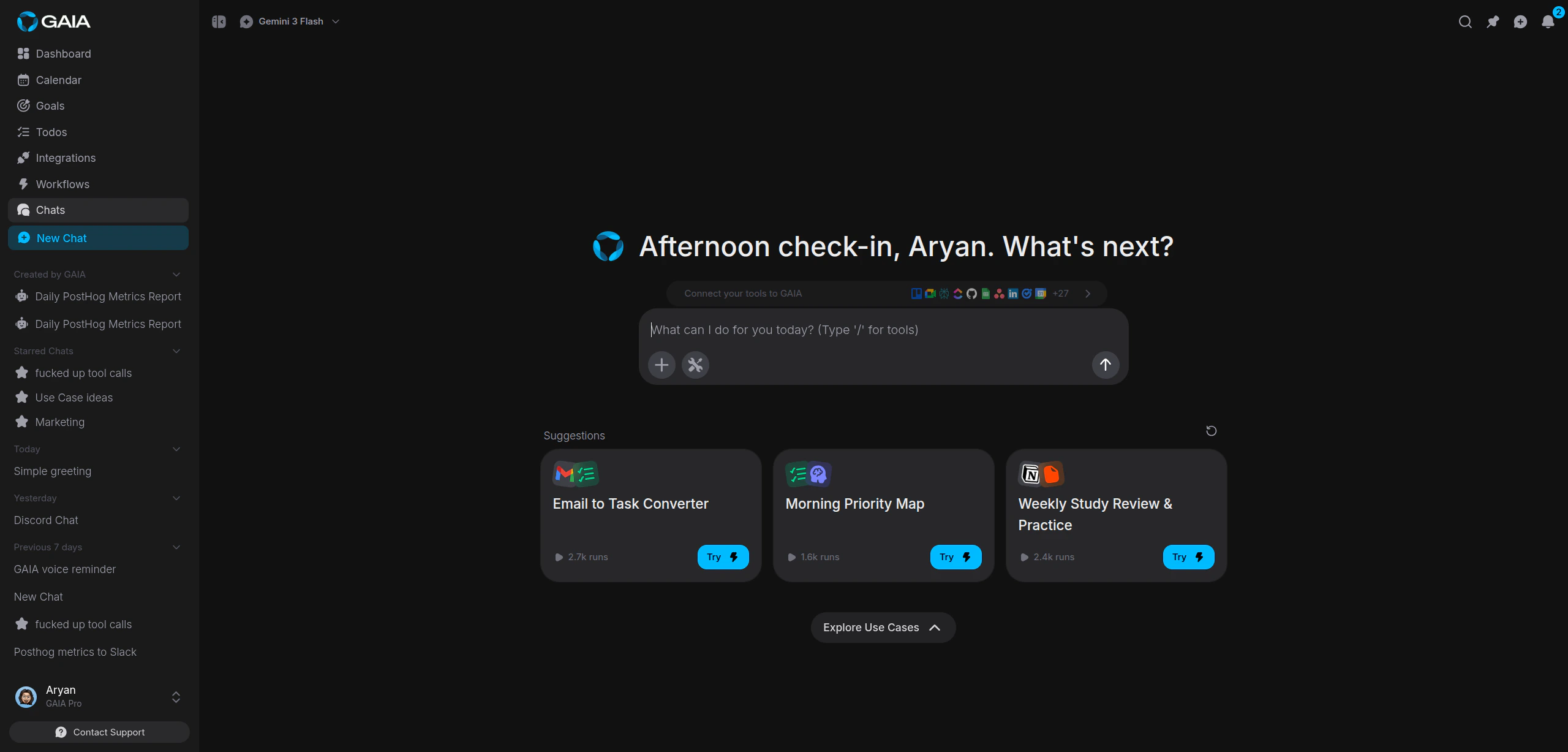
Types of Requests
GAIA handles four broad categories of requests. Knowing which one you’re making helps you phrase things clearly.Questions
Ask GAIA about your data across any connected integration.- “What meetings do I have today?”
- “What’s in my inbox?”
- “Who was the last person to message me on Slack?”
Actions
Tell GAIA to do something specific in one of your apps.- “Draft a reply to Sarah’s email”
- “Create a task to review the PR by Friday”
- “Send a Slack message to #team-eng saying the deploy is done”
Multi-Step Tasks
Chain multiple actions together in one request. GAIA breaks them down and runs them in sequence.- “Check my calendar, find a free slot tomorrow afternoon, and schedule a 30-minute meeting with Alex”
- “Look at my unread emails, summarize the important ones, and create todos for anything that needs a response”
Research
Ask GAIA to search the web and pull together what it finds.- “Search Hacker News for articles about AI agents”
- “Find the latest pricing for Notion’s team plan”
Be Specific
Specificity is the biggest difference between a good result and a follow-up question. Compare:
When you include details like channel names, contact names, dates, and priority levels, GAIA acts immediately instead of asking follow-up questions.
Follow-Up Actions
After each response, GAIA shows follow-up actions as clickable buttons below the message. These are based on what just happened, if GAIA summarized your emails, it might suggest “Reply to the most urgent one” or “Create tasks from these emails.” Click any suggestion to load it into your message input. Send it as-is or edit it first.Follow-up suggestions change with every response because they’re based on the
current conversation context.
Memory Across Conversations
GAIA remembers important context from past conversations. Things like:- Contact details and name-to-ID mappings (e.g., “Sarah” maps to sarah@company.com)
- Your preferences for formatting, communication style, and tool usage
- Workflows and procedures that have worked before
Pinning Messages
Found a response you want to come back to? Pin it. Hover over any message and click the pin icon. Pinned messages stay highlighted in your conversation so you can scroll back to them quickly.Workflow Suggestions
If you find yourself sending the same request regularly, ask GAIA to turn it into a reusable workflow.- “Turn this into a daily workflow”
- “Save this as a workflow I can run every Monday morning”
The Chat Interface
A few things worth knowing about how the interface works:- Conversation history: The sidebar shows your recent conversations. Click any conversation to pick up where you left off.
- Suggestion cards: When you start a new conversation, GAIA shows featured workflow suggestions from the community. Click “Try” on any card to run it instantly, or shuffle for new ideas.
- File attachments: Drag and drop files into the chat or use the attachment button in the composer to share documents and images with GAIA.