

What to say
A workflow is just a prompt that runs on a trigger. Write it the way you’d write any message, be specific about what to look at, what to do, and where the output goes: A few more prompts that make great workflows:- “Check my unread emails, extract any action items, and create a todo for each one.”
- “Look at all merged PRs and commits from the past week across our repos. Summarize them into standup notes grouped by project.”
Pick a trigger
Every workflow needs a trigger, the condition that tells GAIA when to run.Schedule
Run on a recurring schedule. Every day at 9am, every Monday morning, the 1st
of each month, you set the cadence.
Trigger
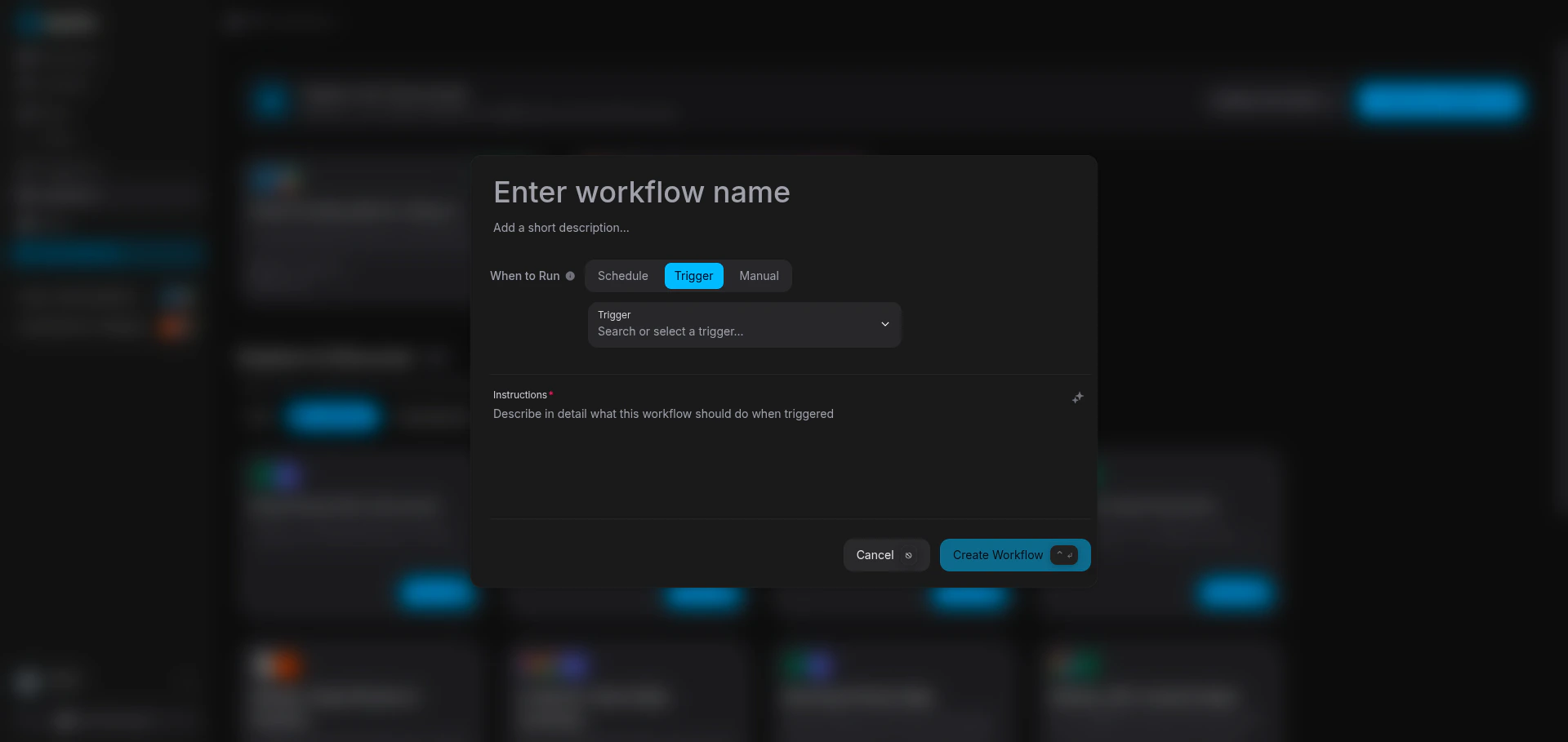
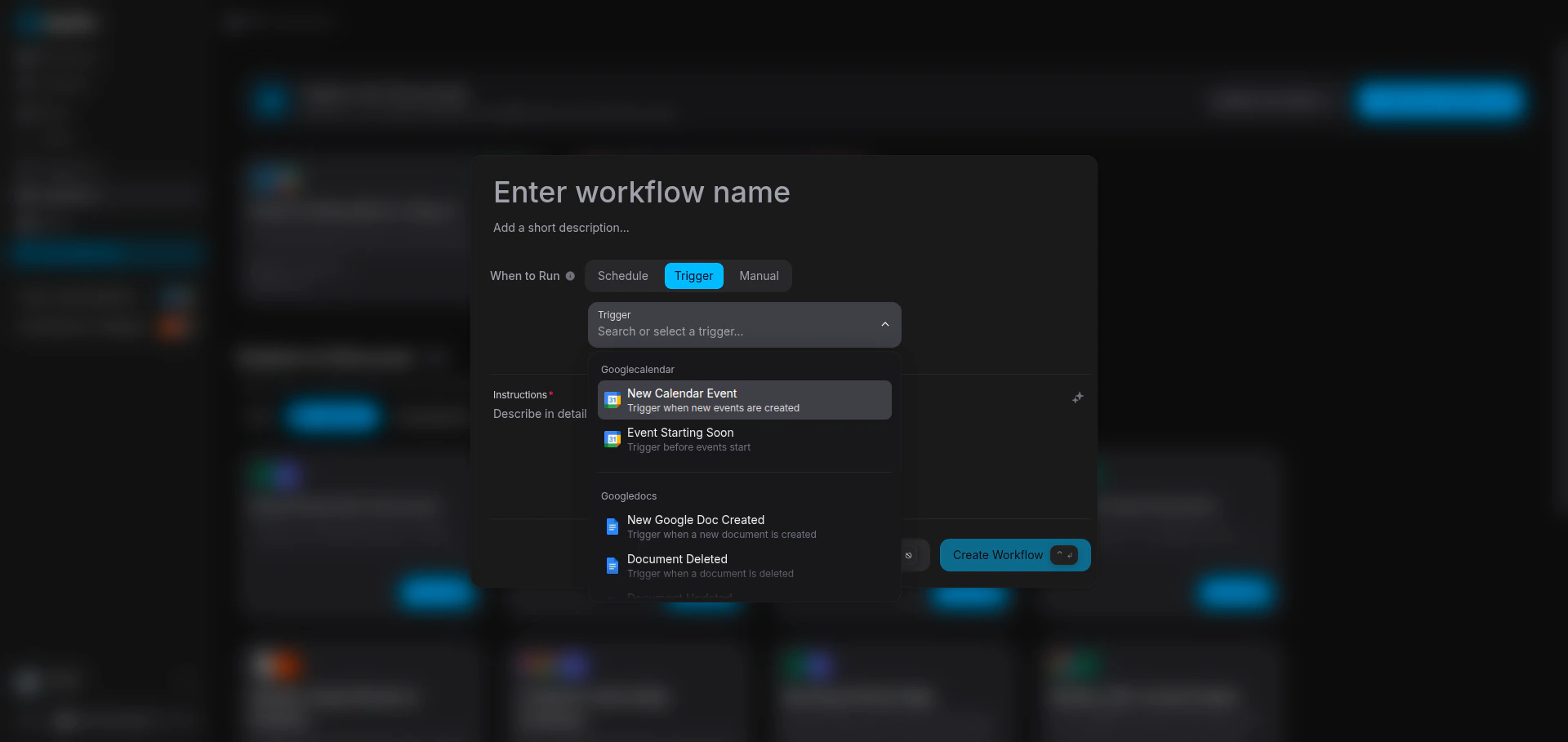
Run when something happens in a connected app. A new calendar event, an
incoming email, a GitHub pull request, a Slack message, GAIA watches and
reacts.
Manual
Run on-demand whenever you click Run. For workflows you want to control
yourself.
Create it
1
Open the Workflows page
Go to Workflows in the sidebar and click Create Workflow.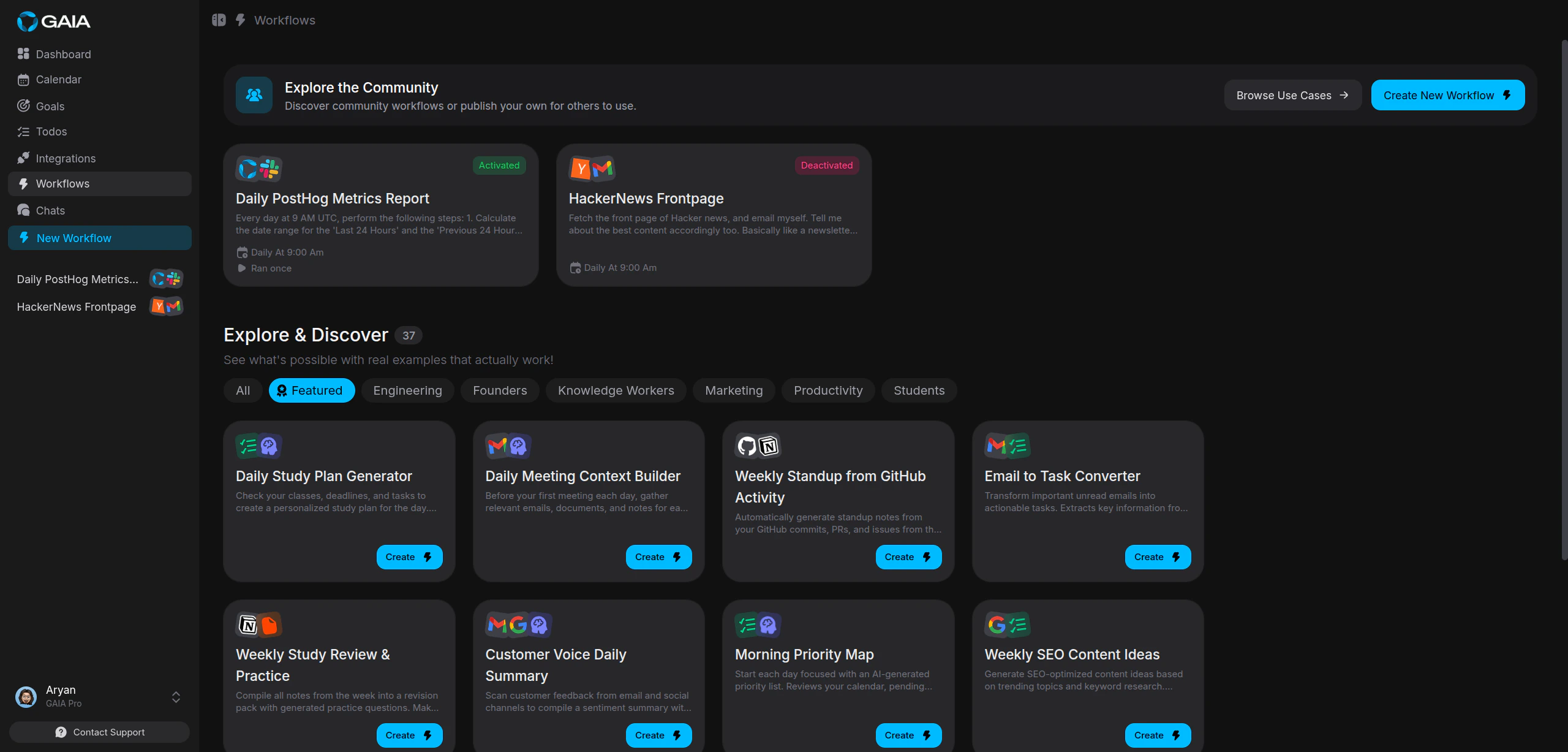
2
Name it and pick a trigger
Give it a title that makes it obvious what it does, then pick one of the three tabs: Schedule, Trigger, or Manual.Schedule defaults to daily at 9:00 AM in your local timezone, choose daily, weekly, or monthly and GAIA handles the cron expression for you.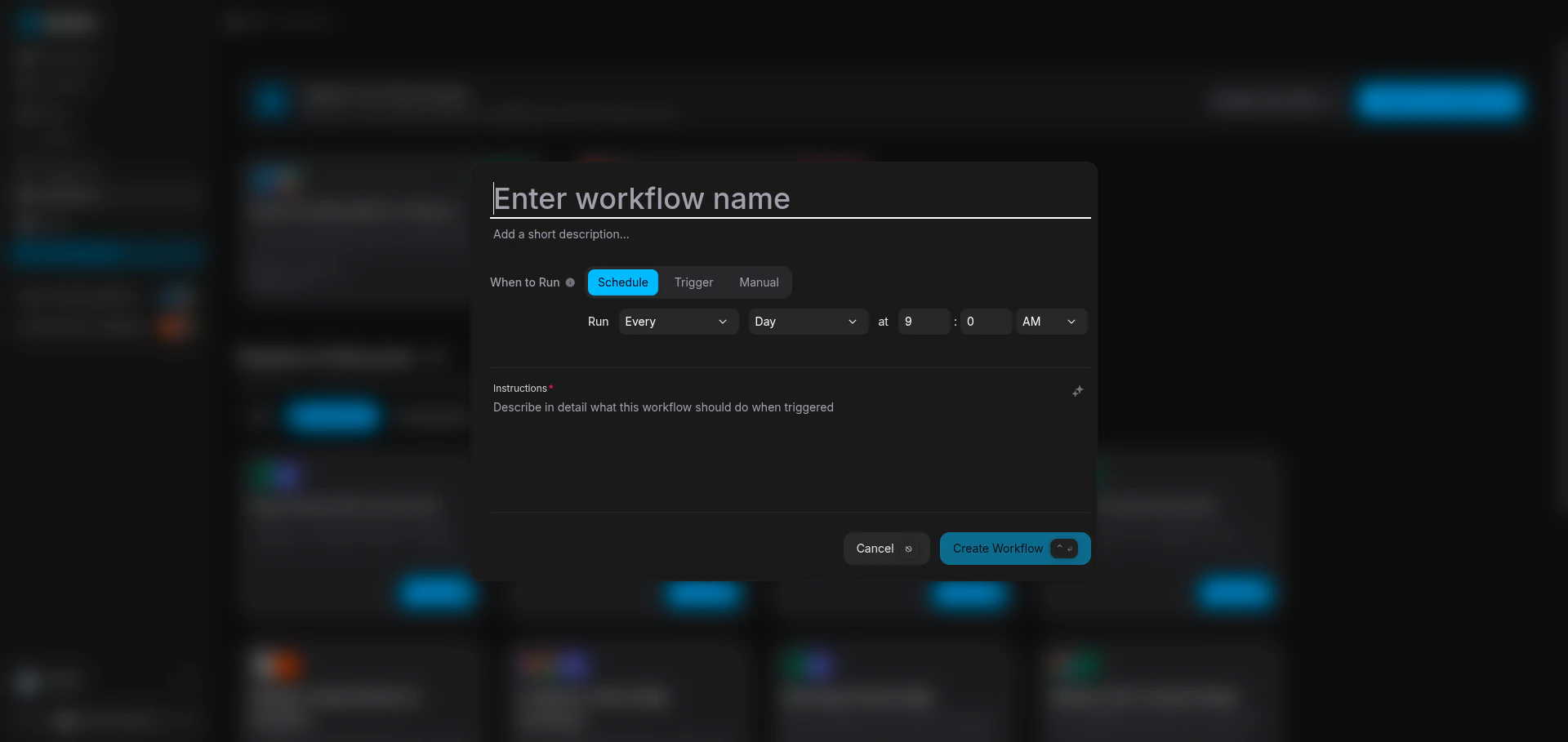
3
Write your instructions and create
Describe what you want in the prompt field, then click Create Workflow. GAIA generates the execution steps from your instructions and activates the workflow right away.
Examples
Pause and resume
Each workflow has an activation toggle in the footer of its modal. Deactivating pauses the workflow without deleting anything, turn it back on whenever you want.New workflows are active by default. Deactivate one to pause it without
losing your setup.