
Go from an empty server to a GAIA your team uses, in about ten minutes. You need a server or computer with 8 GB of RAM, and an API key from one AI provider such as OpenAI.

Install and start GAIA

1

Install the GAIA CLI

Open a terminal on the server and run:
It installs Node.js and the GAIA CLI, then asks whether to set GAIA up now. Say yes and it runs gaia up for you, so you can skip the next step.
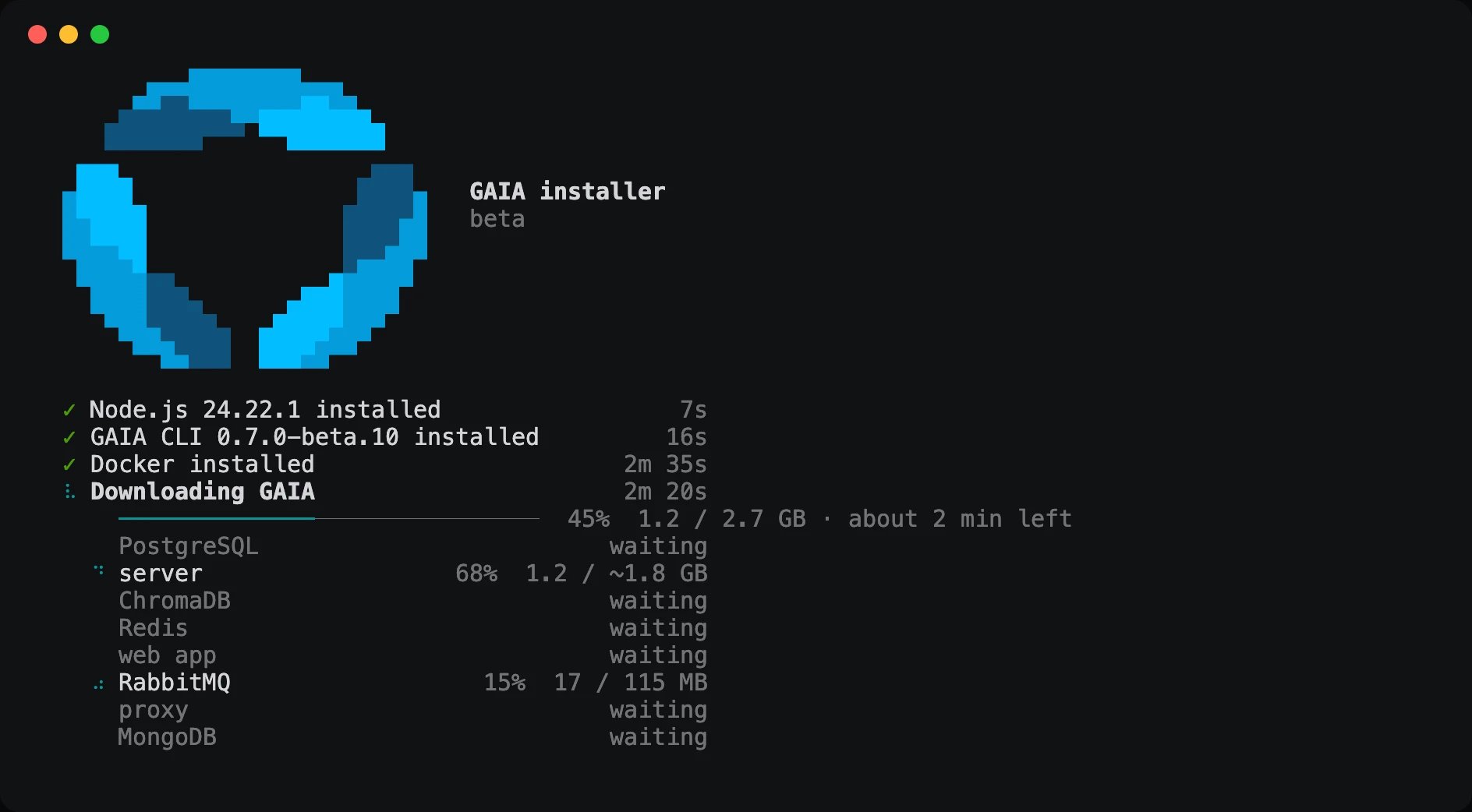
The GAIA installer under the GAIA logo: Node.js, the GAIA CLI and Docker installed, setup files fetched, then Downloading GAIA at 52%, 1.5 of 2.7 GB with about 2 minutes left, and a row per image: web app done, the rest unpacking or downloading

The installer carries straight on into gaia up and downloads GAIA

2

Run gaia up

It installs Docker if needed, downloads GAIA and starts it. When it finishes, it prints the address to open.
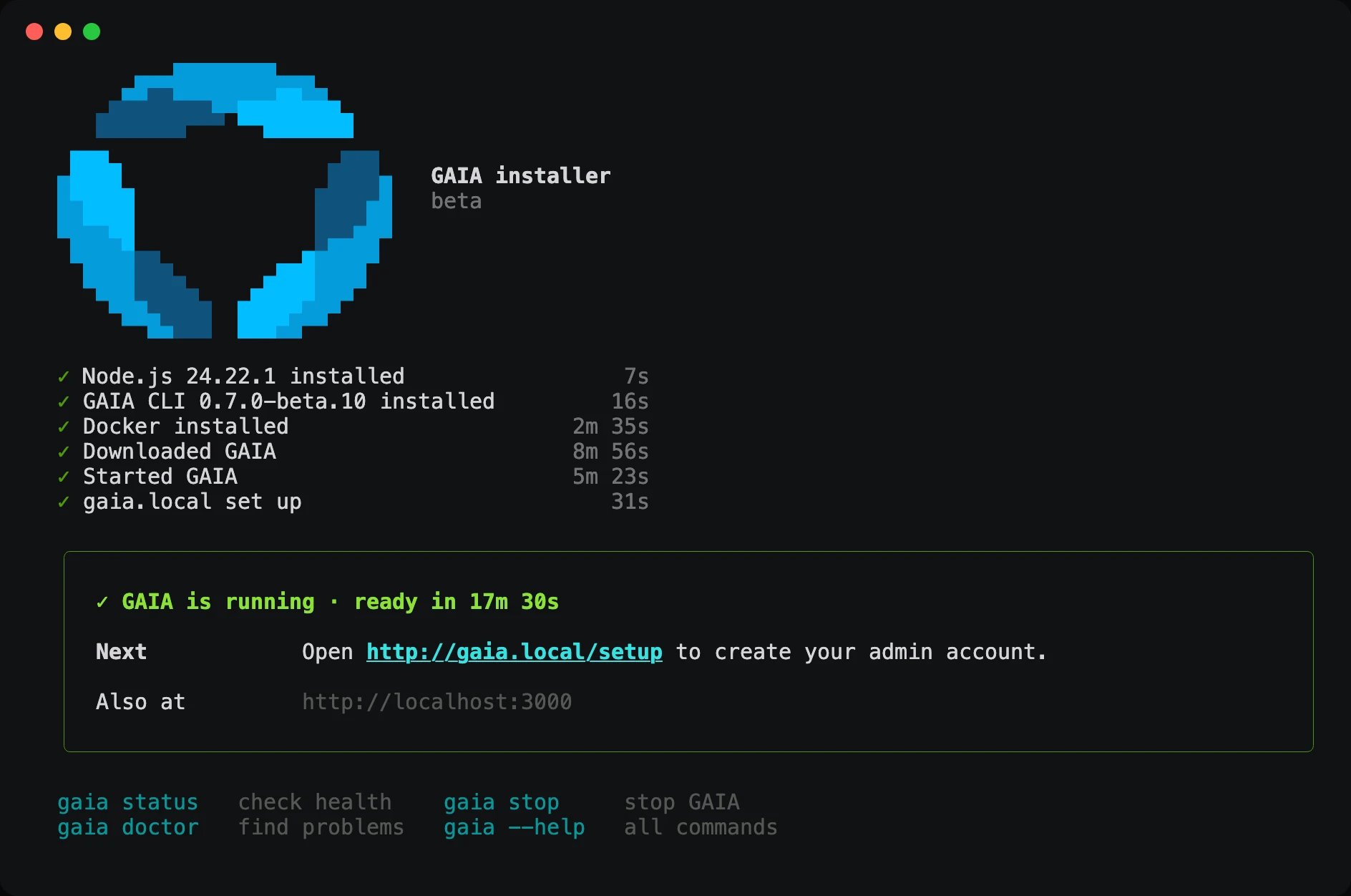
The end of a GAIA install: every step checked with its time, then a box reading GAIA is running, ready in 10m 24s, Next: open the .local setup link to create your admin account, also at http://localhost:3000, and the gaia status, stop, doctor and help commands below

gaia up finishes with the one link to open next

Want your AI provider saved at the same time? Add it here and skip that step in the browser:
The provider is saved like the browser setup saves it, so you can change it later in Settings → Providers & Tools. If GAIA is slow to start, gaia up says the provider wasn’t saved. Run the same command again once gaia status shows GAIA healthy. Every flag is in the CLI reference.
3

Open the printed address

On the server, http://localhost:3000 works. From another device on your network, use the 192.168.x.x address.

Finish setup in the browser

1

Create the admin account

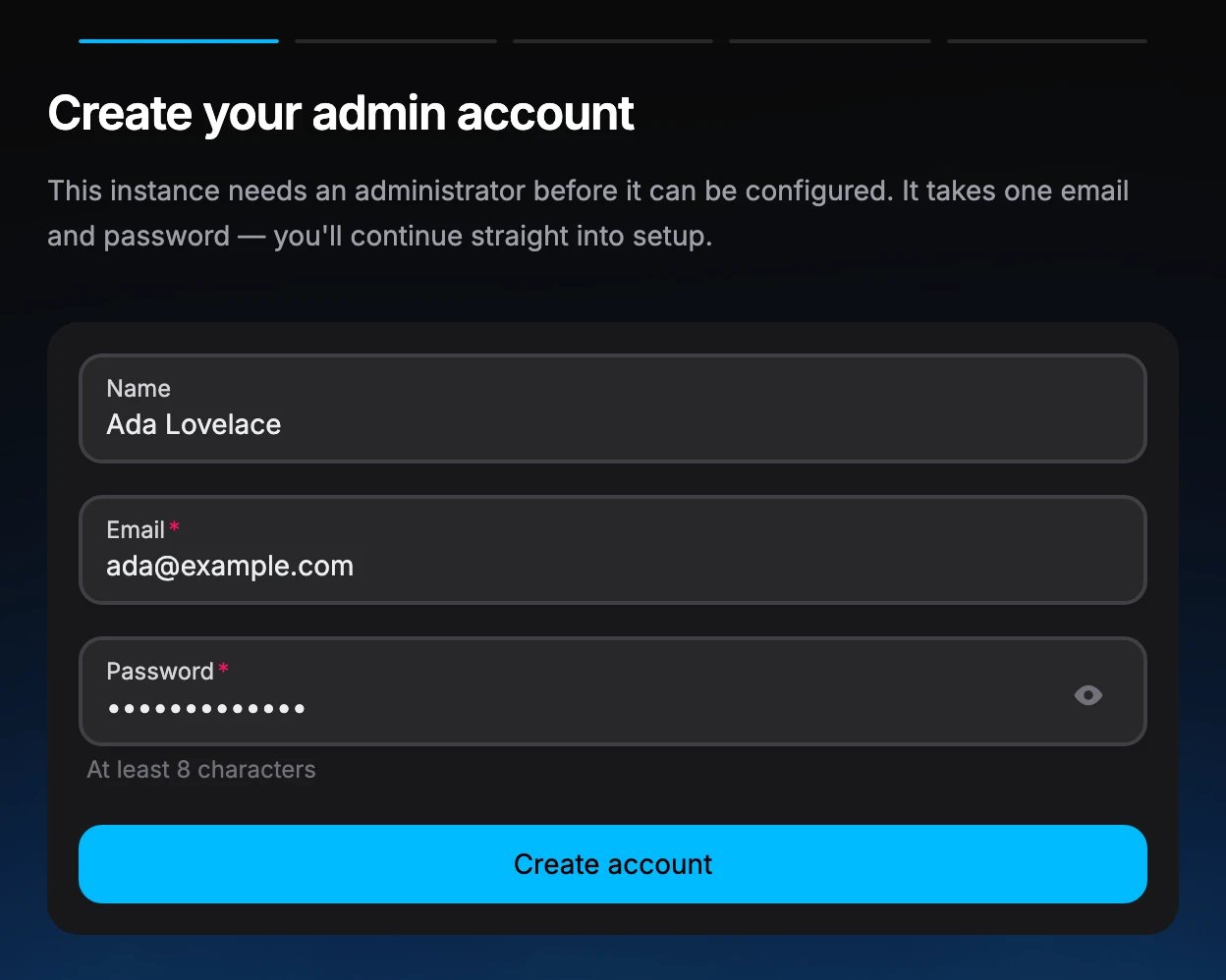
The first account is the admin. Use a password of at least 8 characters.
Setup step titled Create your admin account, with the name Ada Lovelace, the email ada@example.com and a hidden password filled in, above a Create account button

The first account becomes the admin

2

Connect an AI provider

GAIA needs one AI provider. If you passed --llm-provider, press Continue. Otherwise pick one:
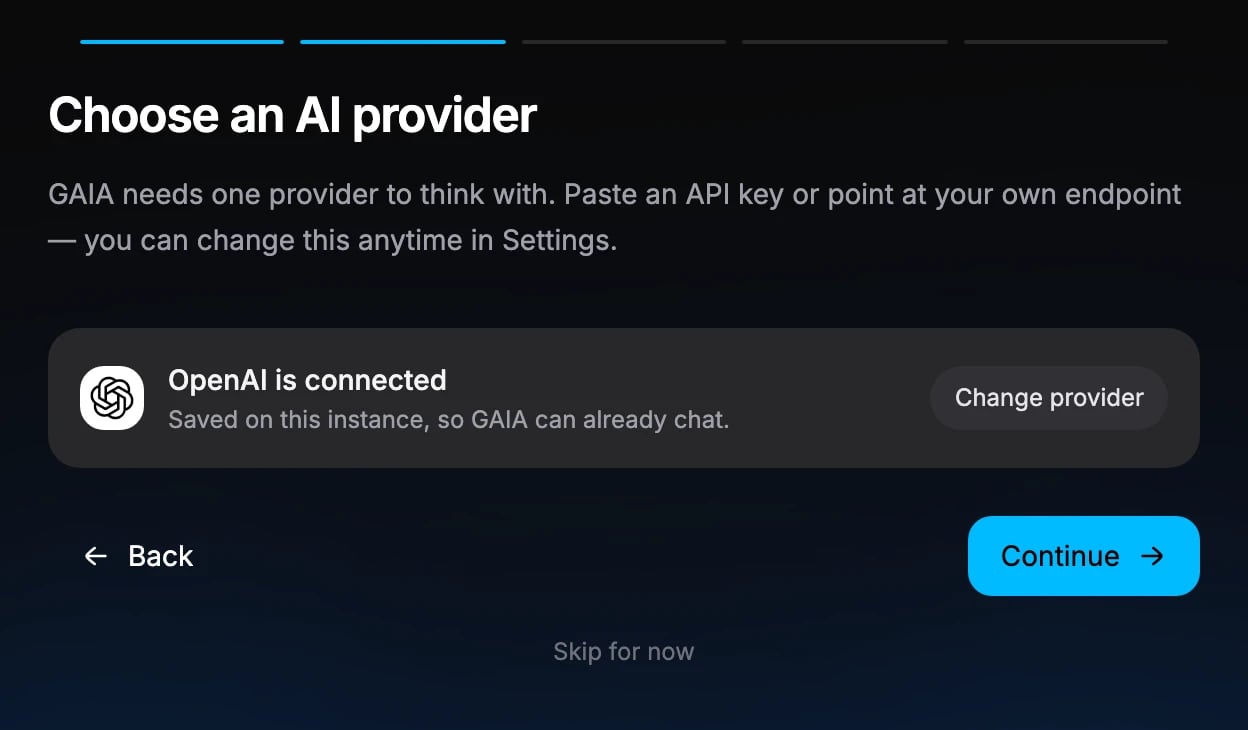
Setup step titled Choose an AI provider, showing OpenAI is connected and saved on this instance, with Change provider, Back, Continue and Skip for now

OpenAI connected with a pasted key

3

Add the optional extras, or skip them

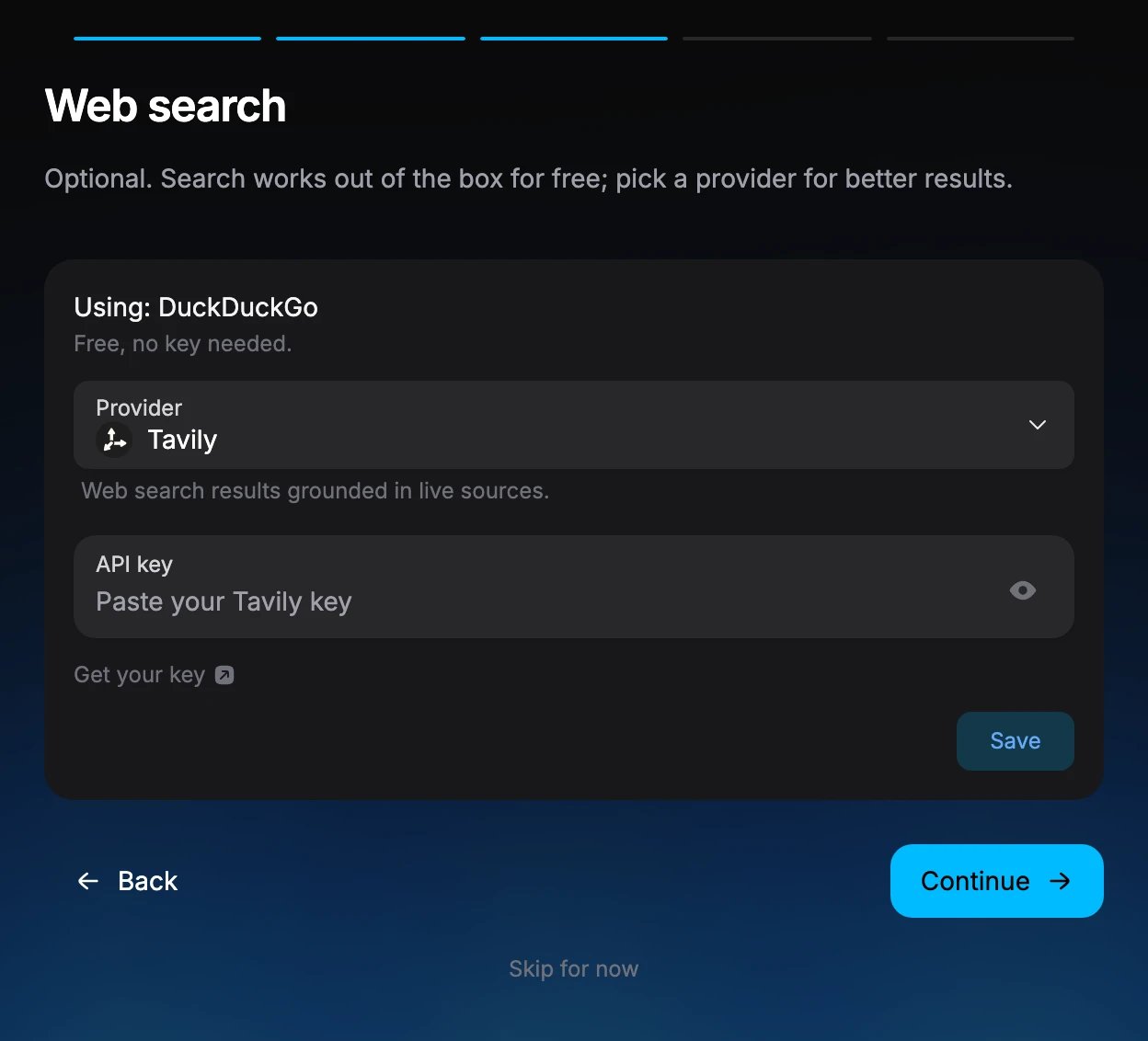
The next screens are optional. Paste a key if you have one, or press Continue:
  • Web search works for free with DuckDuckGo. Tavily, Exa, Brave Search or your own SearXNG give better results.
  • Tool keys such as Composio and E2B, and apps you can connect.
Then click Start chatting. Add keys any time in Settings → Providers & Tools; see AI models and tools.
Setup step titled Web search, using DuckDuckGo for free with no key, a Provider picker set to Tavily with an API key field and a Save button, and Back, Continue and Skip for now

An optional step: better web search with a Tavily, Exa or Brave key

4

Land on the home screen

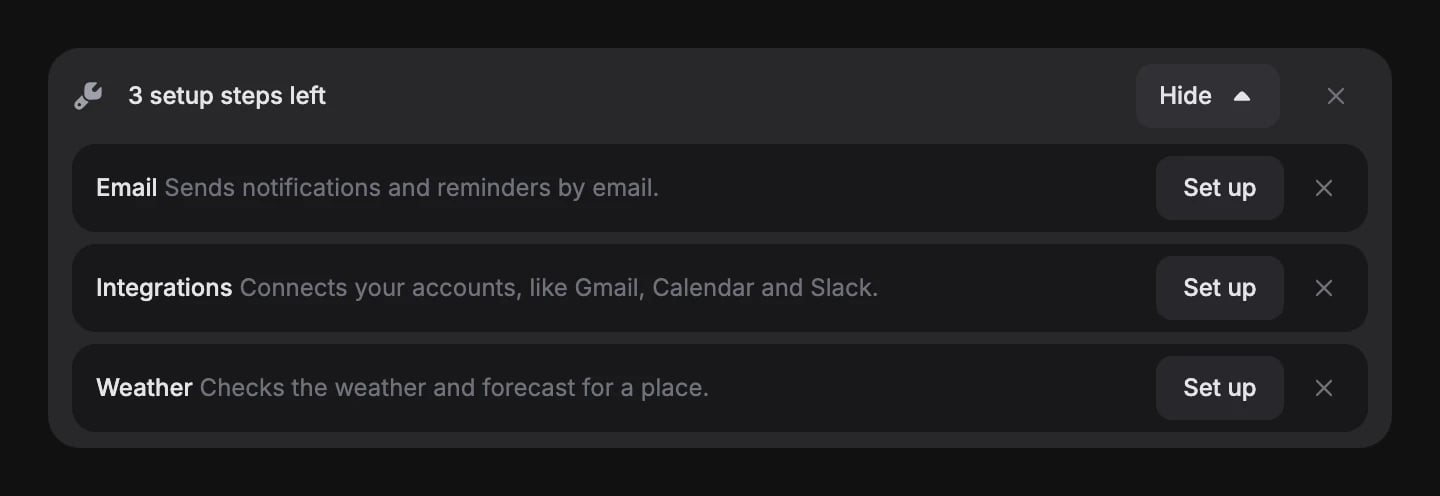
A banner lists optional features that are still off. Click Show to see them, or Set up to add one.
Setup banner reading 3 setup steps left, opened to list Email, Integrations and Weather, each with a Set up button and a dismiss cross

The setup banner, opened with Show

Use GAIA

Your first chat

Type a message and press Enter.
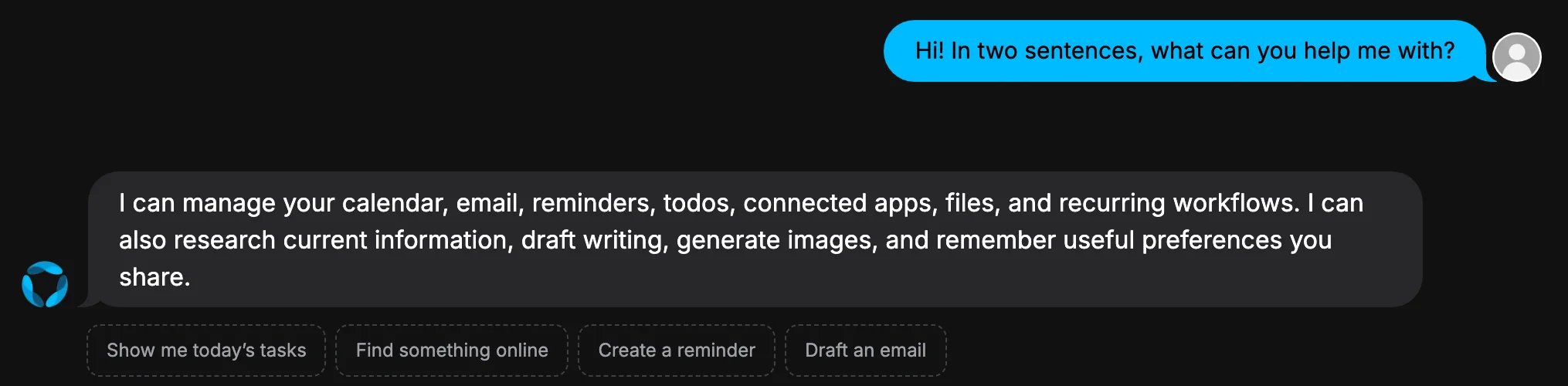
Chat where the user asks what GAIA can help with, and GAIA lists calendar, email, reminders, todos, connected apps, files and workflows

A first message and GAIA's reply

Todos and tools

Ask GAIA to do something, like adding a todo.
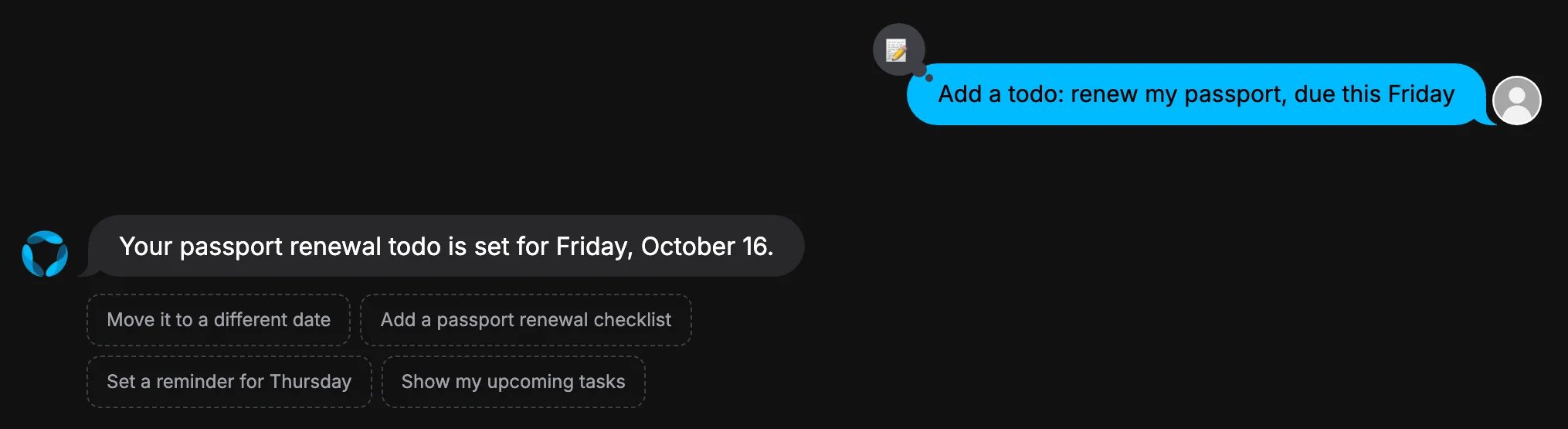
Chat where the user asks to add a todo to renew their passport by Friday, and GAIA confirms it is set for Friday, October 16

Adding a todo from chat

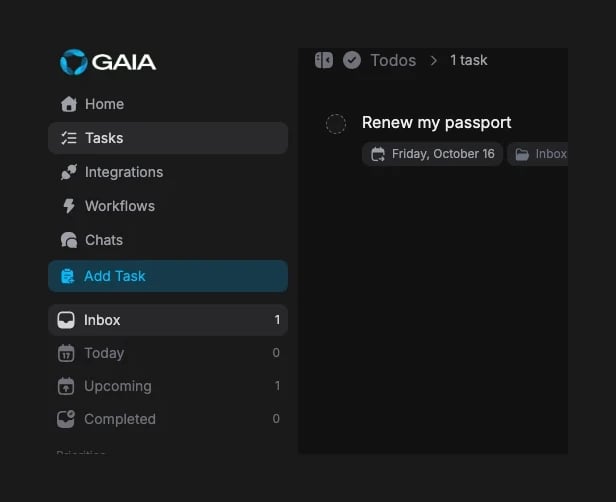
The todo shows up under Tasks.
Tasks page listing the todo Renew my passport, due Friday, October 16, in the Inbox

The new todo in Tasks

Run code (optional)

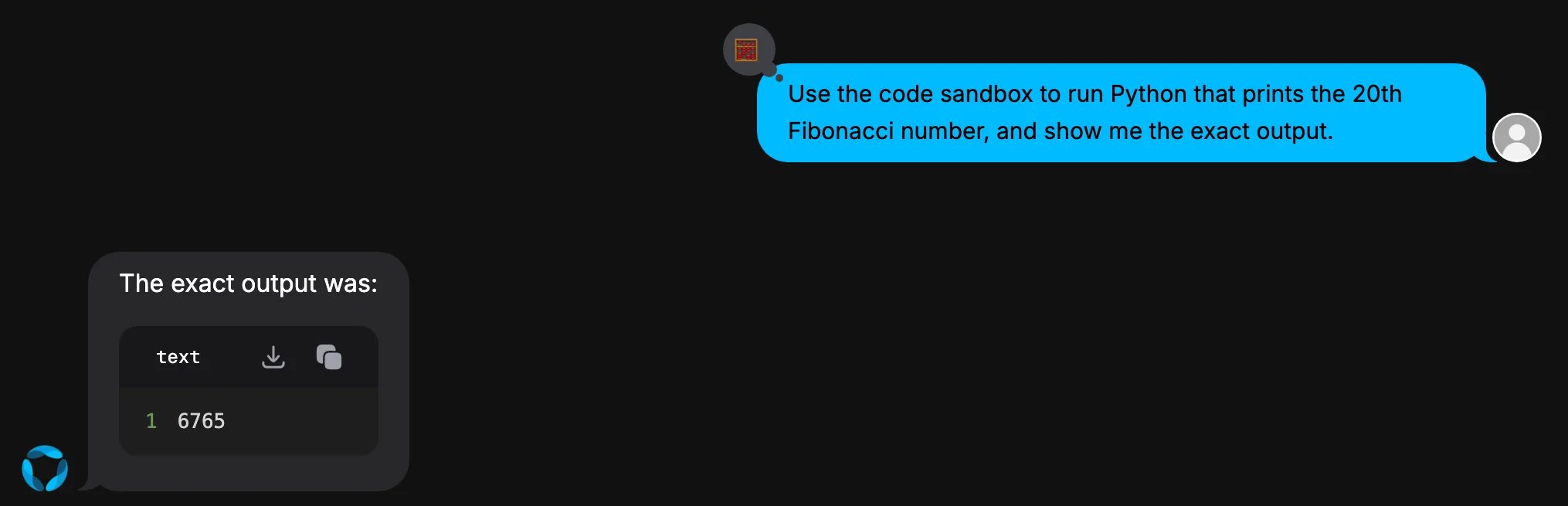
GAIA can run code only if you turn on a sandbox:
  • E2B (recommended): save an E2B key in Settings → Providers & Tools. Code runs on E2B’s servers.
  • Local sandbox: run gaia up --code-sandbox. Code runs on your own server.
The local sandbox gives GAIA root-level access to your server. Use it only where you trust everyone. Turn it off with gaia up --no-code-sandbox. See Running code.
Chat where the user asks GAIA to run Python that prints the 20th Fibonacci number, and GAIA shows the output 6765

GAIA runs Python in the sandbox and shows the output

Upload files and images

Use the + button in the message box. Files stay on your server.
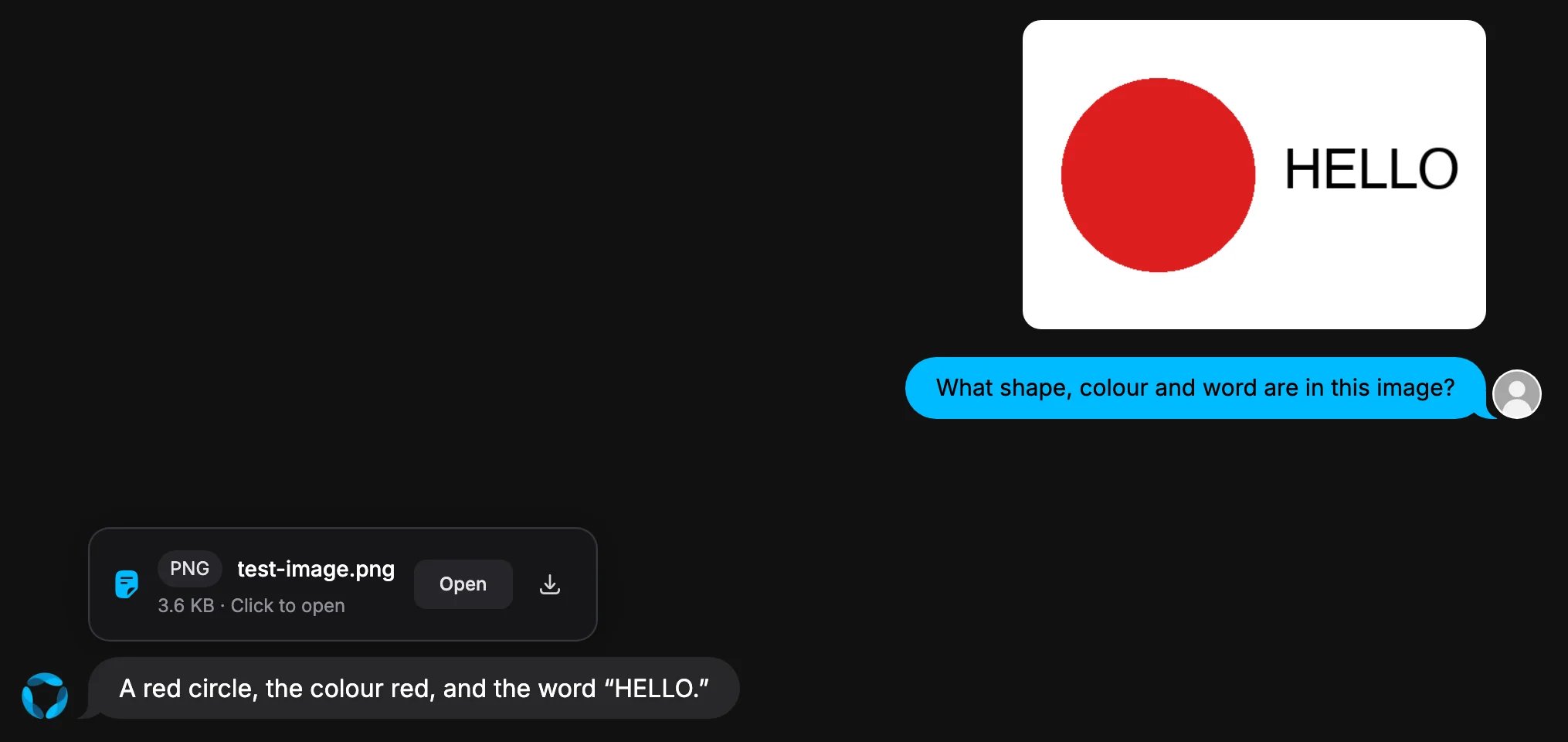
Chat with an uploaded image of a red circle and the word HELLO, and GAIA's reply: a red circle, the colour red, and the word HELLO

GAIA reads an uploaded image

Change settings later

Providers & Tools

Open Settings → Providers & Tools to change AI providers, web search or the code sandbox. Changes apply right away.
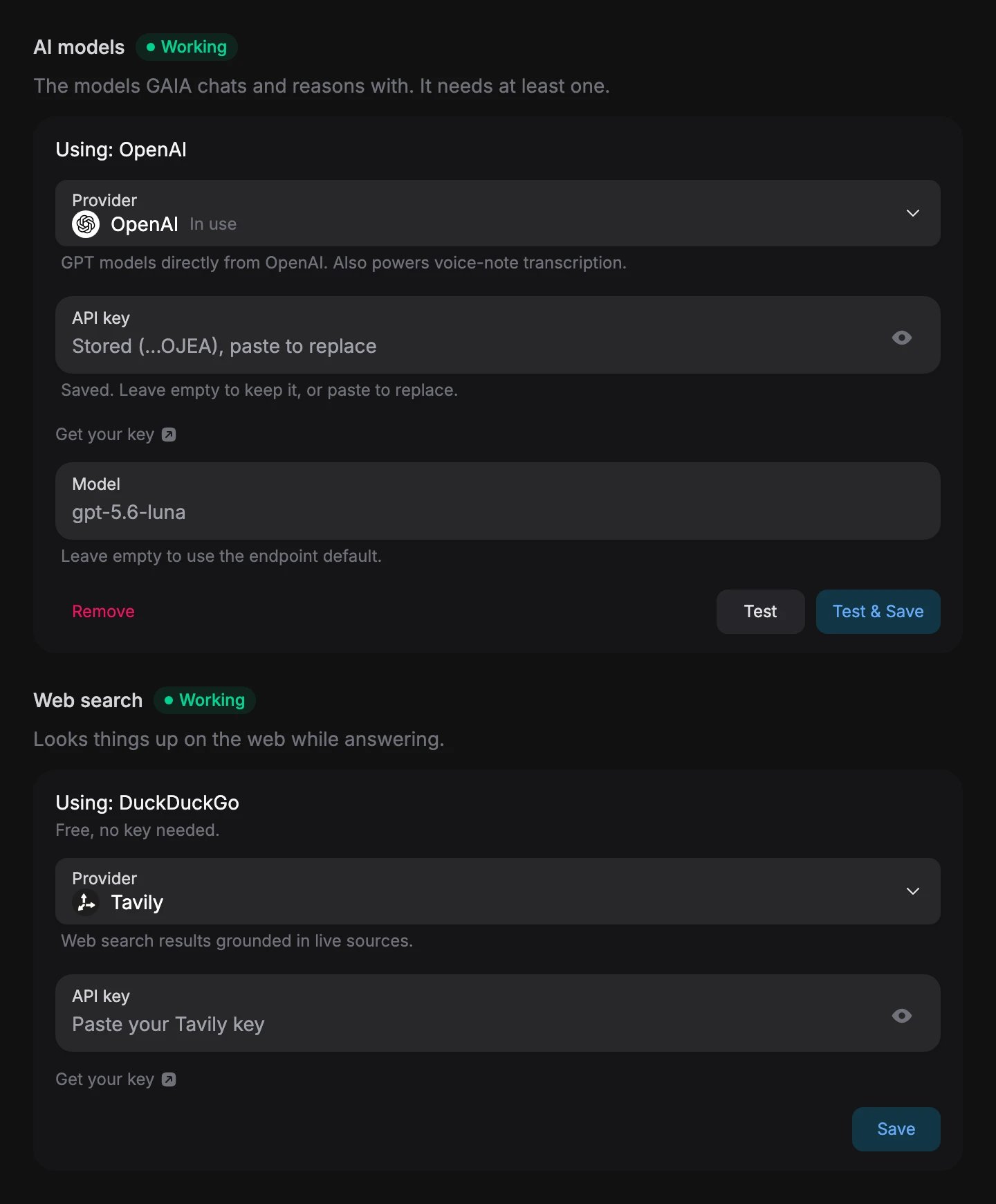
Providers and Tools settings: AI models marked Working and using OpenAI, with the provider picker, the stored key, the model and Remove, Test and Test and Save buttons; Web search marked Working and using DuckDuckGo, with a provider picker set to Tavily and a Save button

Settings → Providers & Tools

Connect apps like Gmail and Calendar

Apps connect through your own Composio project. Paste its key in Settings → Integrations setup. Full steps: Connect integrations.
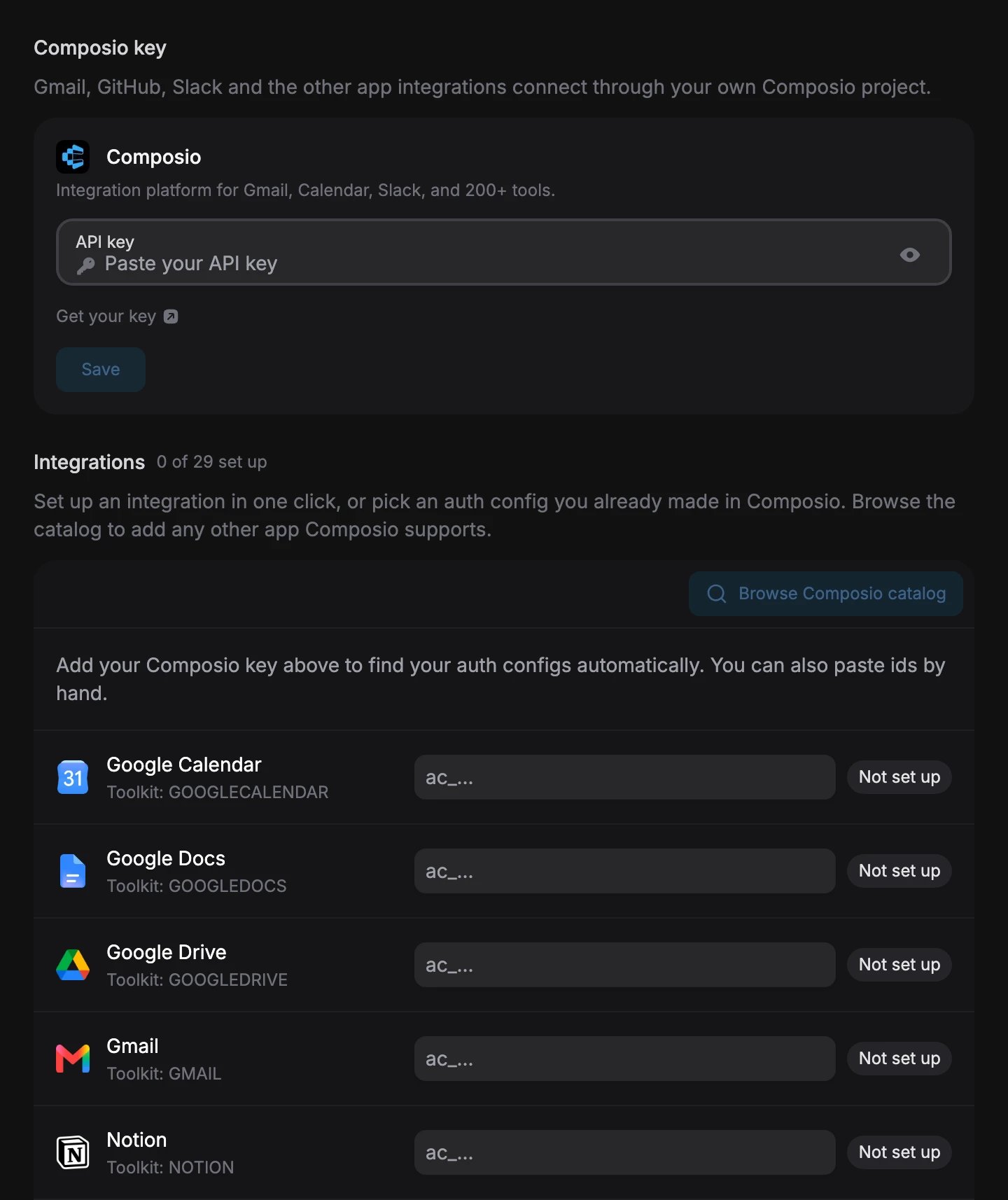
Integrations setup settings with a Composio API key field, a Browse Composio catalog button, and integrations such as Google Calendar, Google Docs, Google Drive, Gmail and Notion, each not set up yet

Settings → Integrations setup

Invite other people

1

Create an invite link

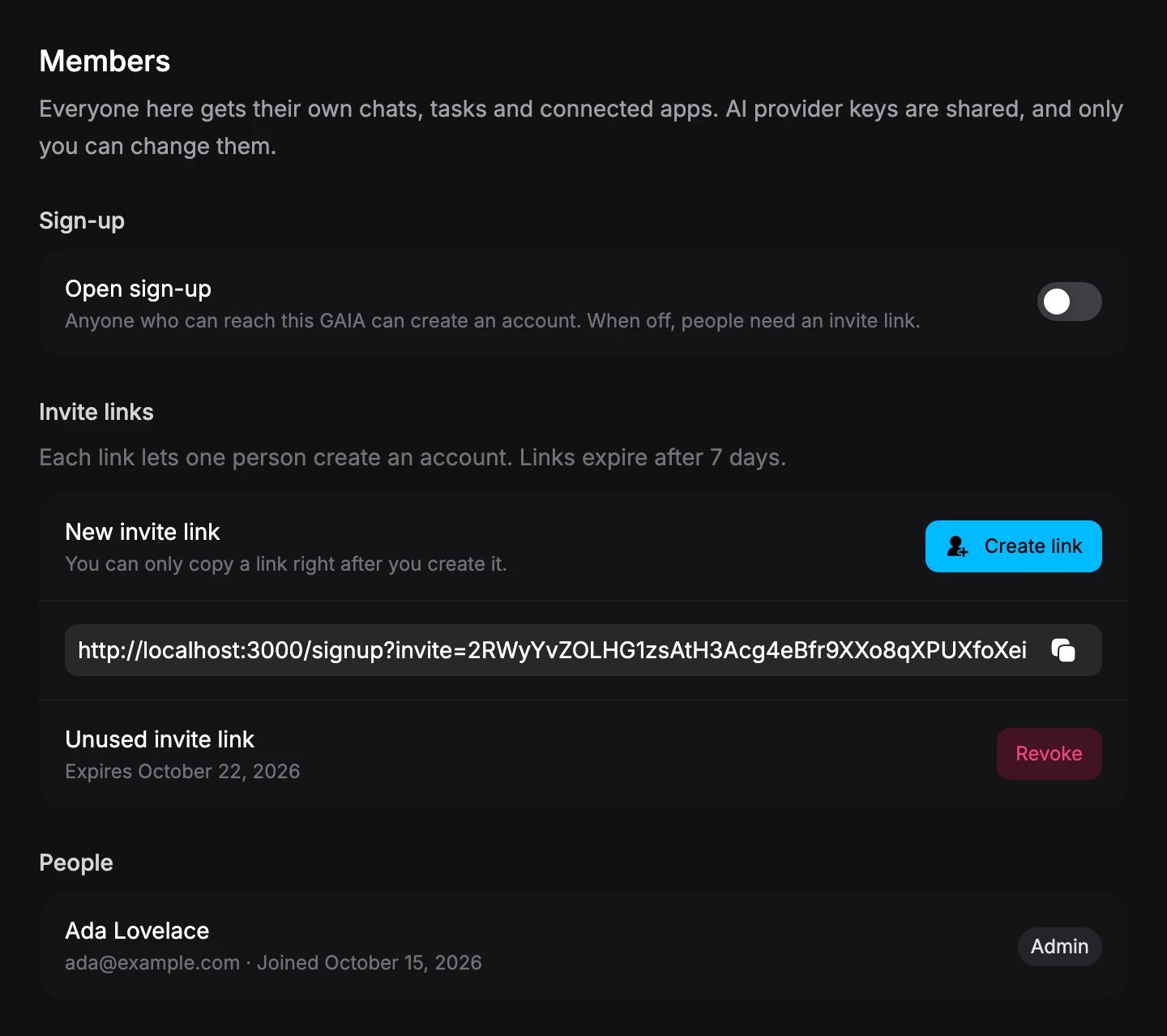
Open Settings → Members and press Create link. Copy it right away and send it. Each link works once and expires after 7 days.Everyone gets private chats, tasks and apps. They share your AI keys, which only you can change.
Members settings with the Open sign-up switch off, a freshly created invite link with a copy button, the unused invite with a Revoke button, and Ada Lovelace listed as Admin

Settings → Members, with a new invite link

Or turn on Open sign-up to let anyone who can reach your GAIA join.
2

Your teammate signs up

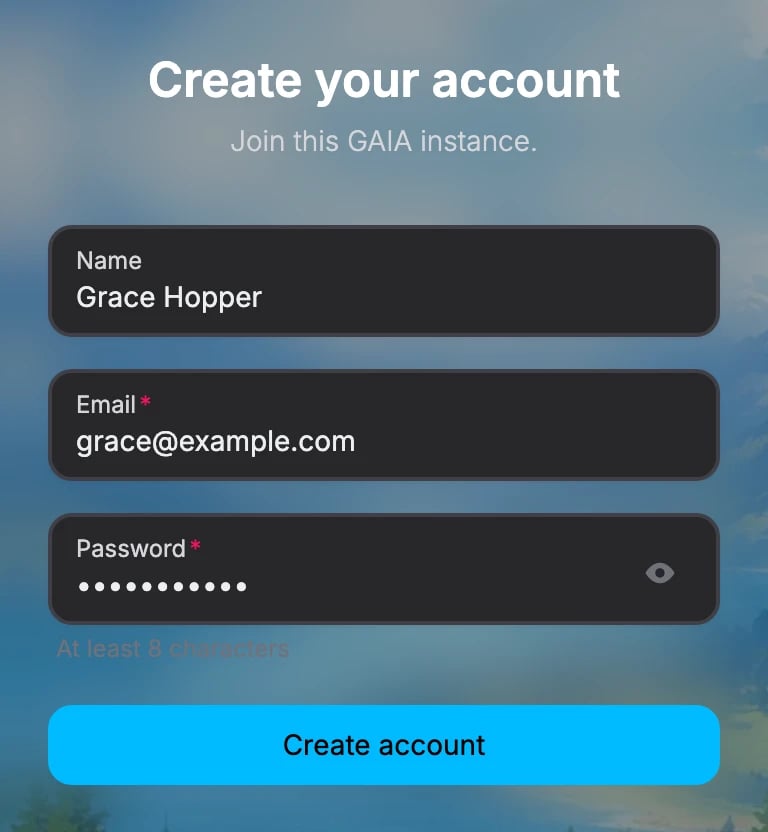
They open the link and create an account.
Create your account page reading Join this GAIA instance, filled in with the name Grace Hopper and the email grace@example.com

Signing up from an invite link

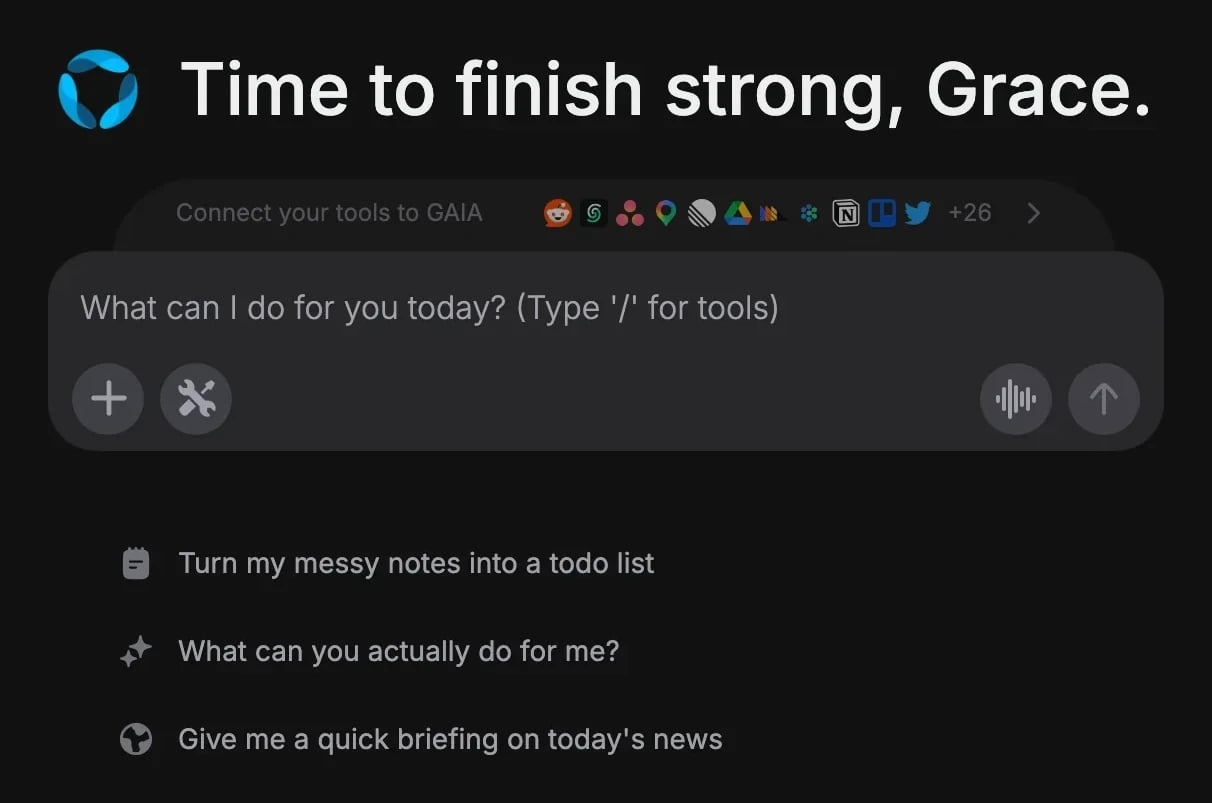
They land on their own home screen.
GAIA home screen greeting Grace by name, with the message box and suggested prompts

The new member's own GAIA

If a link was used or expired, create a new one.
3

Sign in next time

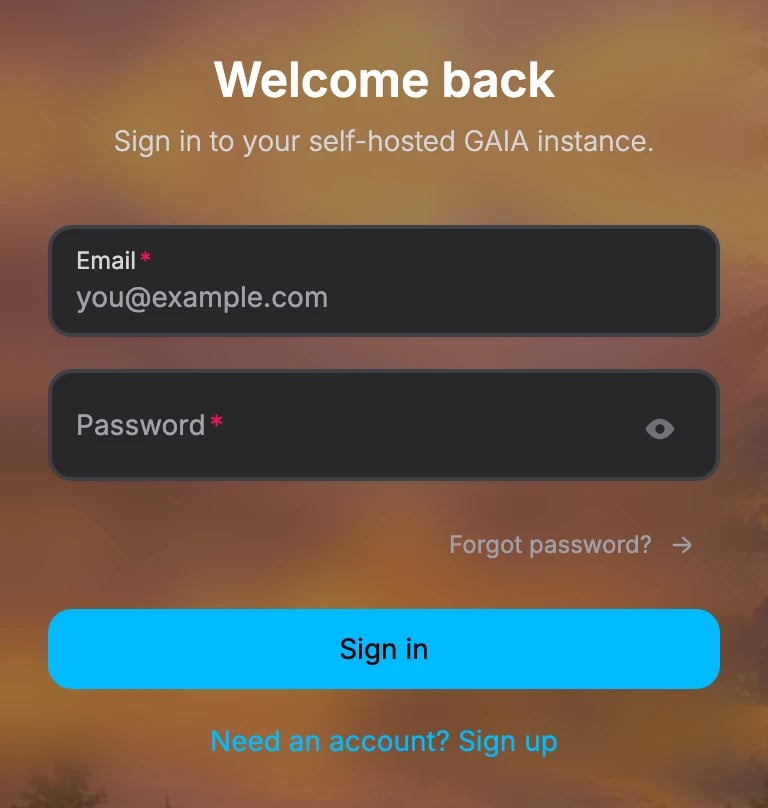
Everyone signs in with email and password at the same address.
Welcome back sign-in page with email and password fields, a Sign in button and a link to sign up

The sign-in page

Check on it

Run gaia status to see if each part is running. If something seems wrong, run gaia doctor. It prints a fix for each problem.
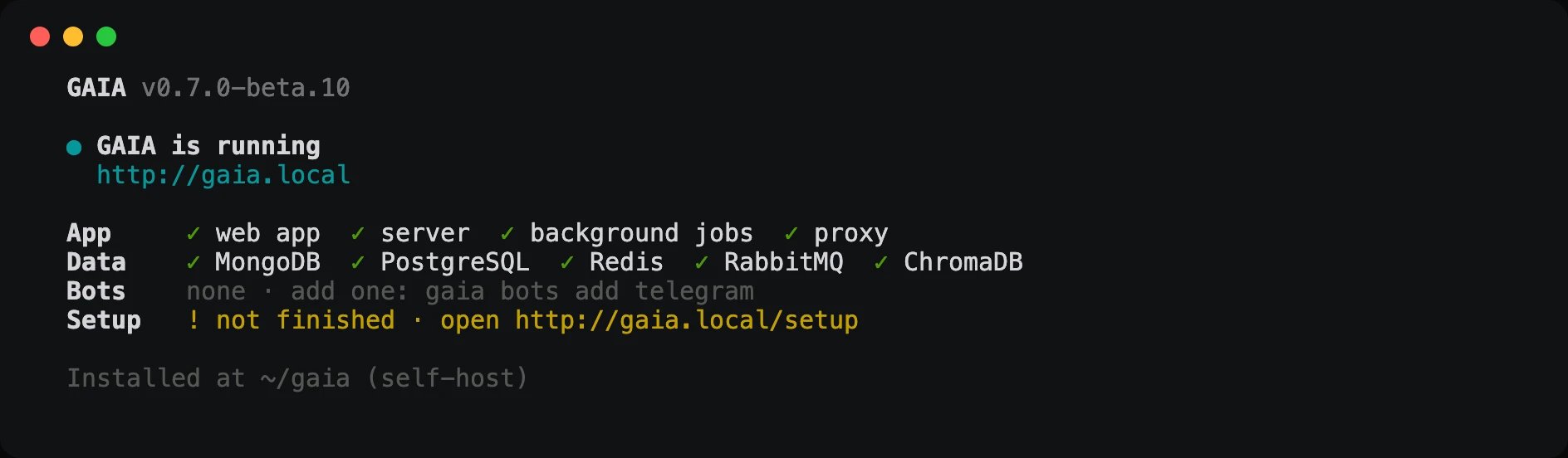
Terminal output of gaia status: GAIA is running at its .local address; the web app, server, background jobs and proxy, and MongoDB, PostgreSQL, Redis, RabbitMQ and ChromaDB all checked; no bots yet; setup not finished, with the link to finish it

gaia status: every dependency and container

Update and back up

Your chats, accounts and settings stay. For a newer GAIA, run the install command again first.
Backups go to ./backups/. See Backups to restore and store them safely.

Next steps

Connect integrations

Gmail, Calendar, GitHub and more through your own Composio project

CLI setup

Every gaia command and flag

AI models and tools

Change the AI provider and add optional tools

Deploy options

DigitalOcean, Coolify, Render and Railway, with costs and test status