

Get the desktop app
Download the app from heygaia.io/download. One app works with GAIA Cloud and your own server. Installers are in Desktop App.Before you start
- Your instance is running and its sign-in page loads in a browser.
- You know its address, such as
https://gaia.example.comorhttp://192.168.1.20.
Connect the app
- Open GAIA Desktop. The first screen is the desktop sign-in screen, Welcome to GAIA Desktop.
-
Click Use my own server, under the sign-in button. (That button signs in to GAIA Cloud.)
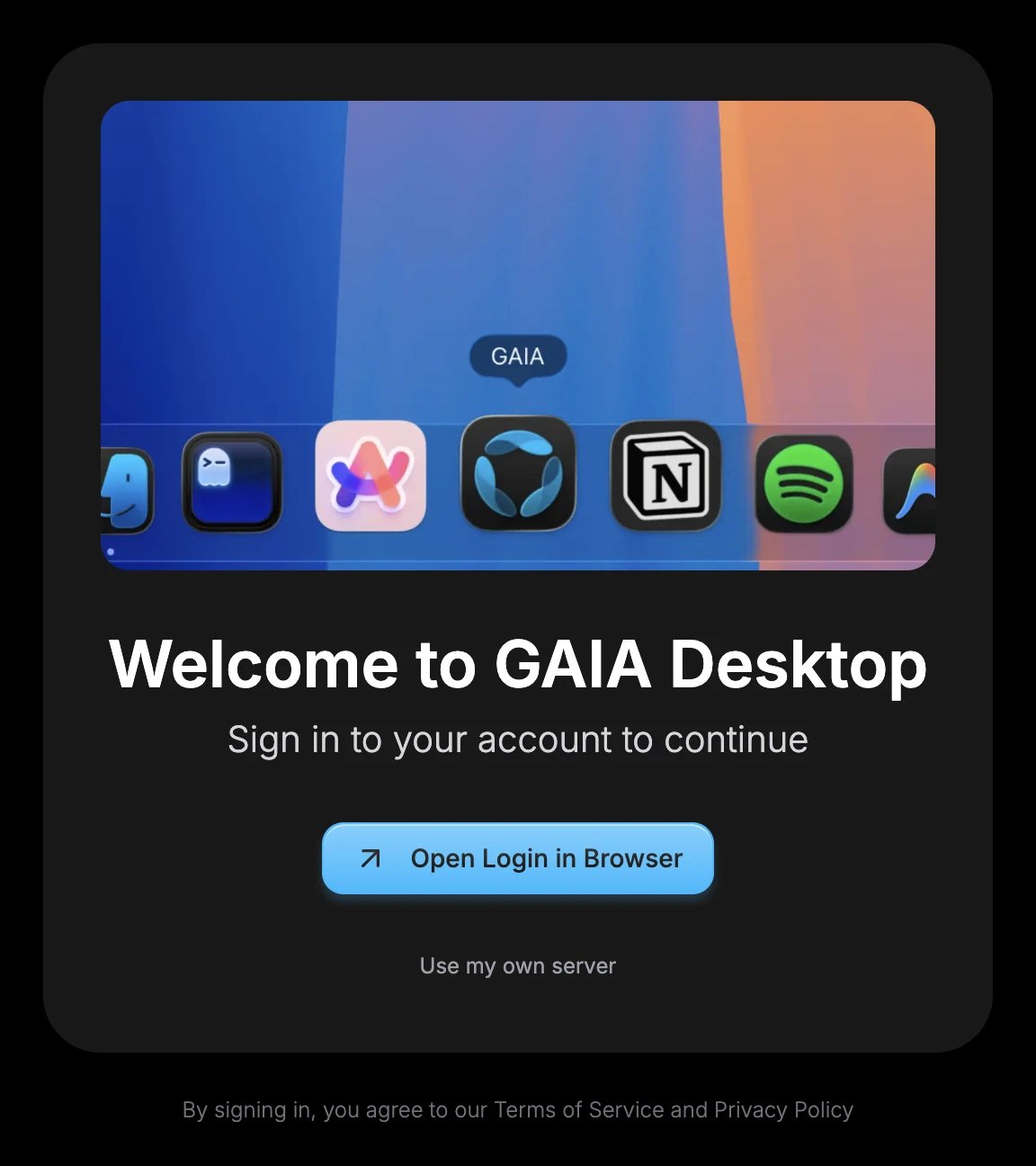
The desktop sign-in screen, with Use my own server under the GAIA Cloud sign-in button
-
Enter the address and click Connect. The app adds
https://if you leave it out. For plain HTTP, typehttp://.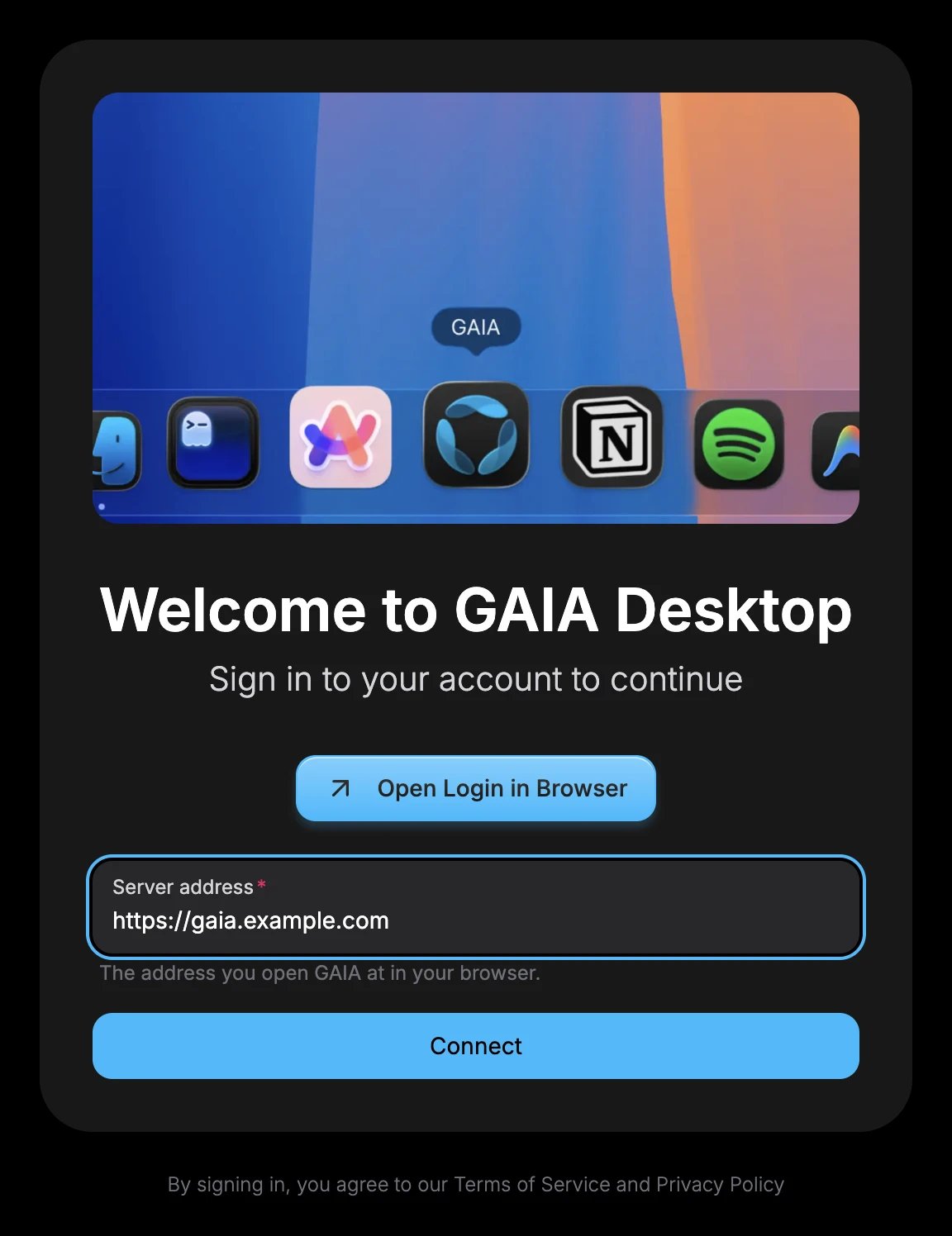
The server form, filled in with an instance's address
- The app restarts and opens your instance’s sign-in page. Sign in with your email and password.
If Connect shows an error
Change the server
- Click the GAIA icon in the menu bar (macOS) or the system tray (Windows and Linux).
- Click Change Server….
- Enter a different address and click Connect, or click Use GAIA Cloud.