> ## Documentation Index
> Fetch the complete documentation index at: https://docs.heygaia.io/llms.txt
> Use this file to discover all available pages before exploring further.

# Managing Tasks & Todos

> Create, organize, and complete tasks in chat, with priorities, due dates, and suggested workflows

export const Chat = ({messages = []}) => {
  const css = `
.docs-imsg-list {
  display: flex;
  flex-direction: column;
  gap: 4px;
  margin: 1.25rem 0;
}
.docs-imsg-bubble {
  word-wrap: break-word;
  line-height: 24px;
  position: relative;
  padding: 8px 20px;
  max-width: 85%;
  border-radius: 20px;
  font-size: 0.875rem;
  white-space: pre-line;
}
.docs-imsg-bubble::before {
  content: "";
  position: absolute;
  bottom: 0;
  width: 20px;
  height: 18px;
}
.docs-imsg-from-them {
  background: #27272a;
  color: #fafafa;
  align-self: flex-start;
}
.docs-imsg-from-them::before {
  left: -7px;
  background-color: #27272a;
  clip-path: path("M 20 0 L 20 2 A 16 16 0 0 1 4 18 L 0 18 L 0 17.54 A 10 10 0 0 0 7 8 L 7 0 Z");
}
.docs-imsg-from-me {
  color: black;
  background: #00bbff;
  align-self: flex-end;
}
.docs-imsg-from-me::before {
  right: -7px;
  background-color: #00bbff;
  clip-path: path("M 0 0 L 0 2 A 16 16 0 0 0 16 18 L 20 18 L 20 17.54 A 10 10 0 0 1 13 8 L 13 0 Z");
}
.docs-imsg-no-tail::before {
  display: none;
}
.docs-imsg-group-gap {
  margin-top: 8px;
}
`;
  return <div className="docs-imsg-list not-prose">
      <style>{css}</style>
      {messages.map((msg, idx) => {
    const from = msg.from === "user" ? "me" : "them";
    const next = messages[idx + 1];
    const prev = messages[idx - 1];
    const lastOfGroup = !next || next.from !== msg.from;
    const newGroup = prev && prev.from !== msg.from;
    const classes = ["docs-imsg-bubble", `docs-imsg-from-${from}`, lastOfGroup ? "" : "docs-imsg-no-tail", newGroup ? "docs-imsg-group-gap" : ""].filter(Boolean).join(" ");
    return <div key={idx} className={classes}>
            {msg.text}
          </div>;
  })}
    </div>;
};

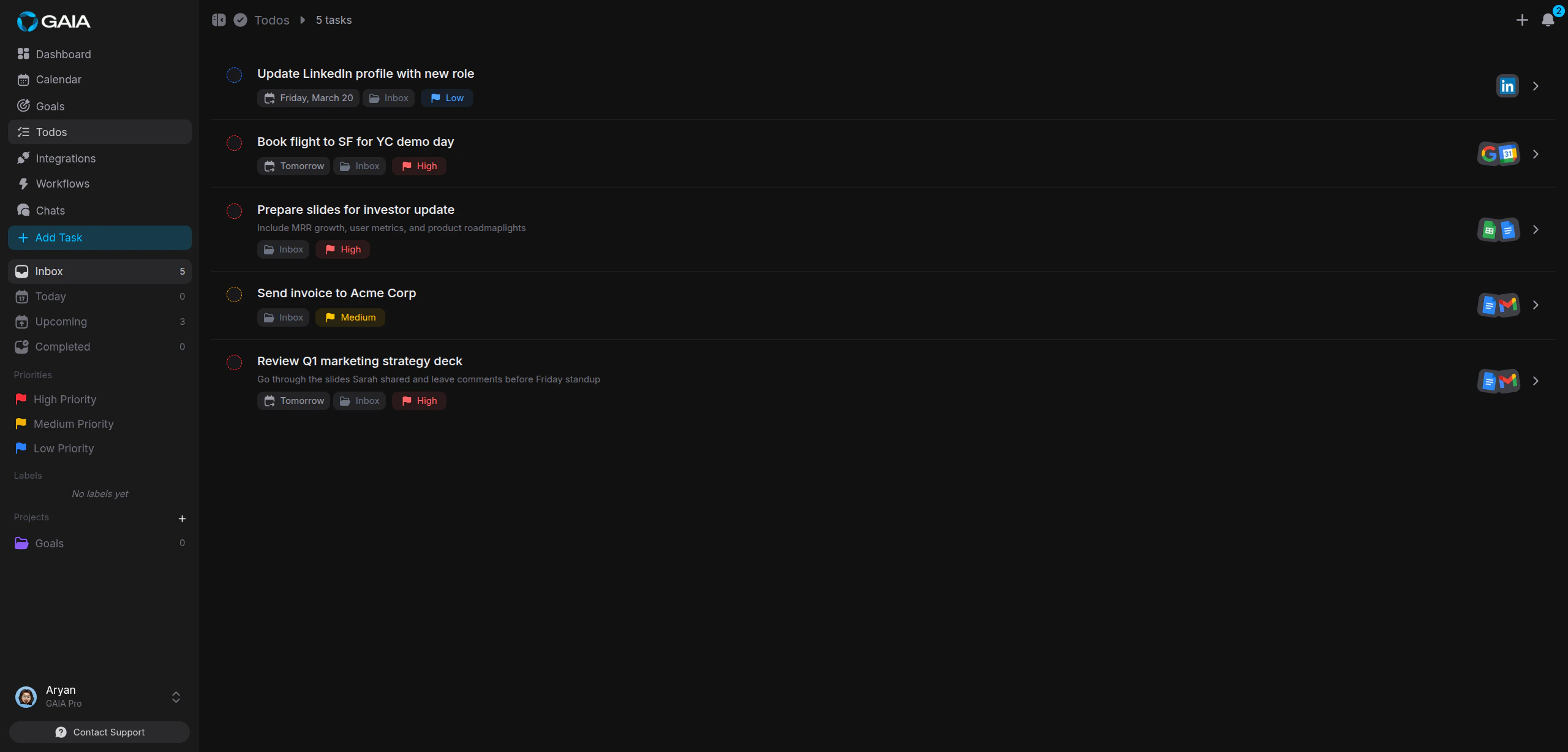
Tell GAIA what you need to do and it becomes a task, with the right priority, due date, and labels pulled from what you said. Everything lands on your **Todos** page, where you can filter, sort, search, and track it all.

<Frame>
  <img className="rounded-lg" src="https://mintcdn.com/gaia-a3e7b78f/Ux6Bh-ihODqtVzXm/images/guides/todos/todos-page.png?fit=max&auto=format&n=Ux6Bh-ihODqtVzXm&q=85&s=9ebfc8286c88707922b152e939117122" alt="Todos page showing tasks with priorities and due dates" width="2560" height="1227" data-path="images/guides/todos/todos-page.png" />
</Frame>

## What to say

<Chat
  messages={[
{ from: "user", text: "add a task to review the Q3 report by Friday, high priority" },
{ from: "gaia", text: "Added, due Friday, high priority." },
{ from: "user", text: "mark the Q3 report task as done" },
{ from: "gaia", text: "Done, it's marked complete." },
]}
/>

You can keep iterating in the same conversation:

<Chat
  messages={[
{ from: "user", text: "how many tasks do I have left in the Product Launch project?" },
{ from: "gaia", text: "You have 4 active tasks left in Product Launch." },
{ from: "user", text: "move my marketing tasks to the Q2 Campaign project" },
{ from: "user", text: "complete all tasks labeled 'done-review'" },
]}
/>

## How tasks are organized

**Priorities.** Every task is High (red), Medium (yellow), Low (blue), or unset. Priority controls sort order, and GAIA uses it when summarizing your workload or suggesting what to tackle next.

**Projects.** Projects group related tasks, with custom colors and running task counts. Tasks without a project go to your **Inbox**. Create one from the **+** icon in the project sidebar, or in chat:

<Chat
  messages={[
{ from: "user", text: "create a project called Product Launch with a purple color" },
{ from: "gaia", text: "Created, Product Launch is ready, in purple." },
]}
/>

**Labels.** Labels are tags that cut across projects, a task in "Work" can share a "design" label with a task in "Side Project". Use them to filter by topic, track categories like "bug" or "follow-up", and find related tasks fast. Up to 20 labels per task.

**Subtasks.** Break a task into individually completable steps. Your task list shows progress, "2/5 subtasks", without opening the task.

<Tip>
  Use subtasks for tasks with clear sequential steps. A "Publish blog post"
  task might have "Write draft," "Add images," "Review SEO," and "Schedule
  publish."
</Tip>

## Suggested workflows

This is where GAIA goes beyond a standard task manager. For any task, GAIA can generate a **suggested workflow**, a step-by-step action plan it can execute for you. Each step has a number, a title and description, and a category (email, calendar, research) showing which tools GAIA will use.

For a task like "Prepare for Monday's board meeting," GAIA might suggest:

1. Pull relevant emails from the past week
2. Summarize key metrics from your project tracker
3. Draft an agenda document
4. Block 2 hours of focus time on your calendar

Click **Run Workflow** and GAIA carries out the steps in chat, using your connected integrations.

<Note>
  Suggested workflows are generated on demand. Open a task in the sidebar and
  look for the Workflow section.
</Note>

## Finding and finishing tasks

The Todos page filters by **status** (active, completed, or both), **priority**, **project**, **label**, and **date** (due today, this week, or overdue). Search finds tasks by keyword, or by meaning with semantic search.

Click the checkbox next to any task to complete it, it gets a strikethrough and moves to the bottom of the list.

Select multiple tasks to act in bulk: complete several at once, move them to a different project, or delete them.

<Warning>
  Deleted tasks cannot be recovered. If you want a record of what you've done,
  complete tasks instead of deleting them.
</Warning>

## Creating tasks by hand

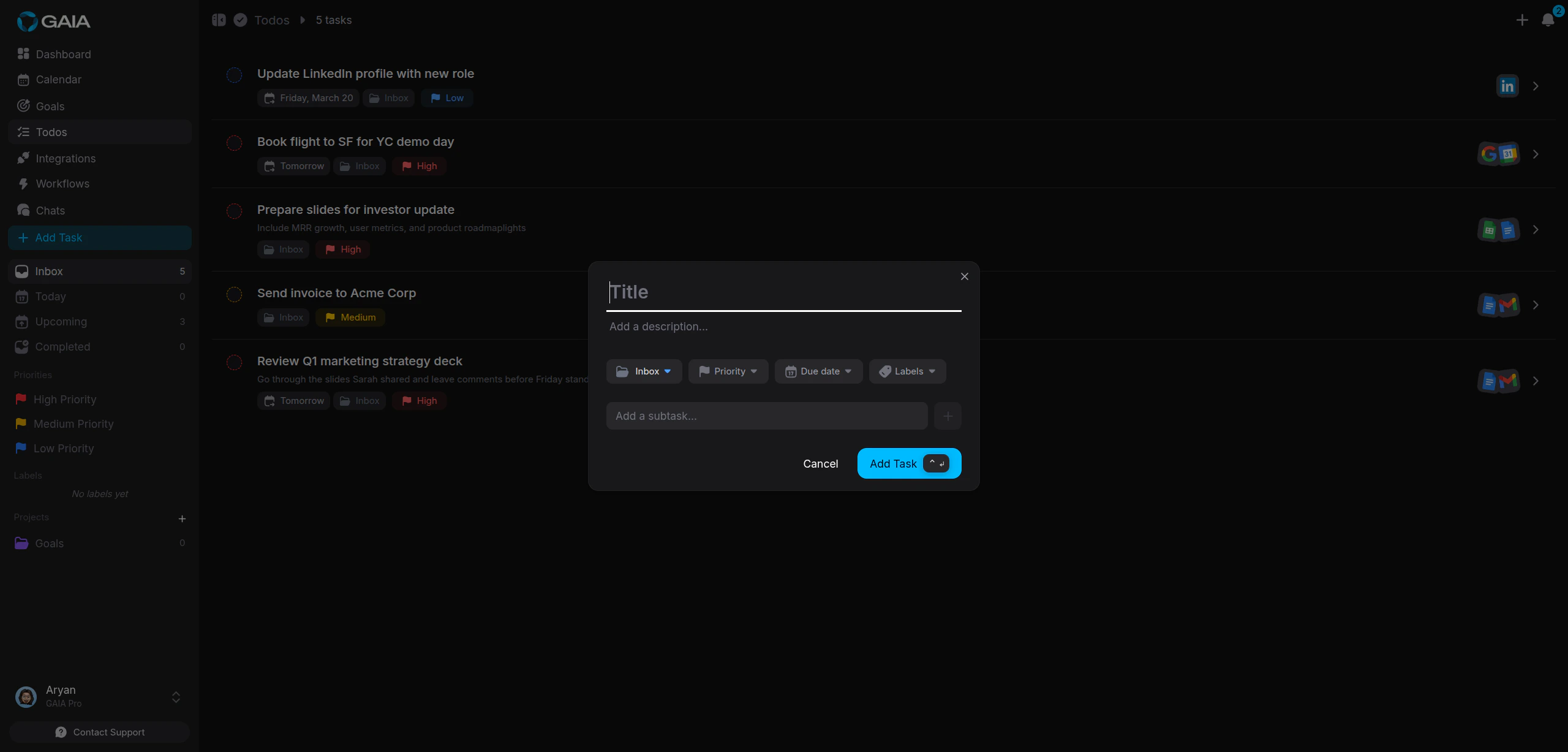
Prefer a form? Click **Add Task** on the Todos page to set every detail yourself.

<Frame>
  <img className="rounded-lg" src="https://mintcdn.com/gaia-a3e7b78f/Ux6Bh-ihODqtVzXm/images/guides/todos/add-task-modal.png?fit=max&auto=format&n=Ux6Bh-ihODqtVzXm&q=85&s=be078ade188d9a68052f6ab650bb11bf" alt="Add task dialog with project, priority, due date, labels, and subtasks" width="2560" height="1227" data-path="images/guides/todos/add-task-modal.png" />
</Frame>

<Steps>
  <Step title="Enter a title">
    Keep it specific, "Draft investor update email" beats "Email stuff."
  </Step>

  <Step title="Set a priority">
    High, Medium, Low, or unset.
  </Step>

  <Step title="Pick a due date">
    So GAIA knows what's overdue, due today, or coming up. Tasks without a due
    date go to your Inbox.
  </Step>

  <Step title="Assign to a project, add labels and subtasks">
    Group it, tag it, and break it into steps as needed.
  </Step>
</Steps>

<Tip>
  Combine both approaches, create a task quickly in chat, then open it on the
  Todos page to add subtasks, adjust the priority, or assign a project.
</Tip>