> ## Documentation Index
> Fetch the complete documentation index at: https://docs.heygaia.io/llms.txt
> Use this file to discover all available pages before exploring further.
# Notification Settings
> Choose where GAIA notifies you, in-app, Telegram, Discord, or mobile push
GAIA notifies you when something needs your attention, an email draft is ready, a reminder fired, a background workflow finished. Notifications arrive in real time, and many include action buttons so you can respond without navigating away.
There are four types:
Email drafts, calendar events, and tasks GAIA created on your behalf, with buttons to confirm, edit, or dismiss.
Time-based alerts you asked GAIA to set. They fire at the scheduled time and
often include follow-up actions like marking a task complete.
Status updates when a background workflow finishes or fails.
Account-level updates, like a new integration being connected or a background job completing.
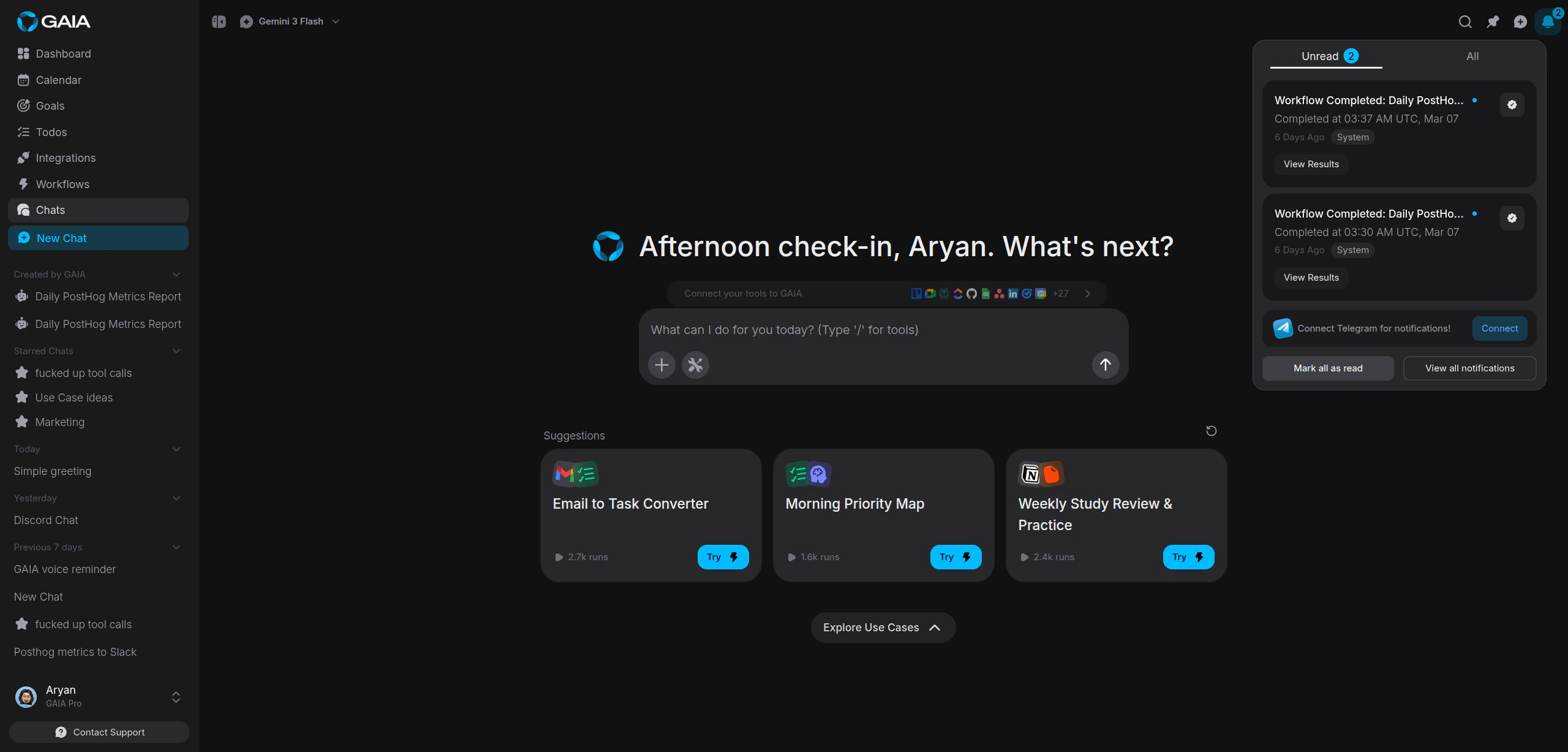 ## Channels
GAIA can notify you across multiple channels at once, each toggled independently:
| Channel | Where it appears | Enabled by default |
| ----------------- | ------------------------------------------------------ | ------------------------------- |
| **In-app** | Notification panel inside the GAIA web and mobile apps | Always on |
| **Telegram** | Direct message from the GAIA Telegram bot | Yes (requires linked account) |
| **Discord** | Direct message from the GAIA Discord bot | Yes (requires linked account) |
| **Push (mobile)** | Native push notification on your phone | Yes (after granting permission) |
In-app notifications are always on and can't be turned off, the baseline, so
you never miss something important even with other channels disabled.
## Configure your channels
Go to **Settings > Notifications** in the sidebar. Each channel is listed with a toggle.
## Channels
GAIA can notify you across multiple channels at once, each toggled independently:
| Channel | Where it appears | Enabled by default |
| ----------------- | ------------------------------------------------------ | ------------------------------- |
| **In-app** | Notification panel inside the GAIA web and mobile apps | Always on |
| **Telegram** | Direct message from the GAIA Telegram bot | Yes (requires linked account) |
| **Discord** | Direct message from the GAIA Discord bot | Yes (requires linked account) |
| **Push (mobile)** | Native push notification on your phone | Yes (after granting permission) |
In-app notifications are always on and can't be turned off, the baseline, so
you never miss something important even with other channels disabled.
## Configure your channels
Go to **Settings > Notifications** in the sidebar. Each channel is listed with a toggle.
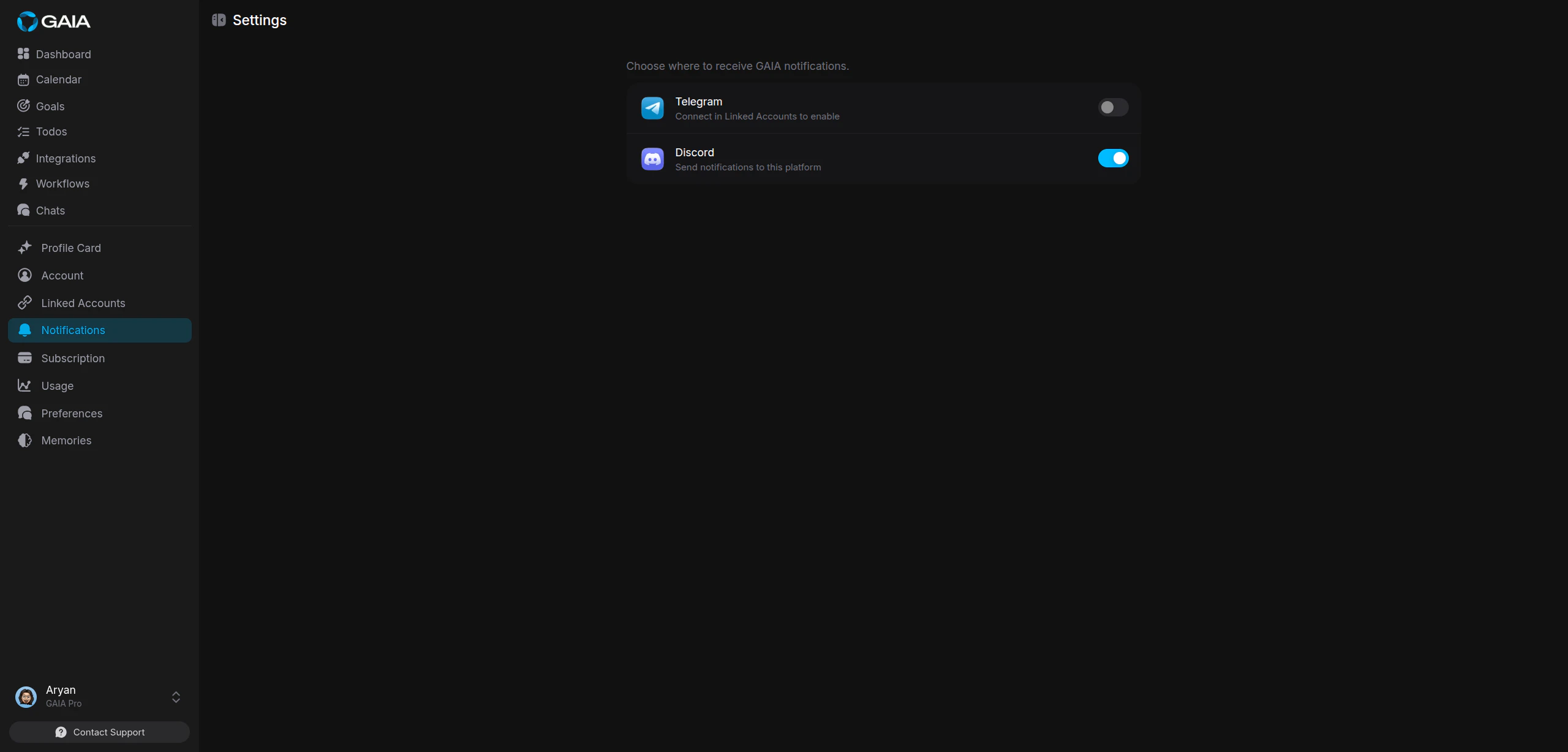 Telegram and Discord toggles only appear after you've linked those accounts. If you see "Connect in Linked Accounts to enable," go to **Settings > Linked Accounts** first, then come back.
Flip the switch next to any platform. Changes save automatically.
Keep at least one external channel enabled, Telegram or Discord, so you get
notified even when you're not in the GAIA app.
## Mobile push
The GAIA mobile app is in early access, [join the waitlist](https://heygaia.notion.site/307023640e7b802ca404dee12cb04e89?pvs=105) to get it. It uses native push notifications. The first time you open the app, it asks for permission, accept it and your device registers with GAIA's notification service automatically.
Push notifications include sound and badge updates by default. Tapping one takes you directly to what triggered it, a todo, a workflow, or a conversation.
If you denied the permission prompt, turn notifications on manually in your
device's system settings under the GAIA app.
You can register up to 10 devices. To stop notifications on a device, sign out of the GAIA app there, it unregisters automatically.
## Act on notifications
Notifications are interactive. Depending on the source, you'll see buttons that let you respond directly:
| Source | Available Actions |
| ------------------ | --------------------------------------------------------------------- |
| **Email draft** | Preview & Send (opens an editor so you can review and send the draft) |
| **Calendar event** | Confirm Event (creates the event on your calendar) |
| **New task** | View Task, Mark Complete |
| **Reminder** | Context-specific actions based on what the reminder is about |
| **Workflow** | More Details (takes you to the workflow or conversation) |
Actions that write data, confirming an event, completing a task, run once. The button disables after use to prevent duplicates.
If an action fails, you'll see an error message. Retry from the relevant page
(Todos, Calendar, etc.).
## Keep the noise down
A proactive assistant can generate a lot of notifications. To stay on top of them:
* **Use bulk actions.** Select multiple notifications in the panel to mark them read or archive them in one step.
* **Act inline.** Use the action buttons instead of digging into the full feature.
* **Archive what you've handled.** Archived notifications leave the default view but stay accessible later.
Clear your notifications at the end of each day. A clean panel makes it easy
to spot what actually needs your attention.
Telegram and Discord toggles only appear after you've linked those accounts. If you see "Connect in Linked Accounts to enable," go to **Settings > Linked Accounts** first, then come back.
Flip the switch next to any platform. Changes save automatically.
Keep at least one external channel enabled, Telegram or Discord, so you get
notified even when you're not in the GAIA app.
## Mobile push
The GAIA mobile app is in early access, [join the waitlist](https://heygaia.notion.site/307023640e7b802ca404dee12cb04e89?pvs=105) to get it. It uses native push notifications. The first time you open the app, it asks for permission, accept it and your device registers with GAIA's notification service automatically.
Push notifications include sound and badge updates by default. Tapping one takes you directly to what triggered it, a todo, a workflow, or a conversation.
If you denied the permission prompt, turn notifications on manually in your
device's system settings under the GAIA app.
You can register up to 10 devices. To stop notifications on a device, sign out of the GAIA app there, it unregisters automatically.
## Act on notifications
Notifications are interactive. Depending on the source, you'll see buttons that let you respond directly:
| Source | Available Actions |
| ------------------ | --------------------------------------------------------------------- |
| **Email draft** | Preview & Send (opens an editor so you can review and send the draft) |
| **Calendar event** | Confirm Event (creates the event on your calendar) |
| **New task** | View Task, Mark Complete |
| **Reminder** | Context-specific actions based on what the reminder is about |
| **Workflow** | More Details (takes you to the workflow or conversation) |
Actions that write data, confirming an event, completing a task, run once. The button disables after use to prevent duplicates.
If an action fails, you'll see an error message. Retry from the relevant page
(Todos, Calendar, etc.).
## Keep the noise down
A proactive assistant can generate a lot of notifications. To stay on top of them:
* **Use bulk actions.** Select multiple notifications in the panel to mark them read or archive them in one step.
* **Act inline.** Use the action buttons instead of digging into the full feature.
* **Archive what you've handled.** Archived notifications leave the default view but stay accessible later.
Clear your notifications at the end of each day. A clean panel makes it easy
to spot what actually needs your attention.