> ## Documentation Index
> Fetch the complete documentation index at: https://docs.heygaia.io/llms.txt
> Use this file to discover all available pages before exploring further.
# Publishing to the Marketplace
> Install community-built workflows and integrations, or share your own
The marketplace is where GAIA users share what they've built. Chances are someone has already built the automation you need, install it with one click. Or publish your own and save everyone else the setup.
You can share two types of content:
Step-by-step automations that run on a schedule, react to events, or
trigger on demand. Published workflows show up in the **Community
Workflows** section of the Workflows page.
MCP server connections that add new tools to GAIA. Published integrations
go into the public marketplace where anyone can install them with one
click.
## Find something to install
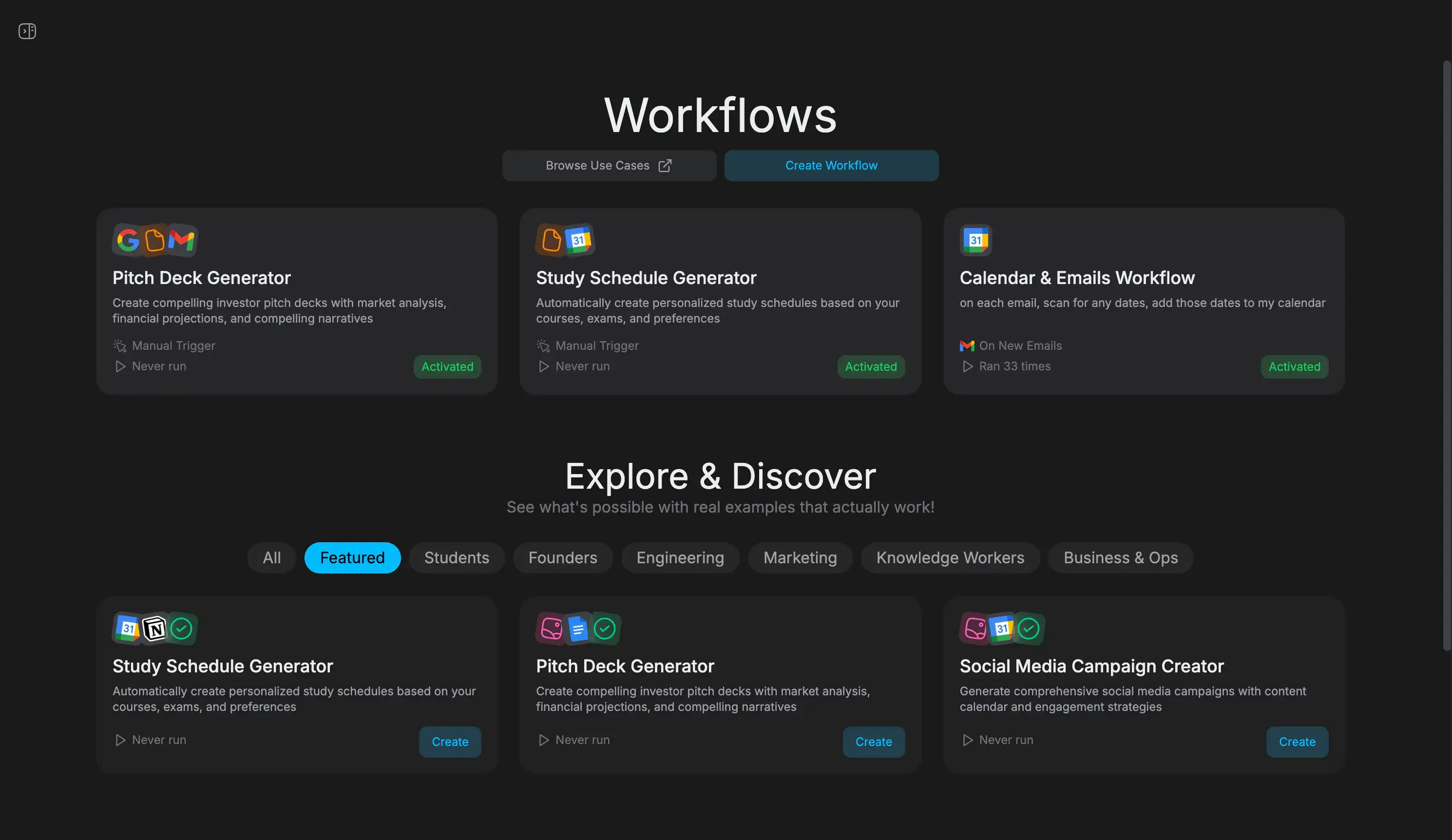
**Workflows**, the Workflows page has two sections:
* **Explore and Discover**, curated templates by category (Engineering, Founders, Marketing, and more). Add any with one click.
* **Community Workflows**, workflows published by other users, sorted by popularity.
**Integrations**: browse the [GAIA Marketplace](https://heygaia.io/marketplace). Search uses semantic matching, so describe what you need in plain language instead of guessing the exact name: try "a tool that manages my notion databases" or "post messages to discord channels".
You can also filter by category and sort by popularity, recency, or name. Click **Add** on a listing and GAIA clones it into your account and connects it automatically.
Community integrations connect to MCP servers run by their creators. GAIA
does not host or guarantee the availability of third-party servers.
## Publish a workflow
Test your workflow before publishing, other users will rely on it doing what you say it does.
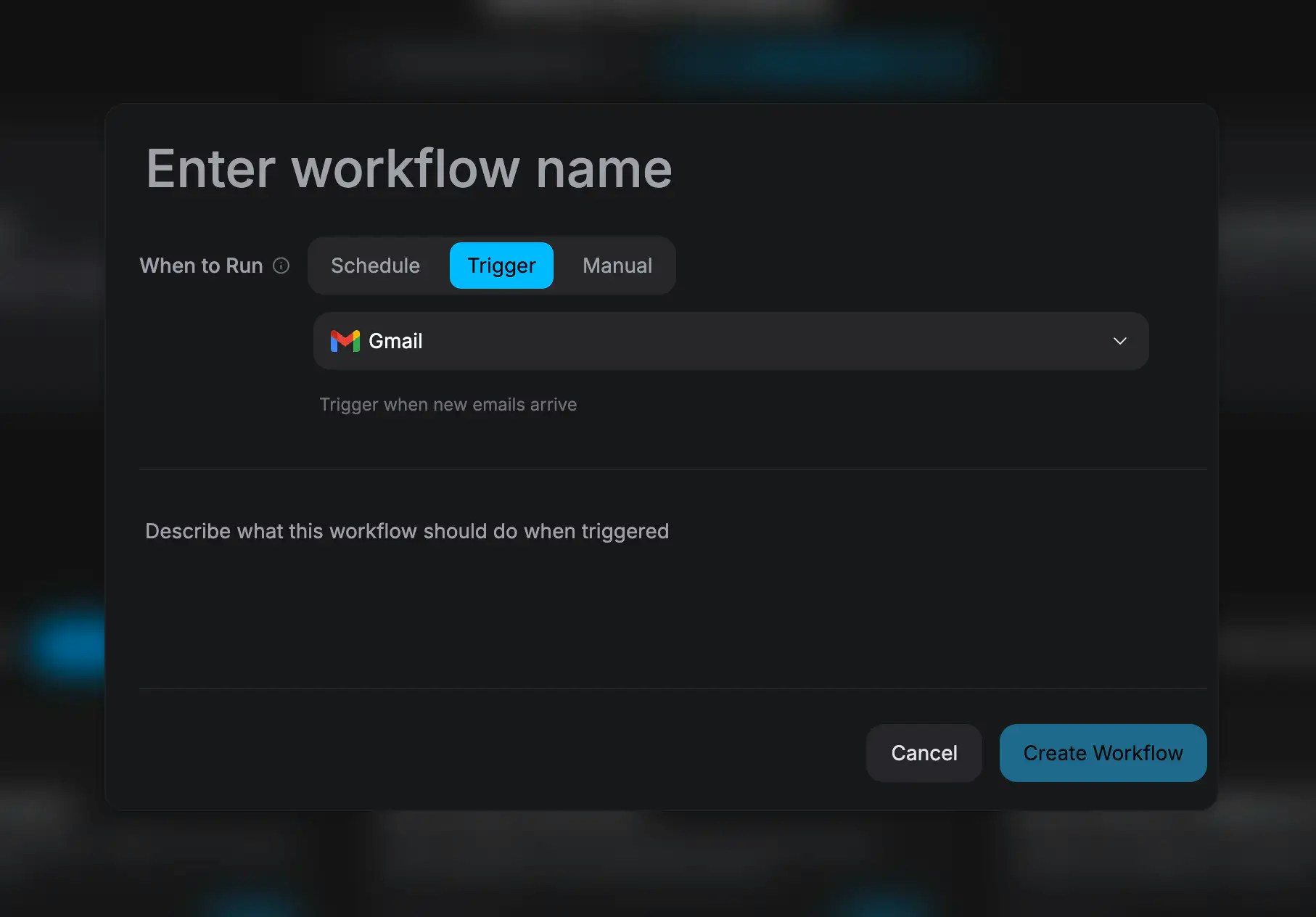
Go to the **Workflows** page and click **Create Workflow**. Give it a clear title and specific instructions, then run it at least once and confirm it works.
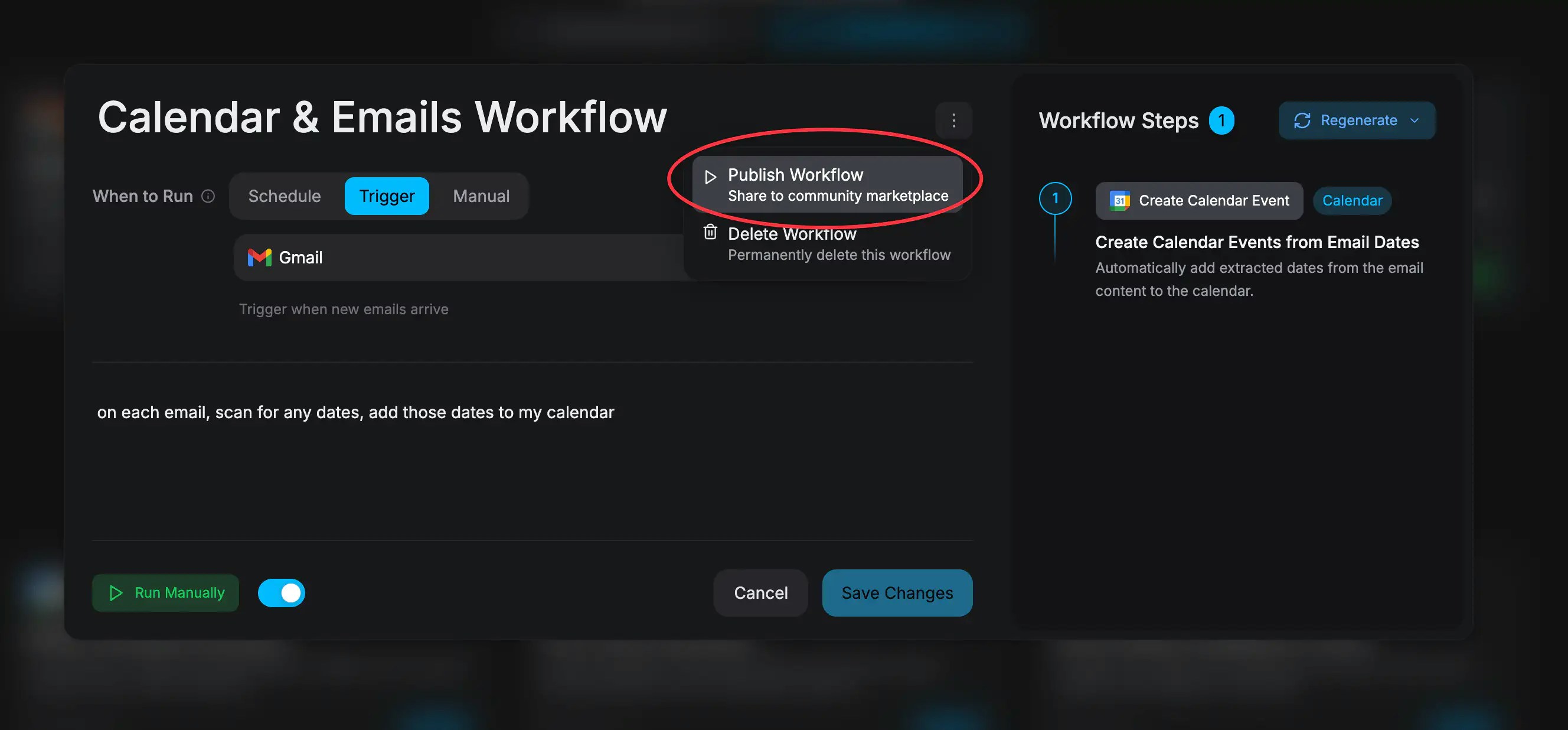
 Open your workflow, click the three-dot menu in the top-right corner, and select **Publish Workflow**. It's now live in the community marketplace.
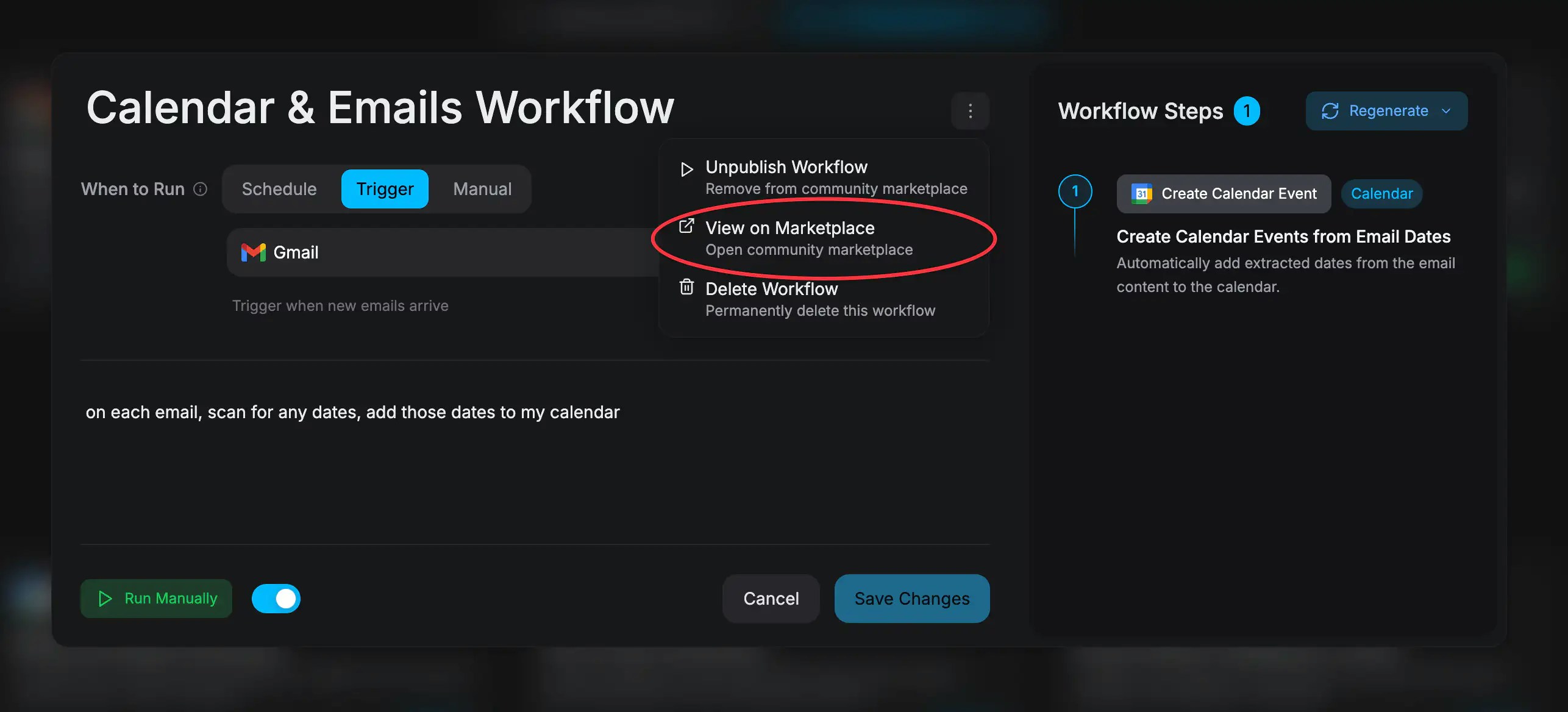
 Select **View on Marketplace** from the same menu to see how it looks to other users.
 Specific titles get more installs. "Daily Sales Report from HubSpot to Slack"
tells users exactly what they're getting. "Sales Report" tells them nothing.
Name the apps, the trigger, and the output.
To take it down: open the workflow, click the three-dot menu, and select **Unpublish Workflow**. It leaves the community listing right away and stays in your personal workflows.
## Publish an integration
Built a custom MCP connection others would find useful? Connect it via **Settings > Integrations** (see [Adding MCP Integrations](/guides/adding-mcp-integrations)), verify its tools work in chat, then open the integration details and select **Publish**. GAIA validates it, assigns a category, and adds it to the public directory with your name as the creator.
Your integration must meet these requirements:
* **Connected and working**, the MCP server must be active with at least one tool imported.
* **Name**, between 3 and 100 characters.
* **Description**, optional, but worth writing. Maximum 500 characters.
* **No profanity**, names and descriptions are checked automatically.
* **You are the creator**, only the user who originally added the integration can publish it.
Make sure your MCP server is stable and publicly accessible before you
publish. If it goes down, everyone who installed your integration loses
access to its tools.
To unpublish: open the integration details and select **Unpublish**. Users who already installed it keep their copy, but it won't appear for new users.
## Community guidelines
Your content must:
* **Solve a real problem.** Automate a genuine task or connect a tool others actually use.
* **Have accurate titles and descriptions.** People decide whether to install based on these.
* **Work reliably.** Test before you publish. If your workflow depends on specific integrations, mention them in the description.
* **Respect privacy.** Never publish anything that collects, exposes, or misuses other users' data.
Your content must not contain offensive language, impersonate other users or services, spam the marketplace with duplicate or low-quality listings, or ask users to share credentials outside GAIA's built-in authentication.
Content that violates these guidelines may be removed from the marketplace
without notice.
## Quick reference
| Action | Where | How |
| ------------------------------- | -------------------------------------------------------- | --------------------------------- |
| Publish a workflow | Workflow detail > three-dot menu | Select **Publish Workflow** |
| Unpublish a workflow | Workflow detail > three-dot menu | Select **Unpublish Workflow** |
| Publish an integration | Integration detail page | Select **Publish** |
| Unpublish an integration | Integration detail page | Select **Unpublish** |
| Browse community workflows | Workflows page | Scroll to **Community Workflows** |
| Browse community integrations | [heygaia.io/marketplace](https://heygaia.io/marketplace) | Search, filter, and sort |
| Install a community integration | Marketplace listing | Click **Add** |
Specific titles get more installs. "Daily Sales Report from HubSpot to Slack"
tells users exactly what they're getting. "Sales Report" tells them nothing.
Name the apps, the trigger, and the output.
To take it down: open the workflow, click the three-dot menu, and select **Unpublish Workflow**. It leaves the community listing right away and stays in your personal workflows.
## Publish an integration
Built a custom MCP connection others would find useful? Connect it via **Settings > Integrations** (see [Adding MCP Integrations](/guides/adding-mcp-integrations)), verify its tools work in chat, then open the integration details and select **Publish**. GAIA validates it, assigns a category, and adds it to the public directory with your name as the creator.
Your integration must meet these requirements:
* **Connected and working**, the MCP server must be active with at least one tool imported.
* **Name**, between 3 and 100 characters.
* **Description**, optional, but worth writing. Maximum 500 characters.
* **No profanity**, names and descriptions are checked automatically.
* **You are the creator**, only the user who originally added the integration can publish it.
Make sure your MCP server is stable and publicly accessible before you
publish. If it goes down, everyone who installed your integration loses
access to its tools.
To unpublish: open the integration details and select **Unpublish**. Users who already installed it keep their copy, but it won't appear for new users.
## Community guidelines
Your content must:
* **Solve a real problem.** Automate a genuine task or connect a tool others actually use.
* **Have accurate titles and descriptions.** People decide whether to install based on these.
* **Work reliably.** Test before you publish. If your workflow depends on specific integrations, mention them in the description.
* **Respect privacy.** Never publish anything that collects, exposes, or misuses other users' data.
Your content must not contain offensive language, impersonate other users or services, spam the marketplace with duplicate or low-quality listings, or ask users to share credentials outside GAIA's built-in authentication.
Content that violates these guidelines may be removed from the marketplace
without notice.
## Quick reference
| Action | Where | How |
| ------------------------------- | -------------------------------------------------------- | --------------------------------- |
| Publish a workflow | Workflow detail > three-dot menu | Select **Publish Workflow** |
| Unpublish a workflow | Workflow detail > three-dot menu | Select **Unpublish Workflow** |
| Publish an integration | Integration detail page | Select **Publish** |
| Unpublish an integration | Integration detail page | Select **Unpublish** |
| Browse community workflows | Workflows page | Scroll to **Community Workflows** |
| Browse community integrations | [heygaia.io/marketplace](https://heygaia.io/marketplace) | Search, filter, and sort |
| Install a community integration | Marketplace listing | Click **Add** |