> ## Documentation Index
> Fetch the complete documentation index at: https://docs.heygaia.io/llms.txt
> Use this file to discover all available pages before exploring further.

# Managing Email

> Read, draft, and organize your inbox by chatting with GAIA

export const Chat = ({messages = []}) => {
  const css = `
.docs-imsg-list {
  display: flex;
  flex-direction: column;
  gap: 4px;
  margin: 1.25rem 0;
}
.docs-imsg-bubble {
  word-wrap: break-word;
  line-height: 24px;
  position: relative;
  padding: 8px 20px;
  max-width: 85%;
  border-radius: 20px;
  font-size: 0.875rem;
  white-space: pre-line;
}
.docs-imsg-bubble::before {
  content: "";
  position: absolute;
  bottom: 0;
  width: 20px;
  height: 18px;
}
.docs-imsg-from-them {
  background: #27272a;
  color: #fafafa;
  align-self: flex-start;
}
.docs-imsg-from-them::before {
  left: -7px;
  background-color: #27272a;
  clip-path: path("M 20 0 L 20 2 A 16 16 0 0 1 4 18 L 0 18 L 0 17.54 A 10 10 0 0 0 7 8 L 7 0 Z");
}
.docs-imsg-from-me {
  color: black;
  background: #00bbff;
  align-self: flex-end;
}
.docs-imsg-from-me::before {
  right: -7px;
  background-color: #00bbff;
  clip-path: path("M 0 0 L 0 2 A 16 16 0 0 0 16 18 L 20 18 L 20 17.54 A 10 10 0 0 1 13 8 L 13 0 Z");
}
.docs-imsg-no-tail::before {
  display: none;
}
.docs-imsg-group-gap {
  margin-top: 8px;
}
`;
  return <div className="docs-imsg-list not-prose">
      <style>{css}</style>
      {messages.map((msg, idx) => {
    const from = msg.from === "user" ? "me" : "them";
    const next = messages[idx + 1];
    const prev = messages[idx - 1];
    const lastOfGroup = !next || next.from !== msg.from;
    const newGroup = prev && prev.from !== msg.from;
    const classes = ["docs-imsg-bubble", `docs-imsg-from-${from}`, lastOfGroup ? "" : "docs-imsg-no-tail", newGroup ? "docs-imsg-group-gap" : ""].filter(Boolean).join(" ");
    return <div key={idx} className={classes}>
            {msg.text}
          </div>;
  })}
    </div>;
};

Handle your whole inbox from chat, read, search, reply, label, and let GAIA triage new mail in the background. You never have to open Gmail unless you want to.

## Reading your inbox

Ask for what you want to see. The more specific you are, the better the result.

<Chat
  messages={[
{ from: "user", text: "find emails from sarah@acme.com about the Q3 proposal" },
{ from: "gaia", text: "Found 6 emails from Sarah about the Q3 proposal." },
{ from: "user", text: "actually, only the ones with attachments" },
{ from: "gaia", text: "Two have attachments. The latest is from Tuesday." },
]}
/>

More things you can ask:

* "show me my latest 5 emails"
* "do I have any unread emails from this week?"
* "show me the full thread with David about the partnership deal"

GAIA uses Gmail search syntax under the hood, so you can filter by sender, date range, label, read status, attachments, and more.

<Note>
  When fetching full email content, GAIA limits results to 30 messages at a
  time to keep responses fast. If you need more, ask for the next page.
</Note>

## Drafting and sending

GAIA is draft-first: when you ask it to write an email, it saves a Gmail draft for you to review. Nothing sends unless you explicitly say so.

<Chat
  messages={[
{ from: "user", text: "reply to Sarah's email saying I'll have the report by Friday" },
{ from: "gaia", text: "I've saved a draft in Gmail. Want me to send it?" },
{ from: "user", text: "make it shorter and more casual" },
{ from: "gaia", text: "Done, the draft is updated." },
{ from: "user", text: "ok, send it" },
{ from: "gaia", text: "Sent." },
]}
/>

You can manage drafts the same way:

<Chat
  messages={[
{ from: "user", text: "show me my drafts" },
{ from: "user", text: "update my draft to Sarah, change the meeting time to 3 PM" },
{ from: "gaia", text: "Updated, the draft to Sarah now says 3 PM." },
{ from: "user", text: "delete the draft I just created" },
]}
/>

<Warning>
  GAIA only sends an email if you explicitly ask it to. Otherwise it saves a
  draft you can review and edit in Gmail.
</Warning>

## Organizing

Keep your inbox clean without opening Gmail.

<Chat
  messages={[
{ from: "user", text: "trash the marketing email from this morning" },
{ from: "gaia", text: "Done, it's in the trash." },
{ from: "user", text: "restore the email I just trashed" },
{ from: "gaia", text: "Restored, it's back in your inbox." },
]}
/>

Labels work the same way: "create a label called 'Client Projects'", "add the 'Urgent' label to the last 3 emails from my manager".

GAIA can also look up contacts from your Google account:

<Chat
  messages={[
{ from: "user", text: "find the email address for Jessica Chen" },
{ from: "gaia", text: "Found her in your Google contacts, here's her email address." },
{ from: "user", text: "look up contacts at acme.com" },
]}
/>

## Background workflows

When you connect Gmail, GAIA sets up two background workflows. Turn them on or customize them from the **Workflows** page.

**Inbox triage** checks your inbox every 15 minutes. It classifies each new email (spam, transactional, newsletter, informational, important, action-required), skips the noise, pulls action items and deadlines from important mail, creates todos for follow-ups, and sends you a brief summary.

**Auto-draft replies** checks every 30 minutes. GAIA spots emails that need a response, direct questions, requests, meeting invites, introductions, and saves draft replies in Gmail. Newsletters, automated notifications, and threads you've already replied to are skipped. Drafts are never sent automatically.

<Tip>
  You can adjust the polling interval or turn these workflows off entirely
  from the Workflows page.
</Tip>

## Getting better results

* **Name people and topics.** "Find the thread with Alex about the API migration" beats "find that email from last week."
* **Say send when you mean send.** "Send an email to Jordan saying the contract is signed" sends it; anything else stays a draft.
* **Chain email with other tools.** "Check my calendar for tomorrow, then email the attendees a summary of the agenda" works in one request.
* **Let workflows handle the routine.** Use chat for one-off tasks; let inbox triage surface what matters.

<Note>
  GAIA learns your writing style and sender context over time through its
  memory system, so drafts increasingly match your voice.
</Note>

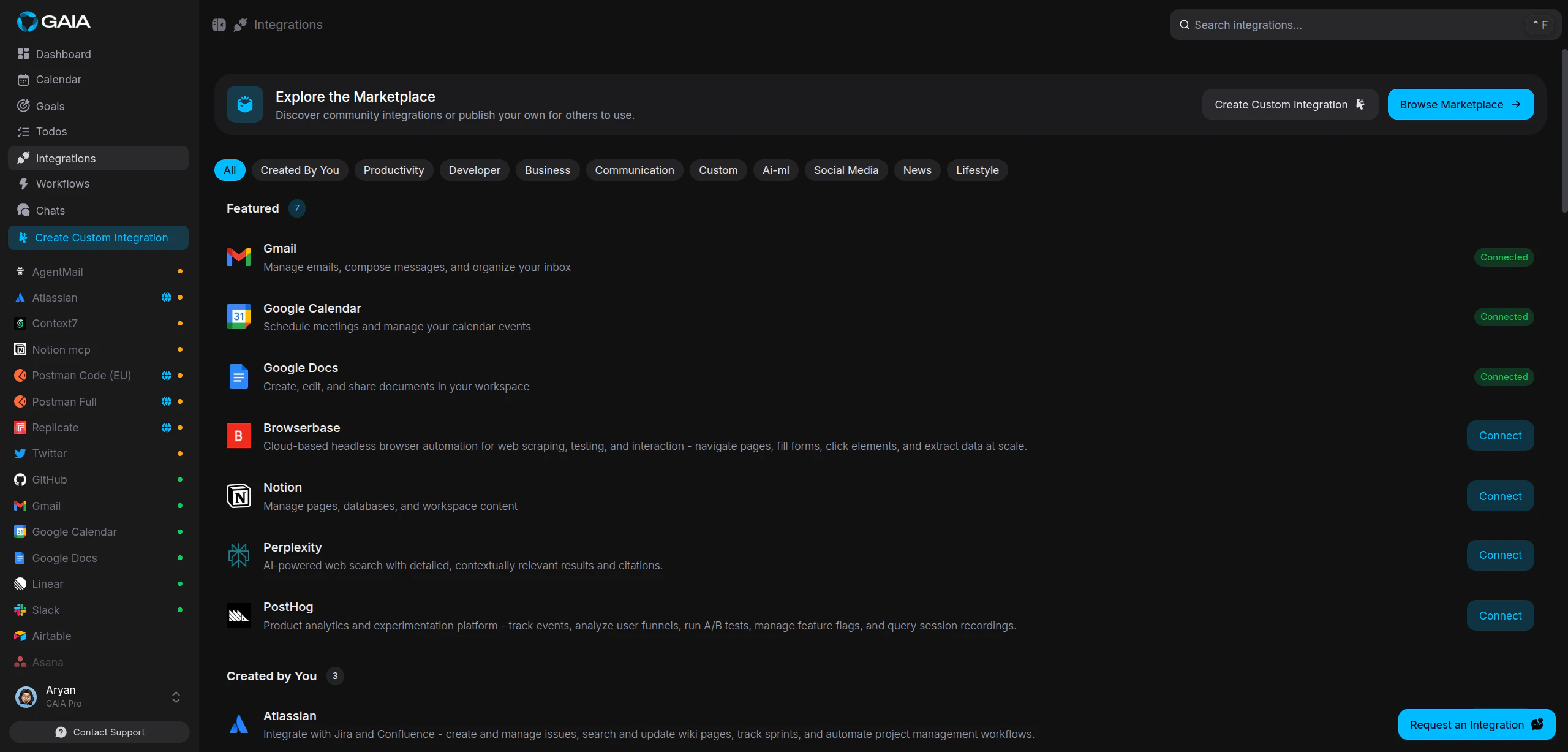
## If Gmail isn't connected yet

You only need to do this once.

<Steps>
  <Step title="Open Integrations">
    Go to **Settings > Integrations** from the sidebar. Find **Gmail** under
    the Communication category.
  </Step>

  <Step title="Connect and authorize">
    Click **Connect**, sign in to your Google account, and grant GAIA the
    requested permissions. You'll be redirected back automatically.
  </Step>

  <Step title="Ask for what you need">
    That's it, go back to chat and ask about your email.
  </Step>
</Steps>

<Frame>
  <img className="rounded-lg" src="https://mintcdn.com/gaia-a3e7b78f/Ux6Bh-ihODqtVzXm/images/guides/integrations/integrations-page.png?fit=max&auto=format&n=Ux6Bh-ihODqtVzXm&q=85&s=1687d9d4d4f3ed02f96abe78d6704307" alt="Integrations page, find Gmail under the Communication category to connect your account" width="2560" height="1227" data-path="images/guides/integrations/integrations-page.png" />
</Frame>

<Tip>
  For a full walkthrough of the connection process, see the [Connecting
  Integrations](/guides/connecting-integrations) guide.
</Tip>