> ## Documentation Index
> Fetch the complete documentation index at: https://docs.heygaia.io/llms.txt
> Use this file to discover all available pages before exploring further.

# Connecting Integrations

> Link your apps so GAIA can read context and take action for you

export const Chat = ({messages = []}) => {
  const css = `
.docs-imsg-list {
  display: flex;
  flex-direction: column;
  gap: 4px;
  margin: 1.25rem 0;
}
.docs-imsg-bubble {
  word-wrap: break-word;
  line-height: 24px;
  position: relative;
  padding: 8px 20px;
  max-width: 85%;
  border-radius: 20px;
  font-size: 0.875rem;
  white-space: pre-line;
}
.docs-imsg-bubble::before {
  content: "";
  position: absolute;
  bottom: 0;
  width: 20px;
  height: 18px;
}
.docs-imsg-from-them {
  background: #27272a;
  color: #fafafa;
  align-self: flex-start;
}
.docs-imsg-from-them::before {
  left: -7px;
  background-color: #27272a;
  clip-path: path("M 20 0 L 20 2 A 16 16 0 0 1 4 18 L 0 18 L 0 17.54 A 10 10 0 0 0 7 8 L 7 0 Z");
}
.docs-imsg-from-me {
  color: black;
  background: #00bbff;
  align-self: flex-end;
}
.docs-imsg-from-me::before {
  right: -7px;
  background-color: #00bbff;
  clip-path: path("M 0 0 L 0 2 A 16 16 0 0 0 16 18 L 20 18 L 20 17.54 A 10 10 0 0 1 13 8 L 13 0 Z");
}
.docs-imsg-no-tail::before {
  display: none;
}
.docs-imsg-group-gap {
  margin-top: 8px;
}
`;
  return <div className="docs-imsg-list not-prose">
      <style>{css}</style>
      {messages.map((msg, idx) => {
    const from = msg.from === "user" ? "me" : "them";
    const next = messages[idx + 1];
    const prev = messages[idx - 1];
    const lastOfGroup = !next || next.from !== msg.from;
    const newGroup = prev && prev.from !== msg.from;
    const classes = ["docs-imsg-bubble", `docs-imsg-from-${from}`, lastOfGroup ? "" : "docs-imsg-no-tail", newGroup ? "docs-imsg-group-gap" : ""].filter(Boolean).join(" ");
    return <div key={idx} className={classes}>
            {msg.text}
          </div>;
  })}
    </div>;
};

The more apps you connect, the less you have to explain. A connected integration gives GAIA two things: context (your emails, events, tasks, messages) and the ability to act, draft replies, create issues, schedule meetings, update tasks, without you switching tabs.

## Connect an integration

<Steps>
  <Step title="Open the Integrations page">
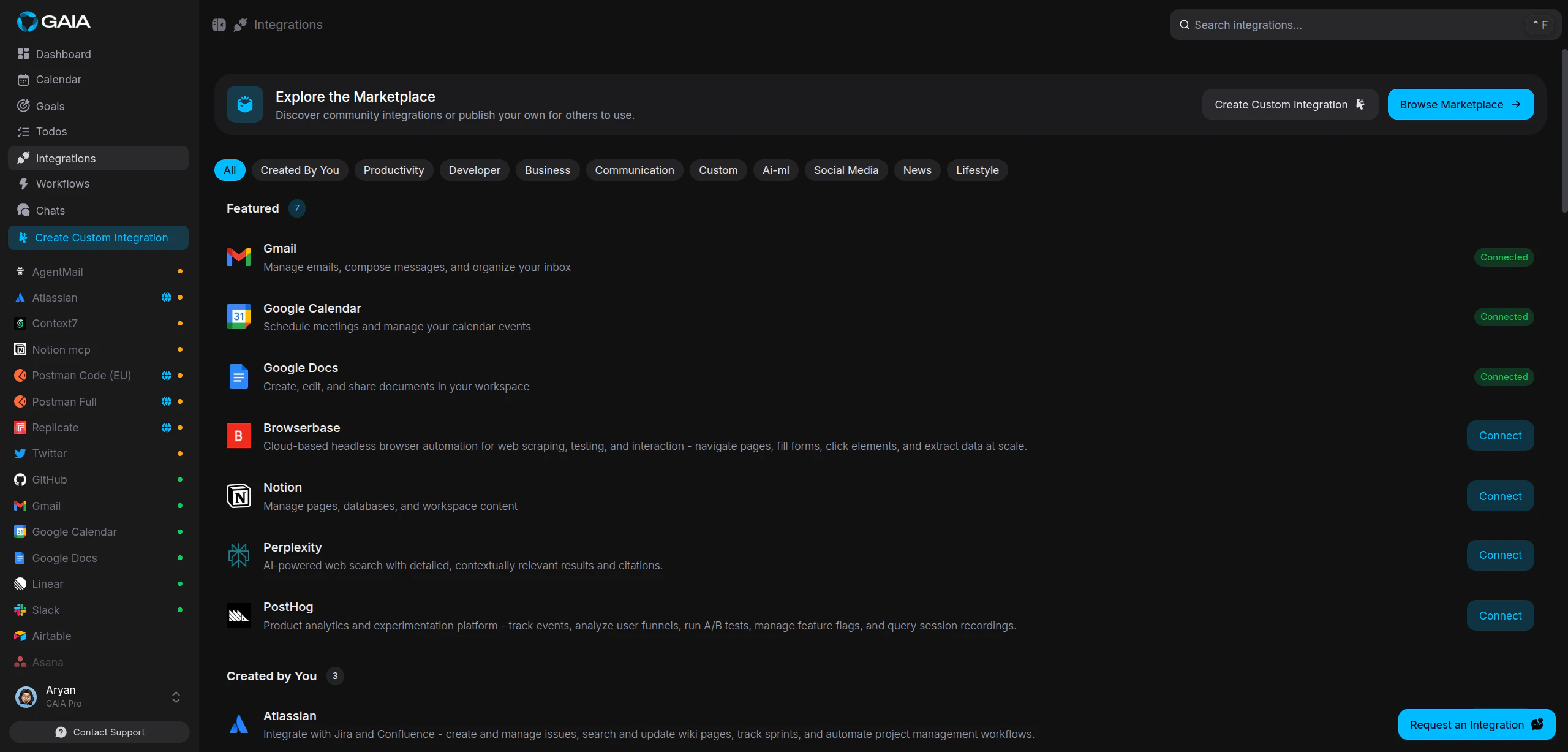
    Go to **Settings > Integrations** in the sidebar. Integrations are organized by category, with connection status shown on each card.

    <Frame>
      <img className="rounded-lg" src="https://mintcdn.com/gaia-a3e7b78f/Ux6Bh-ihODqtVzXm/images/guides/integrations/integrations-page.png?fit=max&auto=format&n=Ux6Bh-ihODqtVzXm&q=85&s=1687d9d4d4f3ed02f96abe78d6704307" alt="Integrations page showing available apps" width="2560" height="1227" data-path="images/guides/integrations/integrations-page.png" />
    </Frame>
  </Step>

  <Step title="Find the app and click Connect">
    Browse by category or search for the app. Click **Connect**, most
    integrations open the app's authorization page in your browser.
  </Step>

  <Step title="Authorize access">
    Sign in if needed, review the permissions, and click **Allow**. You'll land
    back in GAIA automatically.
  </Step>

  <Step title="Confirm the connection">
    A green dot on the card means it's connected. GAIA will use the app whenever it's relevant to your request.
  </Step>
</Steps>

<Tip>
  You can also connect from the chat sidebar, expand the **Integrations**
  section to add apps without leaving the conversation.
</Tip>

## Use it right away

Connected integrations work in chat immediately, no extra setup. After connecting Gmail, for example:

<Chat
  messages={[
{ from: "user", text: "Find all unread emails from this week about the Q3 report" },
{ from: "gaia", text: "Found 4 unread emails about the Q3 report from this week." },
]}
/>

Or: "Draft a reply to the last email from Sarah", "Send a summary of today's meetings to the team".

GAIA picks the right tool based on what you ask.

## Available integrations

GAIA supports 60+ integrations across communication, productivity, developer, and business tools. See the [Integrations overview](/integrations) for the categories, or browse the full list under **Settings > Integrations** in the app.

## Disconnect or reconnect

To disconnect, open the integration's detail view and click **Disconnect**. GAIA loses access immediately and keeps no data from the connection.

Some integrations use tokens that expire. If a connection stops working or shows an error, disconnect and click **Connect** again, that fixes most problems caused by expired or revoked tokens.

## Community marketplace

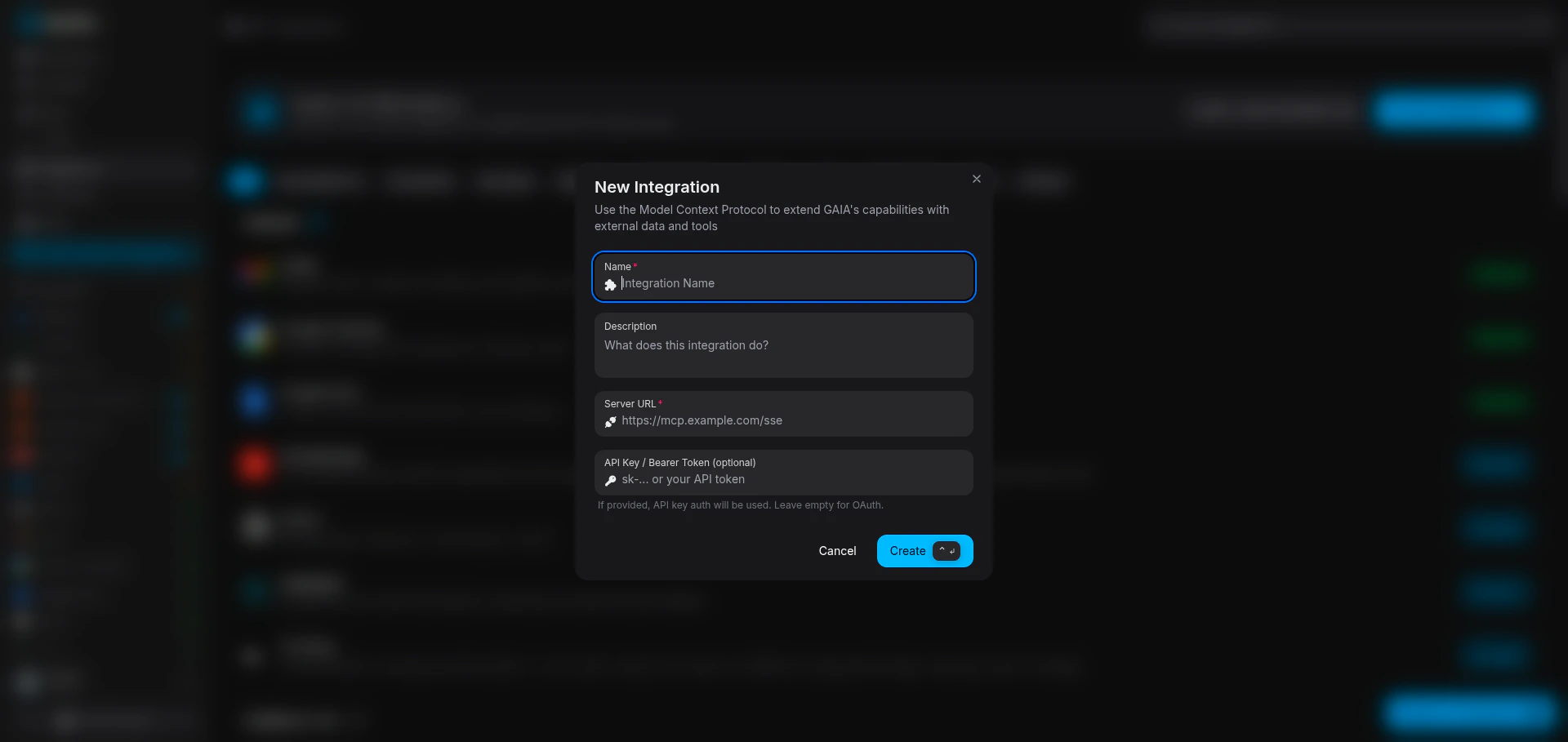
You can ignore this unless a tool you need isn't in the built-in list. Someone may have already built it on the community marketplace, and you can build your own with the MCP protocol and publish it for others.

<Frame>
  <img className="rounded-lg" src="https://mintcdn.com/gaia-a3e7b78f/Ux6Bh-ihODqtVzXm/images/guides/integrations/create-custom-integration-modal.png?fit=max&auto=format&n=Ux6Bh-ihODqtVzXm&q=85&s=37e8e6324ec7d5cb520ddb88dc5b68ec" alt="Custom integration modal for adding MCP integrations" width="1920" height="909" data-path="images/guides/integrations/create-custom-integration-modal.png" />
</Frame>

<CardGroup cols={2}>
  <Card title="Browse the Marketplace" icon="store" href="https://heygaia.io/marketplace">
    Find community-built integrations for niche tools and workflows.
  </Card>

  <Card title="Build a Custom Integration" icon="hammer" href="/guides/adding-mcp-integrations">
    Connect any tool using the MCP protocol and the developer API.
  </Card>
</CardGroup>

<Tip>Search the marketplace before building, the work may already be done.</Tip>