> ## Documentation Index
> Fetch the complete documentation index at: https://docs.heygaia.io/llms.txt
> Use this file to discover all available pages before exploring further.

# Building Your First Workflow

> Write a prompt once, pick when it runs, and GAIA handles it from there

export const Chat = ({messages = []}) => {
  const css = `
.docs-imsg-list {
  display: flex;
  flex-direction: column;
  gap: 4px;
  margin: 1.25rem 0;
}
.docs-imsg-bubble {
  word-wrap: break-word;
  line-height: 24px;
  position: relative;
  padding: 8px 20px;
  max-width: 85%;
  border-radius: 20px;
  font-size: 0.875rem;
  white-space: pre-line;
}
.docs-imsg-bubble::before {
  content: "";
  position: absolute;
  bottom: 0;
  width: 20px;
  height: 18px;
}
.docs-imsg-from-them {
  background: #27272a;
  color: #fafafa;
  align-self: flex-start;
}
.docs-imsg-from-them::before {
  left: -7px;
  background-color: #27272a;
  clip-path: path("M 20 0 L 20 2 A 16 16 0 0 1 4 18 L 0 18 L 0 17.54 A 10 10 0 0 0 7 8 L 7 0 Z");
}
.docs-imsg-from-me {
  color: black;
  background: #00bbff;
  align-self: flex-end;
}
.docs-imsg-from-me::before {
  right: -7px;
  background-color: #00bbff;
  clip-path: path("M 0 0 L 0 2 A 16 16 0 0 0 16 18 L 20 18 L 20 17.54 A 10 10 0 0 1 13 8 L 13 0 Z");
}
.docs-imsg-no-tail::before {
  display: none;
}
.docs-imsg-group-gap {
  margin-top: 8px;
}
`;
  return <div className="docs-imsg-list not-prose">
      <style>{css}</style>
      {messages.map((msg, idx) => {
    const from = msg.from === "user" ? "me" : "them";
    const next = messages[idx + 1];
    const prev = messages[idx - 1];
    const lastOfGroup = !next || next.from !== msg.from;
    const newGroup = prev && prev.from !== msg.from;
    const classes = ["docs-imsg-bubble", `docs-imsg-from-${from}`, lastOfGroup ? "" : "docs-imsg-no-tail", newGroup ? "docs-imsg-group-gap" : ""].filter(Boolean).join(" ");
    return <div key={idx} className={classes}>
            {msg.text}
          </div>;
  })}
    </div>;
};

Workflows let you stop repeating yourself. Describe a task once in plain language, pick when it runs, and GAIA takes care of it, every day, on an event, or whenever you click run.

## What to say

A workflow is just a prompt that runs on a trigger. Write it the way you'd write any message, be specific about what to look at, what to do, and where the output goes:

<Chat
  messages={[
{ from: "user", text: "Pull yesterday's key metrics from PostHog, active users, signups, and retention, and send a formatted summary to the #metrics Slack channel." },
{ from: "gaia", text: "Created. It'll run every morning and post to #metrics." },
]}
/>

A few more prompts that make great workflows:

* "Check my unread emails, extract any action items, and create a todo for each one."
* "Look at all merged PRs and commits from the past week across our repos. Summarize them into standup notes grouped by project."

And if you find yourself asking GAIA for the same thing over and over in chat:

<Chat
  messages={[
{ from: "user", text: "turn this into a workflow" },
{ from: "gaia", text: "Here's a draft workflow with the title, trigger, and instructions filled in, click the card to review and create it." },
]}
/>

GAIA drafts one with a title, description, trigger, and instructions already filled in. Click the draft card, check it looks right, and create it.

## Pick a trigger

Every workflow needs a trigger, the condition that tells GAIA when to run.

<CardGroup cols={3}>
  <Card title="Schedule" icon="clock">
    Run on a recurring schedule. Every day at 9am, every Monday morning, the 1st
    of each month, you set the cadence.
  </Card>

  <Card title="Trigger" icon="bolt">
    Run when something happens in a connected app. A new calendar event, an
    incoming email, a GitHub pull request, a Slack message, GAIA watches and
    reacts.
  </Card>

  <Card title="Manual" icon="hand-pointer">
    Run on-demand whenever you click **Run**. For workflows you want to control
    yourself.
  </Card>
</CardGroup>

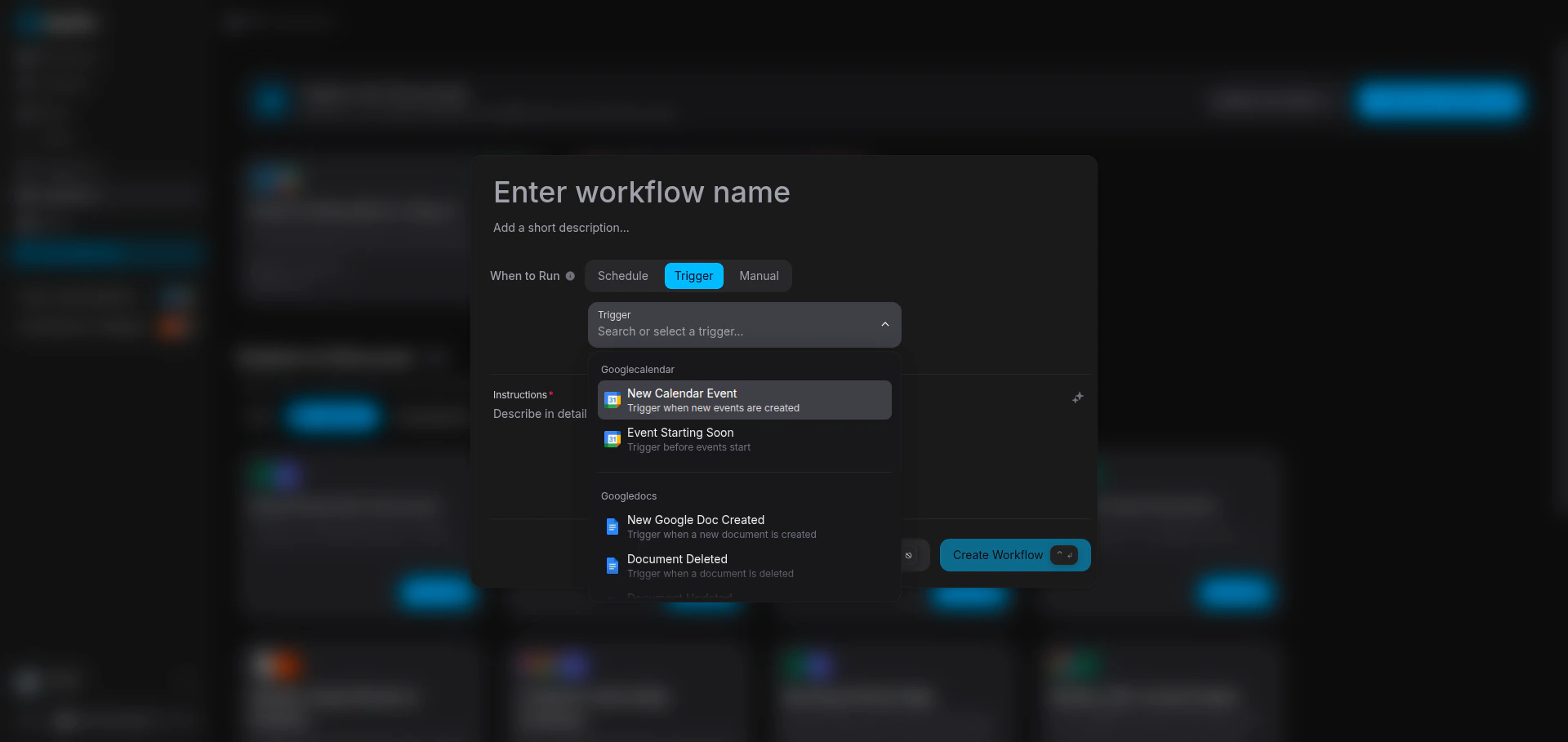
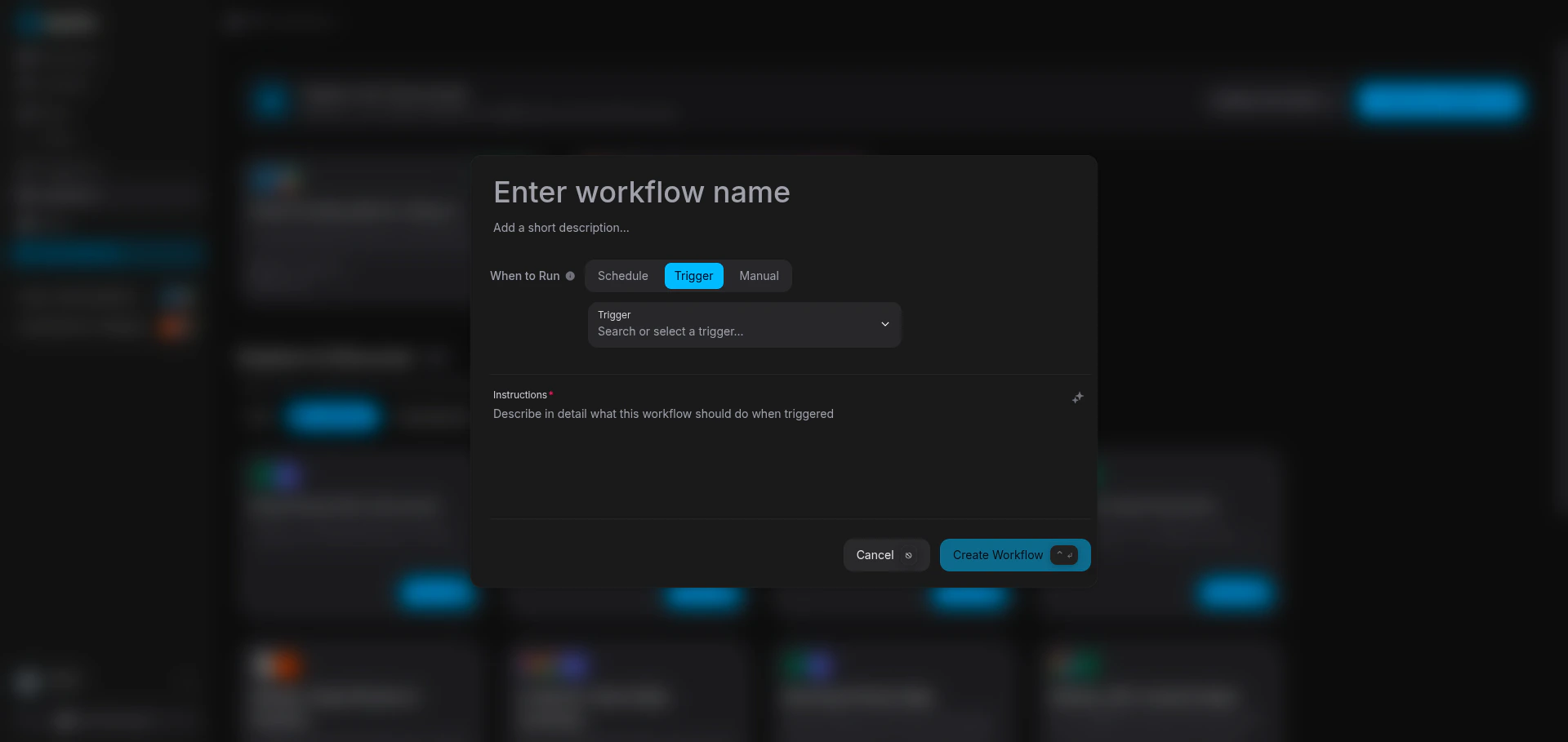
App triggers are available for Google Calendar, Gmail, Google Docs, Google Sheets, GitHub, Slack, Linear, Notion, Asana, and Todoist.

## Create it

<Steps>
  <Step title="Open the Workflows page">
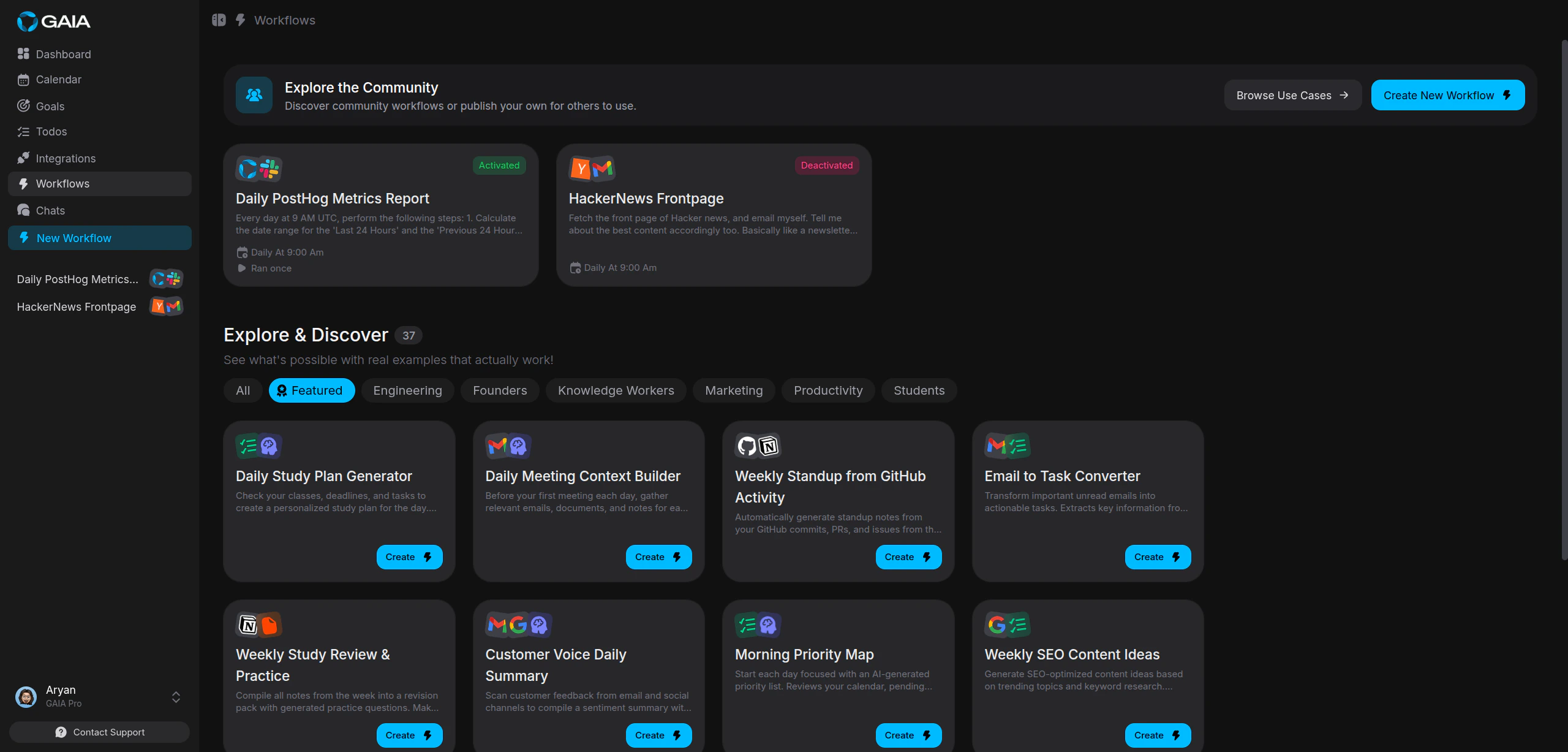
    Go to **Workflows** in the sidebar and click **Create Workflow**.

    <Frame>
      <img className="rounded-lg" src="https://mintcdn.com/gaia-a3e7b78f/Ux6Bh-ihODqtVzXm/images/guides/workflows/workflows-page.png?fit=max&auto=format&n=Ux6Bh-ihODqtVzXm&q=85&s=b91eaa39e651c7f94feace8dfc7317e9" alt="Workflows page showing existing workflows and create button" width="2560" height="1227" data-path="images/guides/workflows/workflows-page.png" />
    </Frame>
  </Step>

  <Step title="Name it and pick a trigger">
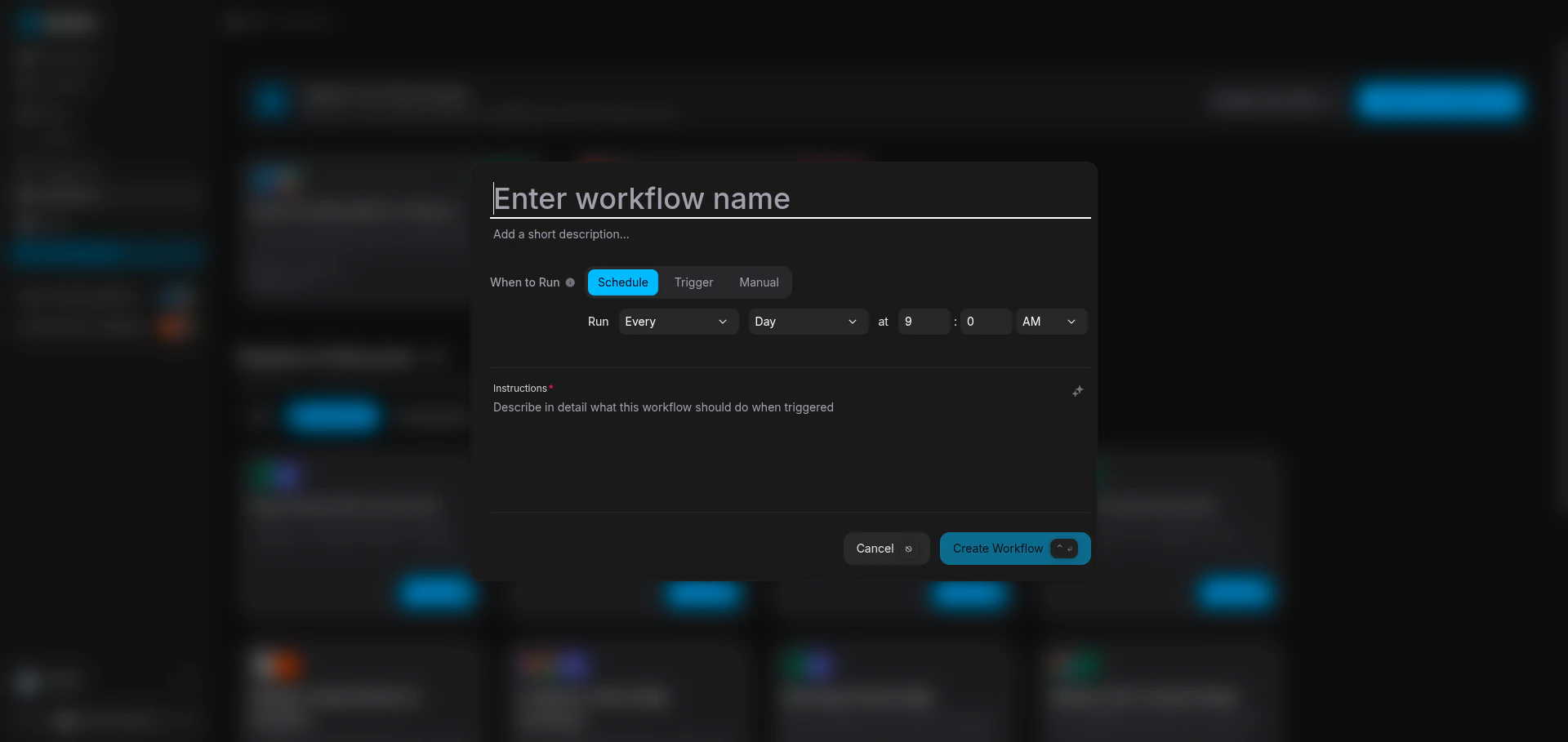
    Give it a title that makes it obvious what it does, then pick one of the three tabs: **Schedule**, **Trigger**, or **Manual**.

    **Schedule** defaults to daily at 9:00 AM in your local timezone, choose daily, weekly, or monthly and GAIA handles the cron expression for you.

    <Frame>
      <img className="rounded-lg" src="https://mintcdn.com/gaia-a3e7b78f/Ux6Bh-ihODqtVzXm/images/guides/workflows/create-workflow-schedule.png?fit=max&auto=format&n=Ux6Bh-ihODqtVzXm&q=85&s=64cc585ea74055475f0affd102eb1587" alt="Create workflow modal with Schedule tab selected" width="1920" height="909" data-path="images/guides/workflows/create-workflow-schedule.png" />
    </Frame>

    **Trigger** lets you pick an event from a connected app to watch for.
    <Frame>
      <img className="rounded-lg" src="https://mintcdn.com/gaia-a3e7b78f/Ux6Bh-ihODqtVzXm/images/guides/workflows/create-workflow-trigger.png?fit=max&auto=format&n=Ux6Bh-ihODqtVzXm&q=85&s=286a6686e85524226fe6819d6a16c83f" alt="Create workflow modal with Trigger tab selected" width="1920" height="909" data-path="images/guides/workflows/create-workflow-trigger.png" />
    </Frame>

    <Frame>
      <img className="rounded-lg" src="https://mintcdn.com/gaia-a3e7b78f/Ux6Bh-ihODqtVzXm/images/guides/workflows/create-workflow-trigger-suggestions.png?fit=max&auto=format&n=Ux6Bh-ihODqtVzXm&q=85&s=2ec14246c97a94748c75df66ac41bd74" alt="Trigger dropdown showing available integration triggers" width="1920" height="909" data-path="images/guides/workflows/create-workflow-trigger-suggestions.png" />
    </Frame>

    **Manual** needs nothing, it runs only when you click **Run**.

    <Tip>
      Use specific titles like "Daily PostHog Metrics Report", not generic
      names like "My Workflow."
    </Tip>
  </Step>

  <Step title="Write your instructions and create">
    Describe what you want in the prompt field, then click **Create Workflow**. GAIA generates the execution steps from your instructions and activates the workflow right away.
  </Step>
</Steps>

## Examples

| Workflow                            | Trigger                   | What it does                                                                   |
| ----------------------------------- | ------------------------- | ------------------------------------------------------------------------------ |
| Daily PostHog Metrics Report        | Schedule (daily, 9am)     | Pulls key product metrics from PostHog and posts a summary to Slack            |
| HackerNews Frontpage                | Schedule (daily)          | Curates the top stories from Hacker News and sends them as an email newsletter |
| Email to Task Converter             | Trigger (new email)       | Watches for unread emails, extracts action items, and creates todos            |
| Weekly Standup from GitHub Activity | Schedule (weekly, Monday) | Generates standup notes from the past week's commits and pull requests         |

## Pause and resume

Each workflow has an activation toggle in the footer of its modal. Deactivating pauses the workflow without deleting anything, turn it back on whenever you want.

<Note>
  New workflows are active by default. Deactivate one to pause it without
  losing your setup.
</Note>

## Don't want to build from scratch?

The Workflows page has an **Explore & Discover** section with community-built templates organized by category, Engineering, Founders, Marketing, and more. Any template can be added with one click.

Below that, **Community Workflows** shows workflows published by other GAIA users. Grab one as a starting point and adjust it to fit what you need. See [Publishing to the Marketplace](/guides/marketplace) to share your own.